

A Dell docking station allows you to expand your laptop's connectivity by adding external monitors, keyboards, mice, Ethernet, USB devices, and charging support. When the Dell docking station driver is not working, you may experience issues such as no display output, unresponsive USB ports, network connection failures, or the dock not charging your laptop. In most cases, these problems are caused by outdated, missing, or incompatible drivers. This guide explains the common causes and provides multiple proven solutions, starting with the most reliable method—updating your drivers—to help restore full docking station functionality.
Common Causes of Dell Docking Station Driver Not Working
Before applying additional fixes, it helps to understand why the issue occurs:
Outdated or incompatible docking station drivers
Missing USB, chipset, or Thunderbolt drivers
Graphics driver conflicts affecting external displays
Windows updates breaking driver compatibility
Faulty USB-C or Thunderbolt connection settings
Power delivery or firmware issues
Fix 1: Reinstall the Dell Docking Station Driver Manually
If the driver is corrupted, reinstalling it can resolve the issue.
Press Win + X and select Device Manager.
Expand "Universal Serial Bus controllers" or "Display adapters", right-click the docking station or related USB device and select "Uninstall device".
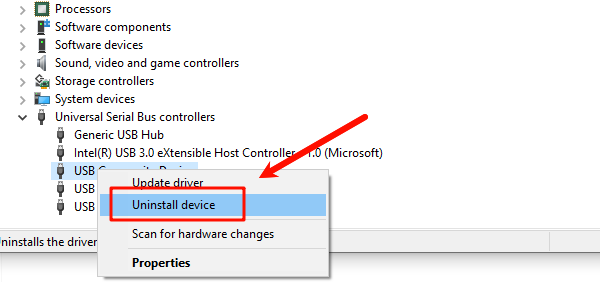
Check "Delete the driver software for this device" if available.
Restart your computer.
Reconnect the docking station and allow Windows to reinstall the driver automatically.
Fix 2: Update Graphics and USB Drivers
Docking stations rely heavily on graphics and USB drivers.
Open Device Manager.
Expand "Display adapters" and "Universal Serial Bus controllers", right-click each device and select "Update driver".
Choose "Search automatically for drivers".
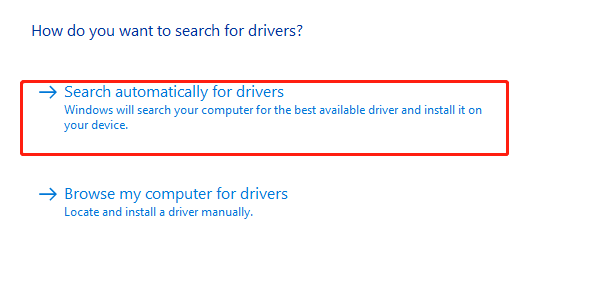
Restart your PC after updates are installed.
Updating these drivers often resolves monitor detection and USB port issues.
Fix 3: Check Thunderbolt or USB-C Settings
Many Dell docking stations use Thunderbolt or USB-C technology.
Enter BIOS by pressing F2 during startup.
Navigate to "System Configuration" or "Thunderbolt Settings".
Ensure "Thunderbolt" or "USB-C support" is enabled.
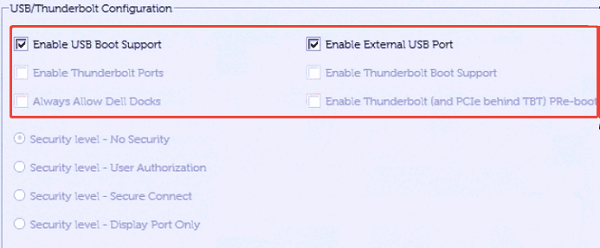
Save changes and exit BIOS.
Boot into Windows and reconnect the docking station.
Disabled Thunderbolt settings can prevent the dock from functioning.
Fix 4: Install the Latest Dell Dock Firmware
Outdated firmware can cause connection instability.
Identify your docking station model (for example, Dell WD19, WD22TB4).
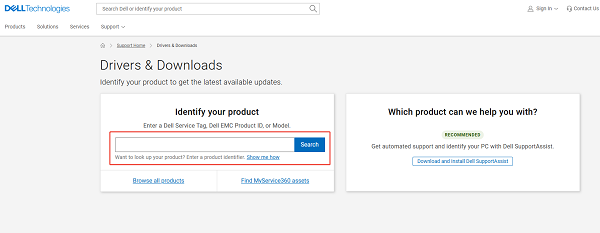
Download the latest firmware from Dell's support page.
Run the firmware installer as an administrator.
Follow on-screen instructions to complete the update.
Restart your system after installation.
Firmware updates improve compatibility with newer Windows versions.
Fix 5: Check Power and Cable Connections
Hardware issues can mimic driver problems.
Use the original Dell power adapter for the docking station.
Ensure the USB-C or Thunderbolt cable is firmly connected.
Test with a different cable if possible.
Avoid connecting the dock through hubs or adapters.
Fix 6: Roll Back Recent Windows Updates
If the issue started after a Windows update, rolling it back may help.
Go to Settings > Update & Security > Windows Update.
Click View update history.
Select "Uninstall updates".
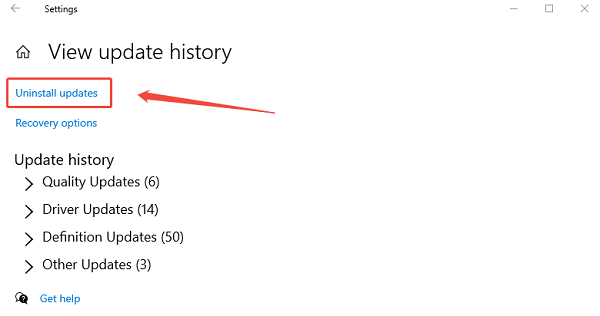
Remove the most recent update.
Restart your computer and test the docking station.
Update System Drivers
Outdated or corrupted drivers are the most common reason Dell docking stations fail to work correctly. Driver Talent X can automatically detect your dock model and install the correct drivers, reducing compatibility issues.
Download and Install:
Click the "Download" button to download the software package.
Run the installer and follow the on-screen prompts. Select the installation folder and complete the setup.
Run Scan:
Launch the application and go to "Drivers" > "Scan", click "Scan".
Wait while the tool scans system drivers, including graphics, USB controllers, Thunderbolt, network, and docking-related components.
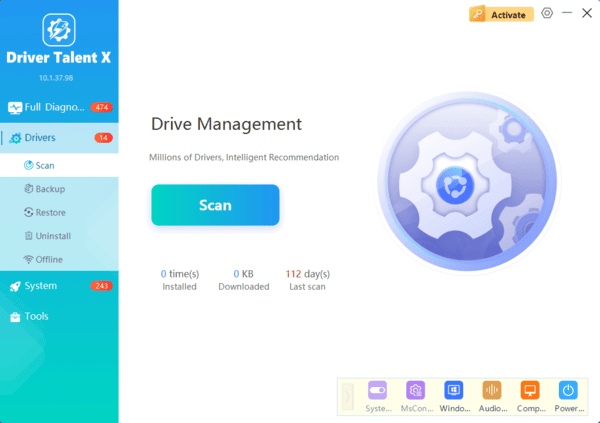
Execute Update:
After the scan is complete, the software will display a list of all drivers that need attention.
Select the necessary drivers (prioritizing the Chipset, Thunderbolt, and BIOS) and click the "Repair Now" button. Allow Driver Talent X to download and install the latest compatible drivers.
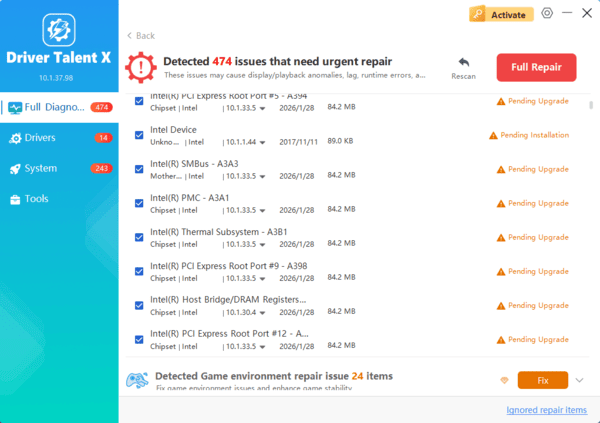
Restart Your Computer:
Restart your computer after installation to ensure changes take effect.
Reconnect the Dell docking station and check whether all ports, displays, and charging functions work properly.
This method ensures that all dock-related drivers are synchronized with your Windows version and hardware configuration.
Additional Tips for Stable Docking Station Performance
Keep Windows fully updated.
Avoid mixing third-party USB drivers with Dell docks.
Update BIOS and chipset drivers regularly.
Always disconnect the dock before major system updates.
Conclusion
When a driver for a Dell docking station is not working, the root cause is usually outdated or incompatible drivers. Updating drivers with Driver Talent X should be your first step, as it ensures all related components are properly installed and compatible.
If problems persist, reinstall drivers, update firmware, check Thunderbolt settings, and verify hardware connections. By following these steps, you can restore full docking station functionality and enjoy stable multi-device connectivity on your Dell laptop.
