

The Dell WD19 docking station is a powerful accessory that expands your laptop's connectivity by adding support for multiple monitors, USB devices, Ethernet connections, and other peripherals. However, some users may encounter issues where the Dell WD19 driver is not recognized, causing problems such as missing displays, inactive USB ports, or the docking station failing to connect properly. These errors are commonly caused by outdated drivers, firmware problems, Windows compatibility issues, or incorrect USB-C connections. This guide will explain how to troubleshoot and fix Dell WD19 driver recognition problems using Device Manager, Dell's official tools, Windows updates, and automatic driver update solutions to restore full docking station functionality.
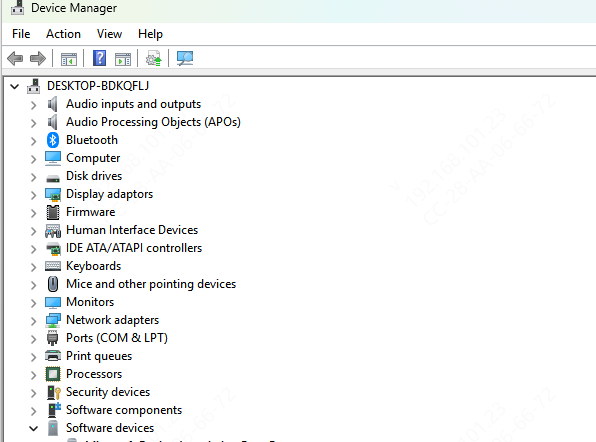
Step 1: Check Device Manager
Open Device Manager: Right-click the Start button and select Device Manager
Locate the Dell WD19: Look for the docking station under Universal Serial Bus Controllers or Display Adapters. The Dell WD19 may appear as a USB device or a display adapter
Update or Reinstall the Driver: Right-click on the Dell WD19 entry and select Update Driver
Step 2: Download Latest Drivers
If the driver isn't automatically detected or updated, manually downloading the latest drivers from Dell's website can often fix the issue.
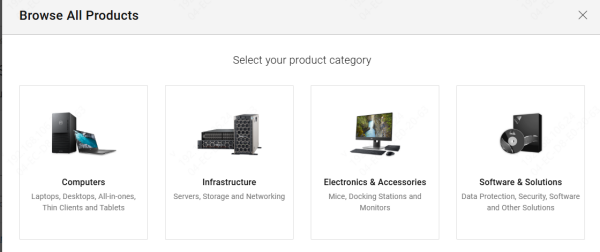
Visit Dell's Support Website
Go to Dell's official Support page
Enter the Dell WD19 model or your system's service tag to find the drivers for your docking station
Download the Latest Drivers
Find and download the latest drivers and firmware for the Dell WD19, ensuring they are compatible with your operating system
Install the Drivers
Run the downloaded installer and follow the on-screen instructions to install the updated drivers.
Restart Your System
After installation, restart your system to finalize the driver update
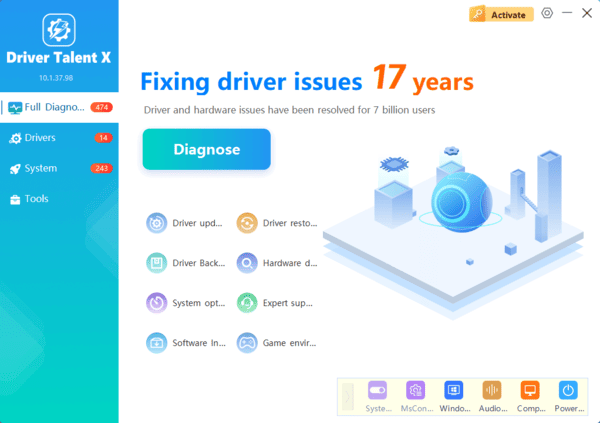
Step 3: Use Driver Talent X
For a quicker and more reliable solution to fix the "Dell WD19 driver not detected" issue, Driver Talent X can automatically scan, repair, and update all relevant drivers, including those for your Dell WD19 docking station.
Step 4: Check Driver
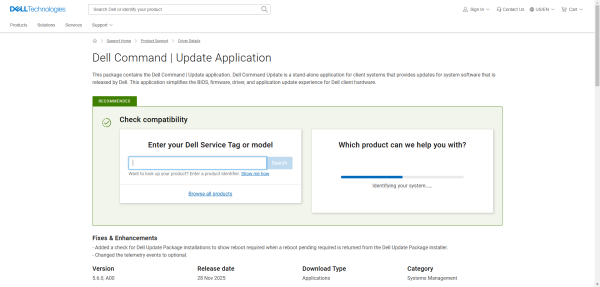
Dell Command | Update is a helpful tool for automatically detecting and updating drivers.
Download Dell Command | Update: If you haven't already installed Dell Command | Update, download it from the official Dell website
Run the Tool: Open the tool and let it scan your system for outdated drivers
Update Drivers: The tool will list any outdated drivers, including those for the Dell WD19 docking station. Allow the tool to update the drivers automatically
Step 5: Use Windows Update
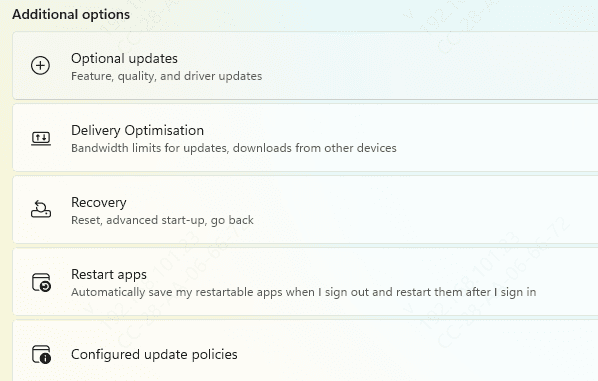
Windows Update may offer necessary updates for drivers, including those for your Dell WD19 docking station.
Open Windows Update: Go to Settings > Update & Security and click Check for Updates
Install Optional Updates: Check for any optional updates that may include drivers for your docking station and install them
Step 6: Reset USB Controllers
If the docking station still isn't detected, resetting your USB controllers can sometimes resolve the issue.
Open Device Manager
Again, open Device Manager
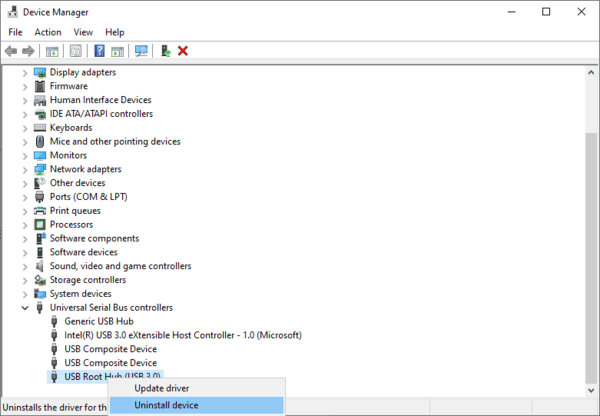
Expand Universal Serial Bus Controllers
Find all entries for USB Root Hub and right-click on each one
Uninstall USB Root Hubs
Select Uninstall and restart your computer. Windows will automatically reinstall the USB drivers
Conclusion
By following the steps in this guide, you should be able to resolve the issue of your Dell WD19 docking station driver not being recognized. Keeping drivers updated, ensuring correct installation, and using tools like Driver Talent X are key to maintaining the proper functionality of your docking station.
