

When a Lenovo docking station stops sending video to one or more external monitors, the dock itself may still appear to work normally for charging, USB devices, or network connections. The display failure is often related to loose cables, incorrect Windows display settings, outdated graphics or dock-related drivers, old firmware, temporary dock controller problems, or hardware resolution limits. This guide explains how to troubleshoot Lenovo docking station monitor issues step by step.
Common Symptoms
This problem can appear in several ways. Sometimes only one external monitor works while the second stays blank. In other cases, both monitors are connected but neither displays an image
Some users find that the monitors work before sleep mode but stop working after the laptop wakes up. Others notice that Windows Display Settings shows the monitors, but the screens remain black or flicker on and off
Check the Physical Setup
Start with the hardware. Make sure each HDMI, DisplayPort, or USB-C cable is fully inserted into both the docking station and the monitor
A cable that is slightly loose can prevent stable output even if the monitor appears connected. If one screen is not working, switch its cable to another port on the dock and see whether the problem follows the cable or stays with the same port.
Low-quality or older adapters are a frequent cause of docking station monitor issues, especially with higher resolutions or refresh rates. It is also worth replacing the cable with a known-good one
Check Windows Display Settings
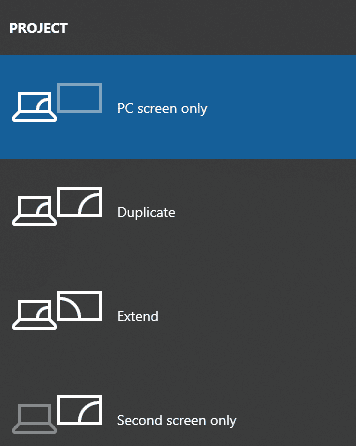
Right-click the desktop, choose Display settings, and review how Windows is handling the monitors. In the Multiple displays section, make sure the system is set to Extend these displays if you want separate screens. If the mode is set to Duplicate or Second screen only, one monitor may appear connected but still stay blank
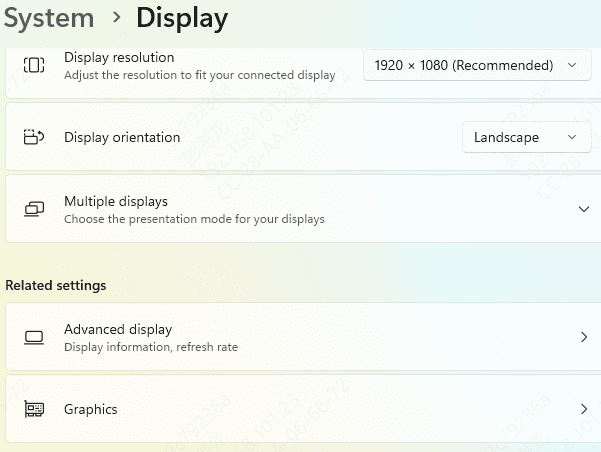
If one display is missing, click Detect and let Windows search again. Also confirm that the monitor arrangement shown in Settings matches your actual setup. Incorrect arrangement will not always stop the monitors from working, but it can make one screen seem unusable when the issue is actually just a layout problem
Update Graphics and Dock-Related Drivers
Driver issues are one of the most common reasons Lenovo docks fail with multiple monitors. External display output depends not only on the graphics driver, but also on chipset, USB-C, Thunderbolt, or DisplayLink-related components depending on the dock model. If one of these drivers is outdated, damaged, or incompatible after a Windows update, monitor detection can fail.
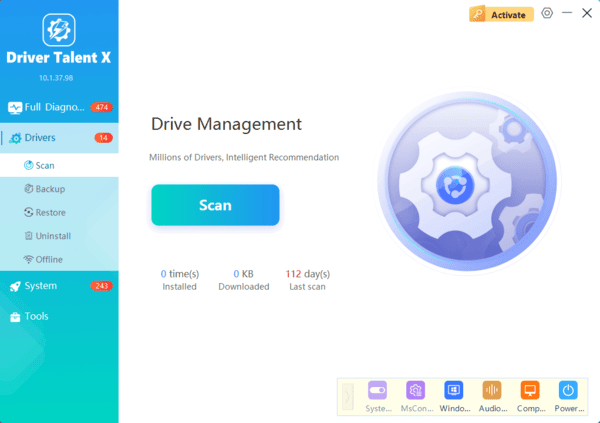
If you want a faster way to check all related drivers at once, Driver Talent X can scan the system and identify outdated graphics, chipset, USB-C, and Thunderbolt drivers that may be affecting multi-monitor support. After updating, restart the computer before testing the dock again.
Update the Dock Firmware
Install the update using Lenovo's recommended method and keep the dock connected during the process
Once the firmware update is complete, restart the laptop and reconnect the dock
Firmware updates are especially important if the monitors stopped working after a system update or if the dock works inconsistently with different monitors

Power-Cycle the Dock
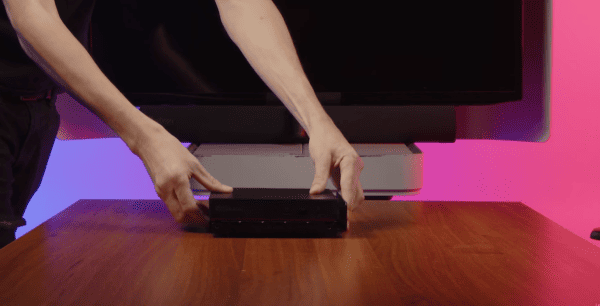
A full dock reset often works better than a standard reboot. Disconnect the docking station from the laptop and unplug its power cable. Wait at least twenty to thirty seconds so residual power clears from the dock. Then reconnect the power, reconnect the dock to the laptop, and allow Windows to initialize the devices again
This step can resolve temporary internal controller faults inside the dock. It is particularly useful when the monitors stopped working after sleep, hot-plugging, or repeated docking and undocking
Refresh the Graphics Adapter
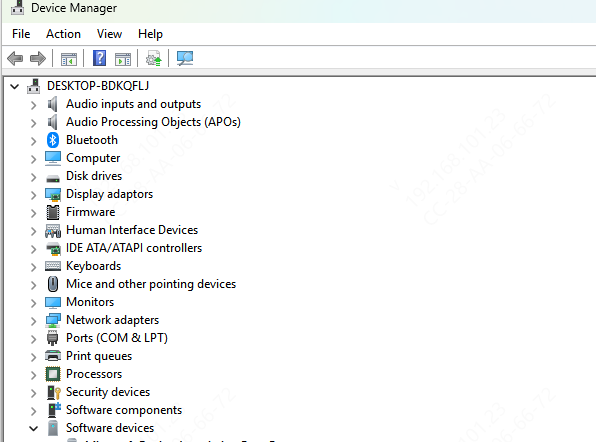
Open Device Manager, expand Display adapters, right-click the active graphics device, choose Disable device, wait a few seconds, and then enable it again
This forces Windows to reinitialize the display driver and can restore monitor detection without reinstalling anything
After that, disconnect and reconnect the dock once more. This combination often helps when the displays are detected inconsistently or only work after repeated reconnect attempts
Check Monitor and Resolution Limits
Check the specifications for both your Lenovo dock and your laptop
Confirm the maximum number of supported monitors, supported resolutions, and the preferred port combinations
This is especially important if you are trying to run two high-resolution monitors through an older dock
Frequently Asked Questions
Why does only one monitor work through the Lenovo docking station?
The dock or laptop may have reached its maximum display bandwidth. Lower the monitors' resolution or refresh rate, test different port combinations, and confirm the model's multi-monitor specifications.
Why do the monitors stop working after the laptop wakes from sleep?
Windows may fail to reinitialize the graphics adapter or dock controller. Power-cycle the dock, reconnect it, and update the graphics, Thunderbolt, USB-C, and dock firmware components.
Can a USB-C port support charging but not external displays?
Yes. Some USB-C ports support only data and charging without DisplayPort Alt Mode or Thunderbolt video output. Check the laptop's specifications and connect the dock to a video-capable USB-C port.
