Discord's streaming feature allows users to share gameplay, applications, and desktop activities with friends in real time. However, encountering Error 2007 can interrupt the experience and prevent a stream from loading or functioning correctly.
The problem may occur when you attempt to share your screen or watch another user's stream. In some situations, voice communication continues working normally while the video remains unavailable.
Although the error code alone does not identify the exact cause, graphics driver problems, video processing conflicts, unstable network connections, and corrupted application files are worth investigating.
If you are experiencing Discord Stream Error 2007 on Windows 10 or Windows 11, try the following troubleshooting methods.
Method 1: Restart Discord and Check Service Status
Close Discord.
Right-click the Discord icon in the system tray and select Quit Discord.
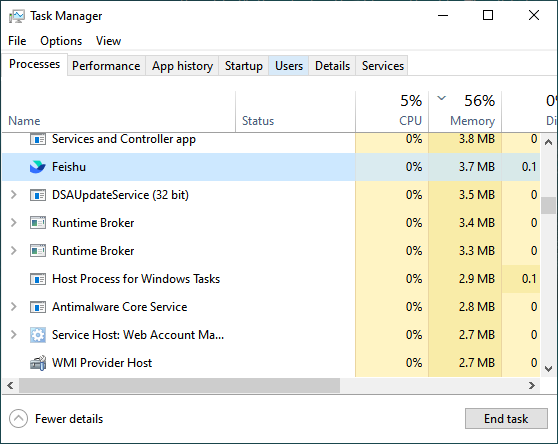
Press Ctrl + Shift + Esc to open Task Manager.
End any remaining Discord processes.
Restart your computer.
Launch Discord and test the streaming feature.
Method 2: Change Your Screen Sharing Source
Join a Discord voice channel.
Click Share Your Screen.
Select a specific application instead of your entire screen.
Start streaming and check whether the error appears.
If the problem continues, stop streaming and select your entire screen instead.
If Error 2007 occurs while streaming a game, change the game's display mode from exclusive fullscreen to borderless windowed or windowed mode.
Method 3: Disable Discord Hardware Acceleration
Open Discord.
Click the User Settings gear icon.
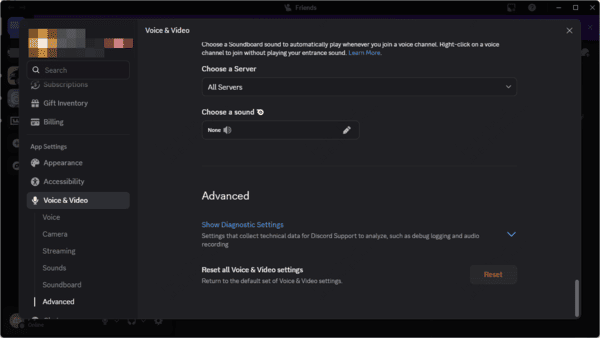
Select Advanced.
Locate Hardware Acceleration.
Turn off the feature.
Confirm the change and restart Discord.
Start or watch a stream again.
Method 4: Update Graphics Drivers
Discord uses graphics hardware for screen capture, video rendering, and supported hardware-accelerated encoding or decoding.
When a graphics driver becomes outdated, damaged, or incompatible, these operations may not function correctly. This can contribute to black screens, interrupted streams, and video playback errors.
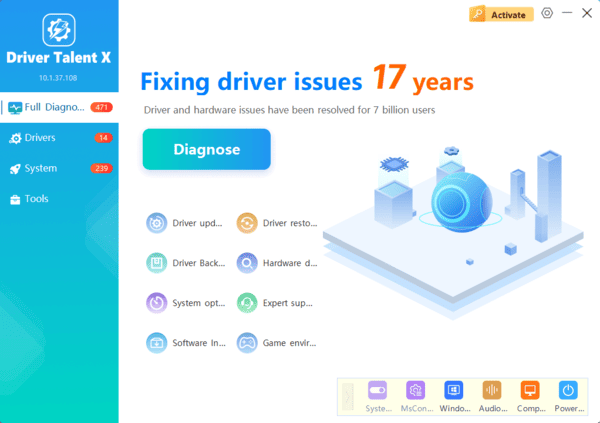
Driver Talent X is a Windows driver management utility that helps identify supported missing, outdated, or problematic drivers.
Download Driver Talent X from the official website.
Install and launch the software.
Click Scan to check your system drivers.
Review any detected graphics driver issues.
Install an appropriate compatible graphics driver if available.
Restart your computer.
Open Discord and test the streaming feature.
Alternatively, download compatible graphics drivers directly from NVIDIA, AMD, Intel, or your computer manufacturer's support website.
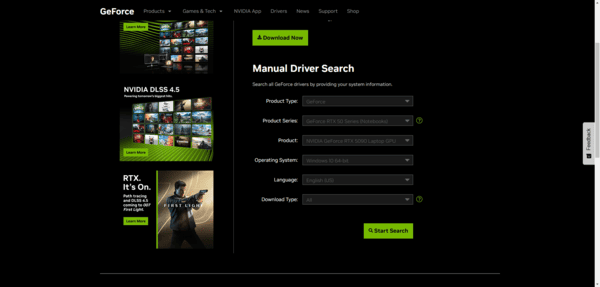
If Discord Stream Error 2007 started appearing immediately after a graphics driver update, consider rolling back to the previous working version.
Driver updates may help resolve graphics-related streaming problems, but they cannot repair Discord server outages or application-specific bugs.
Method 5: Adjust Discord Video Codec and Capture Settings
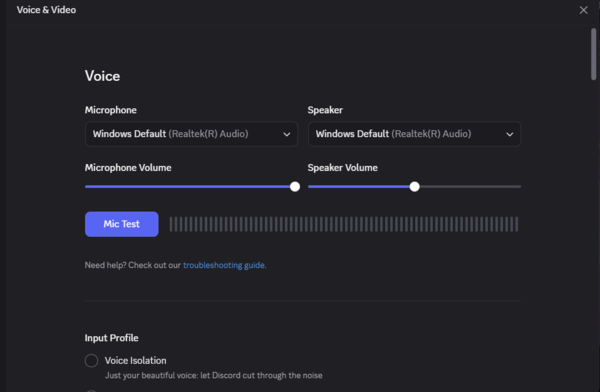
Open Discord.Navigate to User Settings > Voice & Video.
Locate the available video codec settings.
Temporarily disable H.264 Hardware Acceleration, if available.
Review the available screen sharing and capture options.
Change one setting at a time.
Restart the stream after each adjustment.
Method 6: Lower Your Discord Streaming Quality
Join a Discord voice channel.
Select an application or screen to share.
Open the stream quality settings.
Set the resolution to 720p or lower.
Select 30 FPS.
Start streaming and observe the results.
If the stream becomes stable at a lower resolution, gradually increase the quality until you find a suitable balance between performance and image clarity.
If you encounter Error 2007 while watching another person's stream, ask the streamer to temporarily reduce their streaming quality.
Method 7: Clear Discord Cache Files
Exit Discord completely.
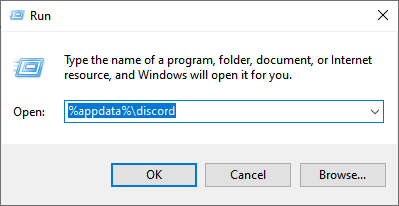
Press Windows + R to open the Run dialog.
Enter the following path:
%appdata%\discord
Press Enter.
Locate the following folders, if present:
Cache
Code Cache
GPUCache
Delete or rename these cache folders.
Restart Discord.
Avoid deleting the entire Discord application data folder unnecessarily, as it may contain local settings and other configuration files.
Method 8: Update or Reinstall Discord
First, restart Discord completely and allow it to check for available updates.
If streaming still fails, perform a fresh installation.
Close Discord and its background processes.
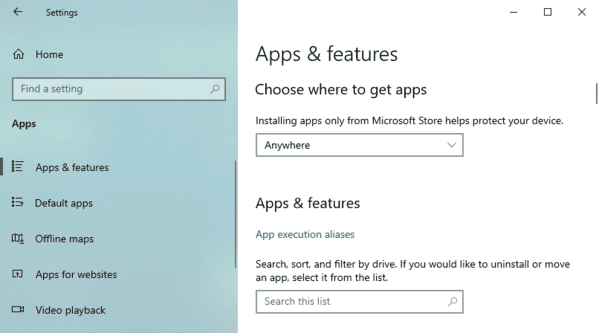
Press Windows + I to open Settings.
Navigate to Apps > Installed apps on Windows 11 or Apps > Apps & features on Windows 10.
Locate Discord.
Select Uninstall.
Restart your computer.
Download and install the latest version.
Sign into your account and test streaming.
Reinstalling Discord does not normally remove your account, servers, or cloud-stored messages, although some local settings may be affected.

If the problem persists, reduce streaming quality, check network stability, and clear Discord's cache. For unresolved errors, contact Discord Support with the complete error message and relevant system information.