Getting a dxgmms2.sys Blue Screen of Death (BSOD) error on Windows 10? This graphics-related system error can cause sudden crashes, unexpected restarts, frozen screens, or interruptions while gaming and running graphics-intensive applications. Since dxgmms2.sys is associated with DirectX graphics memory management, the problem is often linked to outdated or incompatible graphics drivers, corrupted Windows system files, faulty RAM, or GPU hardware issues. Fortunately, several troubleshooting methods can help identify and resolve the underlying cause. This guide covers six effective solutions, including updating graphics drivers with Driver Talent X, repairing system files using SFC and DISM, installing Windows updates, running memory diagnostics, and checking hardware components to help fix the dxgmms2.sys BSOD and restore Windows stability.
What Is dxgmms2.sys?
dxgmms2.sys is a critical system file in Windows responsible for managing the DirectX Graphics MMS (Memory Manager Subsystem) in kernel mode. It is closely tied to DirectX rendering and your graphics card driver. If this file becomes corrupted or fails, the system may crash due to issues processing graphics-related tasks.
Common Causes of dxgmms2.sys Blue Screen Errors
Outdated or Corrupted Graphics Drivers:
The most common cause. Incompatible or broken drivers prevent proper calls to dxgmms2.sys.
Damaged Windows System Files:
Corrupted or missing system files may trigger this error indirectly.
Hardware Issues:
Problems with the graphics card or RAM may also lead to BSODs.
Software Conflicts or Malware:
Conflicting programs or malicious software can corrupt system files, causing crashes.
Failed or Incomplete Windows Updates:
Partial updates may cause driver incompatibility with the OS.
Fix the dxgmms2.sys BSOD
Method 1: Run System File Checker (SFC)
Press Win + S, type "cmd", right-click on Command Prompt, and select "Run as Administrator".
Type the following command and press Enter: sfc /scannow
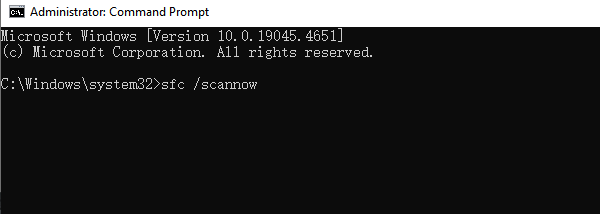
Wait for the system to scan and repair corrupted files.
Method 2: Use DISM to Repair System Image
If SFC doesn't fix the issue, use DISM:
Open Command Prompt as administrator. Run the following commands one by one:
DISM /Online /Cleanup-Image /ScanHealth
DISM /Online /Cleanup-Image /RestoreHealth
Once complete, restart the system and rerun sfc /scannow.
Method 3: Check for Windows Updates
Go to "Settings" > "Update & Security" > "Windows Update".
Click "Check for updates" and install all available patches.
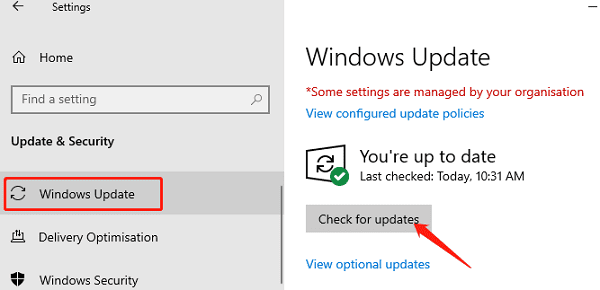
Restart your computer and see if the issue persists.
Method 4: Update Your Graphics Driver
If you're unsure how to install the correct driver manually, it's recommended to use a professional driver manager. It's recommend to use Driver Talent X to save time and avoid the risk of installing incorrect drivers.
Download the latest version of Driver Talent X and install it.
Launch the software and go to the Drivers tab, then click "Scan".
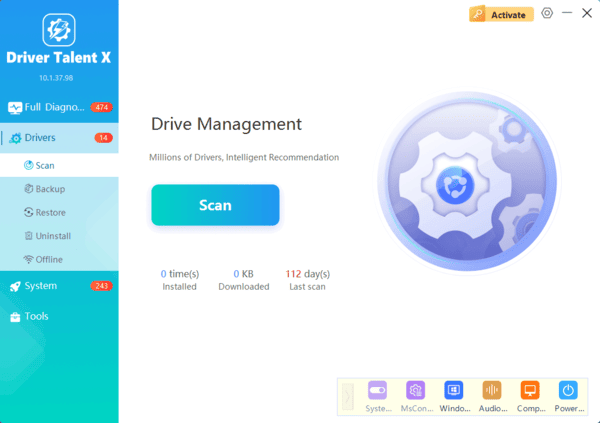
Locate the graphics driver in the scan results and click "Upgrade".
After updating, restart your computer to apply the changes.
Method 5: Run Windows Memory Diagnostic
Press Win + R, type "mdsched.exe", and hit Enter.
Select "Restart now and check for problems (recommended)".
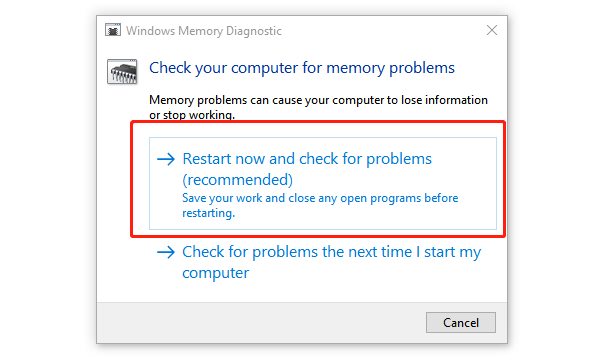
Your computer will reboot and run memory diagnostics (this may take a few minutes).
After the test, results will be shown upon returning to the desktop.
If not, check logs in "Event Viewer" > "Windows Logs" > System using the keyword MemoryDiagnostics-Results.
Method 6: Check for Hardware Issues
Ensure the graphics card is not overheating or improperly seated.
If possible, test with a different graphics card or RAM.
You may also try disabling hardware acceleration in apps or lowering game graphics settings.
Tips to Prevent dxgmms2.sys Blue Screens
Keep Windows and your GPU drivers up to date.
Install reliable antivirus software to protect system files.
Avoid using unverified or incompatible programs.
Ensure good airflow inside your PC to prevent GPU overheating.
Regularly back up important files to avoid data loss.
Frequently Asked Questions (FAQ)
Q1: What should I do if the dxgmms2.sys BSOD causes automatic reboots?
A: First update the graphics driver and scan system files. If the problem remains, check for hardware issues.
Q2: I'm not running any games, why am I getting a dxgmms2.sys error?
A: This file is part of the system graphics handling, any graphical task (even non-gaming) can trigger the issue.
Q3: My PC restarts immediately after a blue screen. How can I view the error code?
A: Disable automatic restarts under Control Panel > System > Advanced System Settings > Startup and Recovery.
Although the dxgmms2.sys blue screen can be frustrating, most issues can be resolved by updating drivers, repairing system files, or inspecting hardware. Follow the steps in this guide to restore a stable and smooth Windows 10 experience.