Having trouble downloading or installing an Epson scanner driver on Windows 10 or Windows 11? Whether the driver download fails, the installation stops unexpectedly, or your Epson scanner isn't recognized by your computer, these problems can prevent you from scanning important documents and photos. Common causes include incompatible driver versions, unstable internet connections, conflicting software, and leftover files from previous installations. This guide explains how to fix Epson scanner driver download and installation errors by downloading official Epson drivers, removing outdated installations, checking Windows updates, and using Driver Talent X to identify and resolve compatible driver issues.
1. Common Error Symptoms
Driver download link is invalid
Error message appears when running the driver installer
Scanner not recognized by the system after installation
System prompts "Device not found" or "Driver unavailable"
Scanner function is greyed out in scanning software
2. Reasons for Driver Download Failure
Unstable internet connection: Causes interruption or failure to connect to Epson's official website.
Driver version mismatch: Incompatibility between the driver (32-bit/64-bit) and the operating system.
Old driver not fully uninstalled: Residual files interfere with new driver installation.
Security software blocking installation: Antivirus programs may mistakenly block the Epson installer.
3. Solutions for Driver Download Issues
Method 1: Use a Driver Management Tool
For users unfamiliar with manual driver installation, it's recommended to use a tool like Driver Talent X to automatically detect and install the correct drivers, saving time and avoiding mistakes.
Click the Download button to get the latest version of Driver Talent X. Install and launch the software.
In the "Drivers" section, click Scan to detect all drivers on your system.
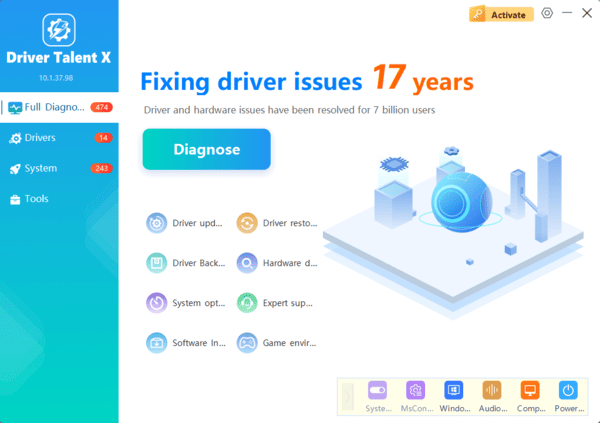
Find the scanner driver in the scan results and click "Upgrade".
After the update, restart your PC to ensure the new driver is applied.
Method 2: Download the Latest Driver from the Official Website
Go to the Epson Official Support website.
Enter your scanner model (e.g., Epson L3110, V600) in the search bar and click "Search".
Click "Support", then select the correct operating system version (Windows 10/11, 32-bit or 64-bit).
Click the "Download" button to get the latest driver.
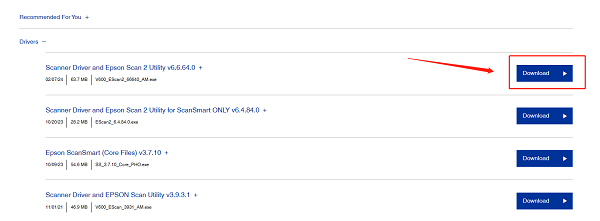
Right-click the installer and choose "Run as administrator" to ensure proper permissions.
Method 3: Uninstall Old Drivers Before Reinstallation
Open Control Panel > Programs > Programs and Features.
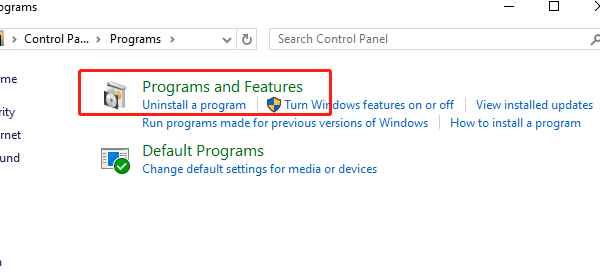
Uninstall all existing Epson scanner drivers.
Use a cleanup tool to remove leftover registry entries and driver files.
Download and install the latest official driver again.
Method 4: Temporarily Disable Security Software
Sometimes antivirus software may block the installation. To prevent this:
Temporarily disable Windows Defender or third-party antivirus programs.
Re-enable them after installation is complete.
Method 5: Check for Windows Updates
Open Settings > Update & Security > Windows Update.
Click "Check for updates".
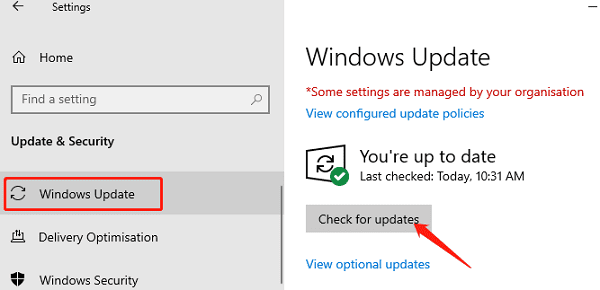
Look for optional updates related to Epson scanner drivers and install them.
Restart your PC to apply the changes.
4. Prevention Tips and Recommendations
Always download drivers from the official Epson website or use Driver Talent X.
Make sure the scanner is connected and powered on during installation.
Keep your Windows system up to date to avoid compatibility issues.
Close unnecessary programs and services during installation to improve success rate.
Epson scanner driver download issues are often caused by network problems, driver incompatibility, or leftover files from previous installations. The methods provided in this guide can resolve most of these problems effectively.
If you continue experiencing driver installation failures or device recognition issues, it's recommended to contact Epson customer service or authorized technical support for further assistance.