

With the growing demand for office automation, Konica Minolta printers are widely used for their efficiency, stability, and professional output quality. However, many users experience issues during driver installation, which can prevent the printer from working properly or being recognized by Windows. These problems are often caused by incompatible drivers, incorrect installation steps, missing system components, or conflicts with existing printer software. This guide explains the most common causes of Konica Minolta printer driver installation issues and provides effective solutions to help you install the driver successfully and ensure normal printer operation.
Common Konica Minolta Printer Driver Installation Issues
Driver installation fails with a message saying the device cannot be found
Driver is incompatible with the operating system
Printer is not recognized or cannot connect
Print jobs fail to send and return error codes
Printer status appears as "Offline"
Manual Download and Installation
Step 1: Preparation
Check the model number on the printer to ensure you're downloading the correct driver.
Confirm your computer's operating system version (Windows 10/11, 32-bit or 64-bit) to avoid driver mismatches.
Step 2: Download Driver from the Official Website
Open your browser and go to the official Konica Minolta website.
Click "SUPPORT & DOWNLOADS".
Enter your printer model and select the corresponding operating system version.
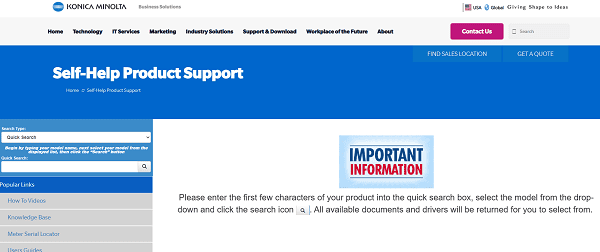
Download the latest recommended driver package.
Step 3: Uninstall Old Drivers
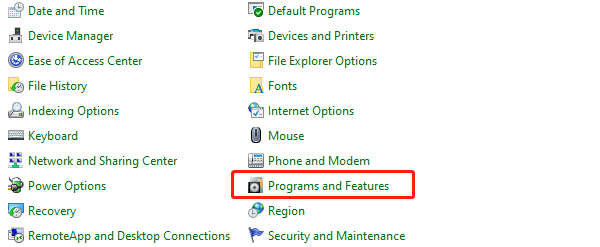
Go to "Control Panel" > "Programs and Features", find the previously installed Konica Minolta printer driver, and click "Uninstall".
Use third-party cleaning software to remove any leftover driver files to prevent conflicts.
Restart your computer to ensure a clean environment.
Step 4: Disable Firewall and Antivirus (During Installation)
Temporarily disable Windows Firewall and antivirus software to avoid blocking the installation.
Re-enable them after the installation is complete.
Step 5: Install the Printer Driver
Run the downloaded driver installation package and follow the on-screen instructions.
During setup, select either USB connection or Network connection based on how your printer is connected.
Confirm the driver is successfully installed and the system detects the printer.
Step 6: Connect Printer and Test Print
Use a USB cable or network connection to link the printer to your PC.
Open "Devices and Printers" and ensure the Konica Minolta printer shows as Online.
Right-click the printer icon and select "Print Test Page" to verify print output.
Step 7: Troubleshoot Errors and View Logs
If the driver still doesn't work, go to "Device Manager" and check the printer device status.
Look for any stuck print jobs in the printer queue and clear them before retrying.
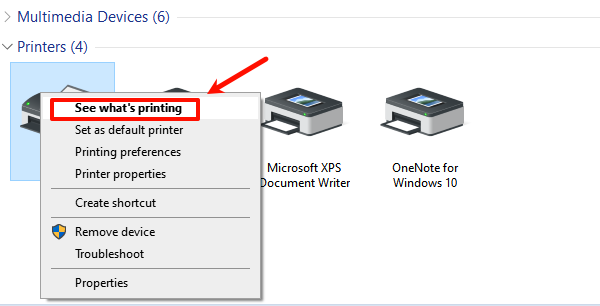
Use Event Viewer to check system logs and identify specific error messages.
Use a Driver Management Tool
For users who are not familiar with manually downloading and installing drivers, using a professional driver management tool is an efficient and time-saving solution.
It's recommend to use Driver Talent X, which can automatically detect, download, and install the most compatible drivers for your device. It's simple to use and highly effective.

Click the "Download" button to download the latest version of Driver Talent X, then install and launch the software.
Go to the Drivers tab and click "Scan"; the tool will automatically detect all driver statuses on your computer.
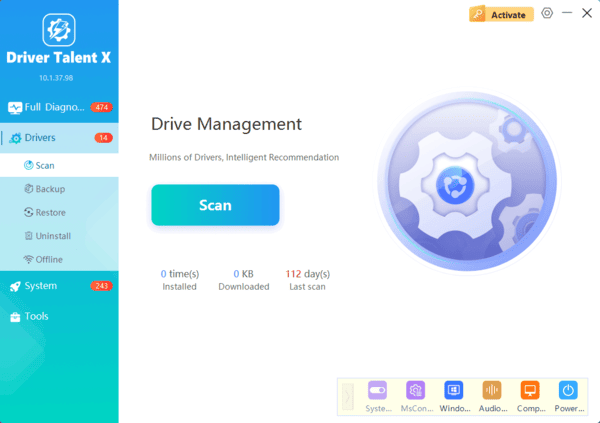
Once the scan is complete, locate the printer driver and click the Upgrade button.
Restart your computer after the update to ensure the driver is applied properly.
Common Problems & Solutions
Problem 1: Driver installation prompts 'Driver not compatible'?
Solution: Make sure the driver matches your OS version. Install the latest system updates if necessary.
Problem 2: Printer shows as 'Offline'after connecting?
Solution: Check your network or USB connection. Try reconnecting the printer and restarting the devices.
Problem 3: Print job stuck in queue and doesn't print.
Solution: Clear the printer queue and restart both the printer and your computer.
While Konica Minolta printer driver installation issues are common, most can be easily resolved by following the detailed steps above.
Keeping your drivers and system up to date, and ensuring the printer is correctly connected, are key to maintaining smooth printing performance.
Hope this guide helps you install your driver successfully and enjoy efficient printing.
