

When you try to open a game or application and see a "msvcr120.dll not found" error, the program may fail to launch completely. This issue occurs when Windows cannot locate or load the required msvcr120.dll file, which is part of the Microsoft Visual C++ runtime environment. In this guide, we'll explain why the msvcr120.dll error happens and provide effective solutions to restore the missing component and get your programs running normally again.
Why This Error Appears
A failed software installation, an interrupted update, a system cleanup, or even the removal of another program that shared the same runtime files
Another possible cause is Windows file corruption. If important system files are damaged, the operating system may fail to read or load the DLL correctly. Malware can also play a role, especially if files have been changed, deleted, or quarantined unexpectedly
Sometimes the issue is tied to a single application rather than the whole system. If one specific program was installed incorrectly, moved improperly, or updated in a broken way, it may trigger the msvcr120.dll error even though the rest of Windows is fine
The Best Place to Start
The most reliable solution is usually to reinstall Microsoft Visual C++ 2013 Redistributable from the official Microsoft source. Since msvcr120.dll belongs to that package, reinstalling it restores the missing or damaged file properly instead of trying to patch the problem manually
When downloading the package, make sure you choose the correct version for your system. On many 64-bit Windows computers, installing both the x64 and x86 versions is the safest approach because some applications still depend on the 32-bit runtime even on a 64-bit system. After installation, restart the computer and test the affected program again

A Faster Option for System-Level Repair
If you are dealing with more than just one DLL problem, or if the PC is also showing driver issues, launch failures, or system instability, using a repair utility can save time
Driver Talent X is one option that can help scan for DLL-related issues alongside driver and system problems
This can be useful if you do not want to inspect every runtime and component manually

When Windows Itself Is Part of the Problem
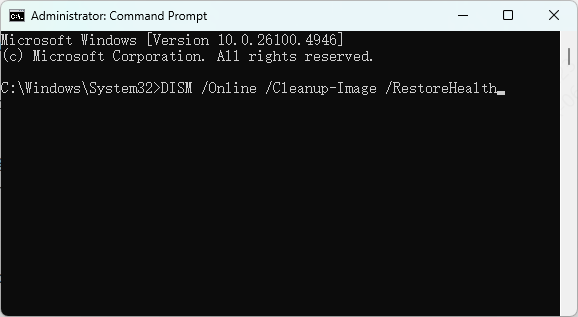
Running the sfc /scannow command from an elevated Command Prompt allows Windows to inspect protected files and automatically repair those that are damaged or missing
After the scan completes, restart the computer and test the same application again. Many users skip this step too early, but it can resolve persistent issues that remain after reinstalling the Visual C++ package
Why Windows Updates Matter
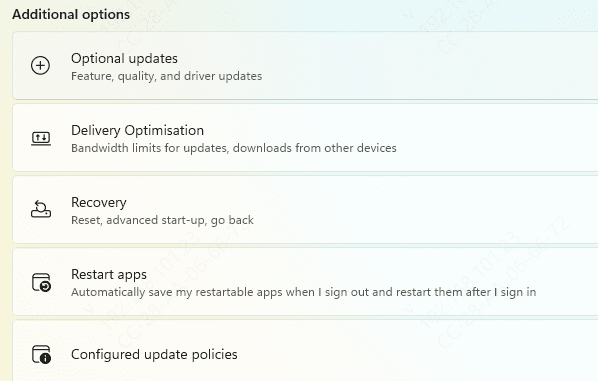
An outdated Windows installation can also contribute to DLL-related problems. Older system builds may have compatibility issues, missing patches, or incomplete runtime support that affects how applications launch. Installing pending Windows updates can help restore system stability and improve how runtime libraries interact with software
This is especially relevant if the msvcr120.dll error started after a failed update, a system restore, or a long period without maintenance. Windows Update may not look directly connected to a DLL message, but in practice it often plays a supporting role in fixing deeper compatibility issues
If the Error Only Happens in One Program
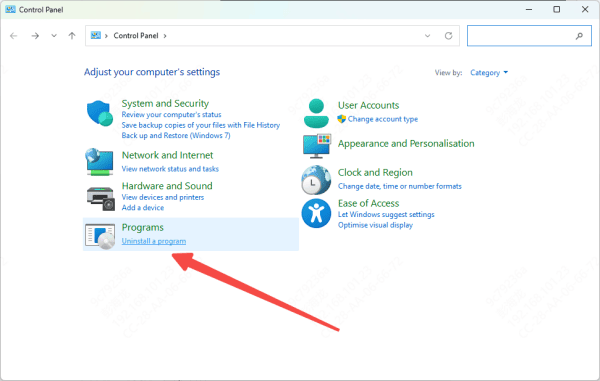
When just one application shows the problem, a clean reinstall of that software is often worth trying. Uninstall it completely, restart the PC, and then install the latest official version again
This can restore missing application files, register the correct dependencies, and eliminate errors caused by a broken install process.
During reinstallation, it is better to use the official installer rather than an old backup package from an unknown source
If the setup includes a bundled Visual C++ component, let it complete without interruption. Also avoid disabling required installation prompts too quickly, since some applications silently install runtime support in the background
What You Should Avoid
A lot of websites recommend downloading msvcr120.dll directly and copying it into a Windows folder. While this sounds simple, it is often the wrong approach. A random DLL file from an unverified source may be outdated, modified, or even malicious
Even if it temporarily removes the error message, it may not match the system architecture or restore the surrounding runtime environment correctly
That is why reinstalling the official Visual C++ 2013 Redistributable is the better fix. It is safer, cleaner, and more likely to solve the actual cause instead of hiding the symptom
The msvcr120.dll not found message may look like a single missing file problem, but in most cases it is really a sign that something in the Windows runtime environment is incomplete or damaged. That is why the smartest fix is not to chase the DLL file itself first, but to restore the system components that are supposed to provide it.
