

Seeing VIDEO_DXGKRNL_FATAL_ERROR on a blue screen does not necessarily mean that the dxgkrnl.sys file itself is broken. In many cases, Windows stops the system because something in the graphics chain has failed—from the GPU driver and DirectX components to background applications or the graphics hardware. The crash may begin after a Windows update, a new GPU driver, a game installation, or changes to graphics settings. To fix the problem effectively, you need to check each part of this graphics environment rather than replacing a single system file. The solutions below cover the most likely software and hardware causes in a practical troubleshooting order.
What is VIDEO_DXGKRNL_FATAL_ERROR?
VIDEO_DXGKRNL_FATAL_ERROR is a blue screen error triggered when the DirectX Graphics Kernel (dxgkrnl.sys) in the Windows display subsystem encounters a critical failure. It often indicates:
Corrupted or incompatible graphics drivers
Faulty DirectX components
Driver conflicts caused by system updates
Hardware acceleration issues or graphics card failure
Fix VIDEO_DXGKRNL_FATAL_ERROR
Repair DirectX
Download and run a reliable DirectX repair tool.
Perform a full scan and repair.
Restart your system to see if the issue is resolved.

Check for Windows Updates
Go to Settings > Update & Security > Windows Update.
Click "Check for updates" and install any available updates.
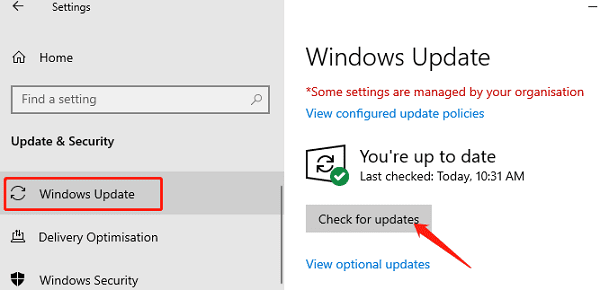
Some system patches are designed to fix known issues in the graphics subsystem.
Disable Hardware Acceleration
Disable hardware acceleration in your browser (e.g., Chrome, Google) or video software settings.

Turn off GPU hardware acceleration in system settings if available.
Observe whether the system still crashes when running those programs.
Run System File Checker (SFC)
Press Win + S, type "cmd", right-click on Command Prompt, and select "Run as administrator".
Enter the command: sfc /scannow
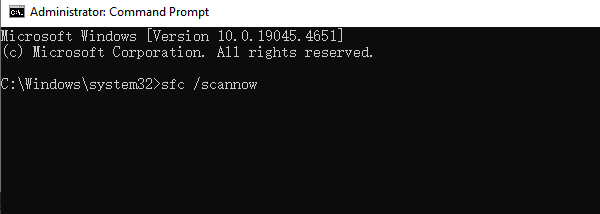
Wait for the scan to complete and then restart your system.
Update Graphics Driver
A faulty or outdated graphics driver is a primary cause of this error. It's recommend to use Driver Talent X, a driver management tool that automatically detects, downloads, and installs the most suitable drivers for your device with ease and efficiency.
Click the Download button to get the latest version of Driver Talent X. Install and launch the software.
In the "Drivers" tab, select "Scan" and let the tool check all driver statuses.
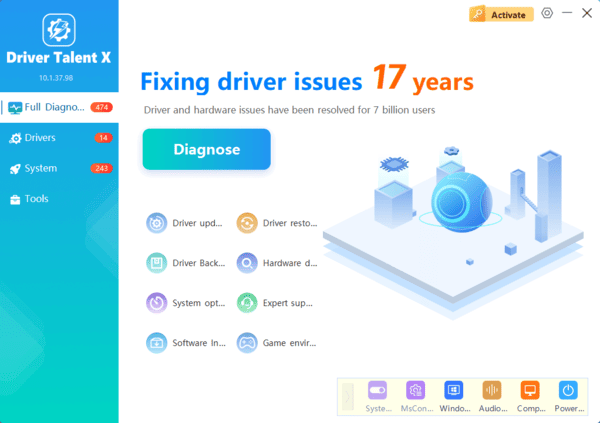
Locate the graphics driver in the scan results and click "Upgrade".
Restart your computer to apply the changes.
Uninstall Problematic Programs
Open "Control Panel" > "Programs and Features".
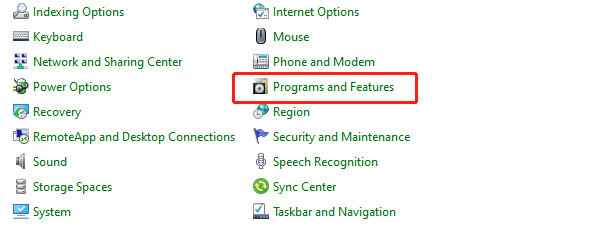
Uninstall any recently installed software or drivers.
Restart your computer to see if the error is resolved.
Check for Hardware Issues
Ensure the graphics card is securely seated.
Clean dust from the motherboard and GPU connectors.
Try a different PCIe slot or test the GPU on another computer.
If your system has integrated graphics, remove the dedicated GPU and test with the onboard graphics.
How to Prevent This Error in the Future
Regularly update your GPU drivers and Windows patches.
Avoid installing unverified optimization tools or drivers.
Monitor hardware temperature and prevent overheating.
Take note of any blue screen error codes before restarting for better diagnosis.
VIDEO_DXGKRNL_FATAL_ERROR is a typical blue screen error related to the graphics subsystem. You can usually resolve it by updating drivers, repairing system files, or adjusting system settings.
Follow the step-by-step methods in this guide to troubleshoot the issue and restore system stability. If the problem persists, consider contacting technical support or replacing the graphics hardware.
