

Keeping NVIDIA graphics drivers up to date is essential for stable system performance, improved gaming experience, and compatibility with the latest applications. However, many users may encounter issues such as installation failures, black screens, crashes, or error messages during the update process on Windows. This guide explains how to safely update NVIDIA graphics drivers without errors, starting with a reliable automated method, followed by several manual solutions to help ensure a successful and stable driver installation.
Common Reasons NVIDIA Driver Updates Fail
Understanding the causes helps prevent repeated issues:
Incompatible driver version for your GPU or Windows build
Remnants of old or corrupted NVIDIA drivers
Conflicts with Windows Update or antivirus software
Insufficient system permissions
Interrupted or incomplete downloads
Method 1: Clean Install NVIDIA Drivers Manually
If automated updating is not an option, performing a clean installation can resolve most errors.
Press Windows + X and select Device Manager.
Expand "Display adapters", right-click your NVIDIA GPU, and choose "Uninstall device".
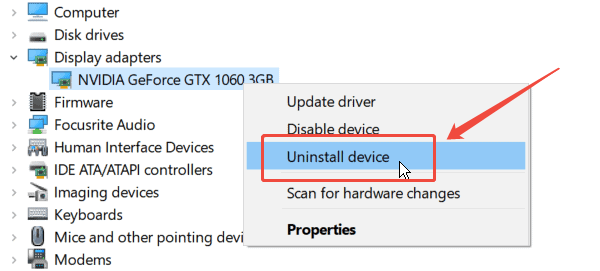
Check "Delete the driver software for this device", then click "Uninstall".
Restart your PC.
Download the latest NVIDIA driver from the official NVIDIA website matching your GPU and Windows version.
Run the installer and select Custom (Advanced).
Check Perform a clean installation, then complete the setup.
Restart your computer.
Method 2: Disable Windows Automatic Driver Installation Temporarily
Windows may interfere with NVIDIA updates by installing generic drivers.
Press Windows + R, type "sysdm.cpl", and press Enter.
Go to the Hardware tab and click "Device Installation Settings".
Select "No (your device might not work as expected)".
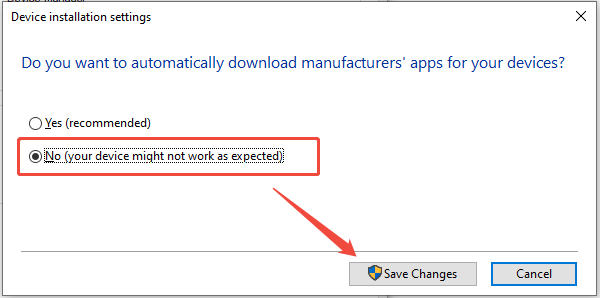
Save changes and restart your PC.
Install the NVIDIA driver again.
After installation, you can re-enable automatic driver updates.
Method 3: Update NVIDIA Drivers via Device Manager
This method works best for minor updates.
Open Device Manager.
Expand "Display adapters" and right-click your NVIDIA GPU, select "Update driver".
Choose "Search automatically for drivers".
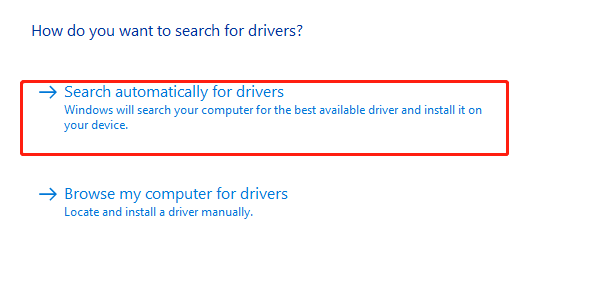
Follow the prompts and restart if prompted.
Note that this method may not always install the latest NVIDIA version.
Method 4: Check Windows System Files
Corrupted system files can prevent driver installation.
Open Command Prompt as administrator.
Type "sfc /scannow" and press Enter.
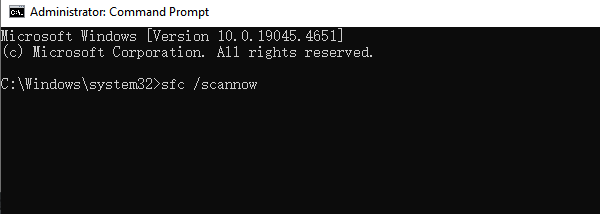
Wait for the scan to complete and fix detected issues.
Restart your PC and try updating the NVIDIA driver again.
Method 5: Temporarily Disable Antivirus Software
Some security programs block driver installation.
Temporarily disable your antivirus or third-party security software.
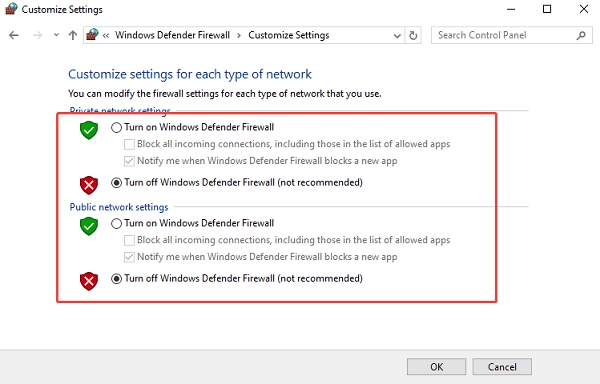
Install or update the NVIDIA graphics driver.
Re-enable your antivirus after completion.
Safest Way to Update NVIDIA Graphics Drivers
Updating drivers with a professional tool is the most effective and error-free solution. Driver Talent X automatically detects your NVIDIA GPU, matches the correct driver version, and installs it properly, avoiding compatibility issues.
Download and Install:
Click the "Download" button to download the software package.
Install it on your Windows PC.
Run Scan:
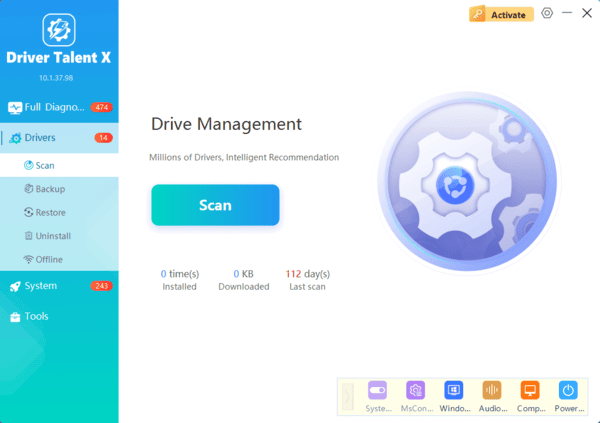
Launch the program and go to "Drivers" > "Scan", click "Scan".
The software will perform a deep analysis of your system, focusing specifically on the NVIDIA drivers and motherboard components.
Execute Clean Installation:
After the scan is complete, the software will display a list of all drivers that need attention. Select the necessary drivers and click the "Upgrade" or "Repair Now" button.
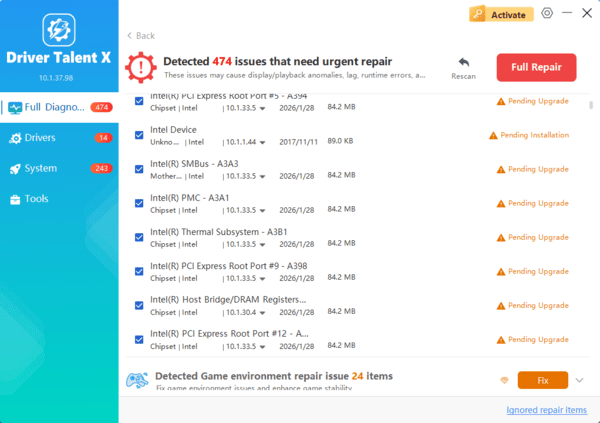
Driver Talent X will reliably download the latest driver and execute a clean installation, critical for performance enhancements and stability fixes.
Restart your computer:
Follow the on-screen instructions and allow the installation process to complete.
Restart your computer to apply the changes.
Best Practices to Avoid NVIDIA Driver Update Errors
Always restart your PC before and after driver installation.
Ensure your Windows version is fully updated.
Avoid using unofficial or modified driver packages.
Use tools like Driver Talent X for accurate driver matching and installation.
Conclusion
Updating NVIDIA graphics drivers without errors is crucial for optimal system performance and stability. Using Driver Talent X provides the safest and fastest solution by eliminating compatibility and installation issues.
If manual methods are needed, clean installation, disabling conflicting services, and checking system integrity can help resolve most problems. Following these steps ensures your NVIDIA GPU runs smoothly with the latest driver support.
