

Keeping HP drivers current can help maintain stable performance across graphics, audio, networking, chipset, and other hardware components. When drivers become outdated, missing, or corrupted, you may encounter crashes, connectivity problems, reduced performance, or devices that stop working properly. This guide explains several practical ways to update HP drivers.
1. Official HP Methods for Driver Update
HP provides its own excellent tools to help you manage updates. These methods are essential for finding HP-specific utilities and firmware.
Method 1: Use the HP Support Assistant
The HP Support Assistant is a pre-installed application on most HP PCs and is the primary tool for managing official HP updates.
Launch HP Support Assistant: Click the Start button and type "HP Support Assistant", then open the application.
Check for Updates: Click the "Updates" tab or the "Check for updates and messages" option.
Analyze and Install: The tool will automatically scan your system and display a list of available driver, BIOS, and firmware updates specific to your HP model. Select the updates you need and click "Download and install".
Method 2: Manual Download from the HP Website
If you don't have the HP Support Assistant or prefer to download the full package yourself, you can use HP's website.
Find Your Product: Go to the official HP Software and Driver Downloads page.
Enter Your Model: Enter your product name or number (e.g., "HP Envy 13", "HP Spectre x360").
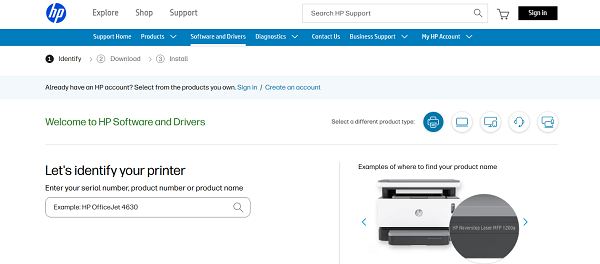
Identify Your OS: Ensure the website has correctly identified your Operating System (Windows 10/11) and version.
Download the Driver: Scroll through the list of driver categories (e.g., "Chipset", "Driver - Graphics") and download the latest version of the driver you need.
Run the Installer: Double-click the downloaded file and follow the on-screen instructions to install the driver.
2. Built-in Windows Method: Device Manager
The Windows Device Manager is a basic tool for updating drivers for a specific piece of hardware. While it often installs older, generic drivers, it's a useful fallback.
Open Device Manager: Right-click the Start button and select "Device Manager" from the menu.
Find the Device: Expand the category of the device you want to update (e.g., "Network adapters").
Update the Driver: Right-click on the specific HP device and select "Update driver".
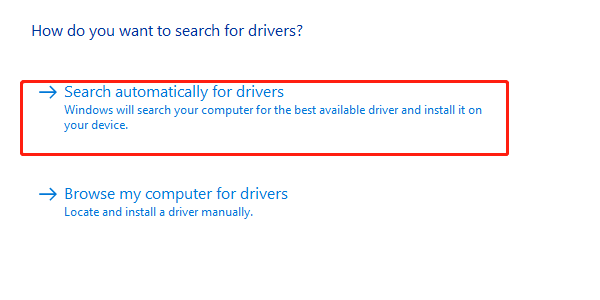
Search Automatically: Choose "Search automatically for drivers". Windows will search your computer and the internet for an updated driver.
3. The Easiest Method: Update Drivers with Driver Talent X
Manually searching for drivers on HP's support website can be confusing, as you need to know your exact product model and operating system version.
Using a dedicated driver updater tool automates this entire process, making it the fastest and safest way to ensure you get the perfect driver for every component in your HP PC.
Download and Install:
Click the "Download" button to download the software package.
Install it on your HP laptop or desktop PC.
Scan Your System:
Launch the application. Go to "Drivers" > "Scan", click "Scan".
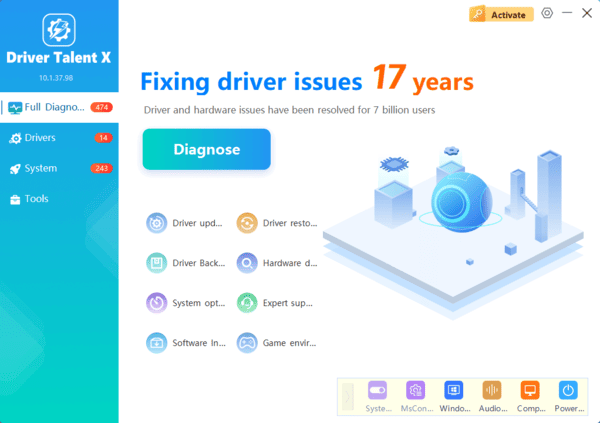
Driver Talent X will automatically perform a comprehensive scan of your entire system to identify all outdated, missing, or corrupted drivers, including those specific to your HP hardware.
One-Click Update:
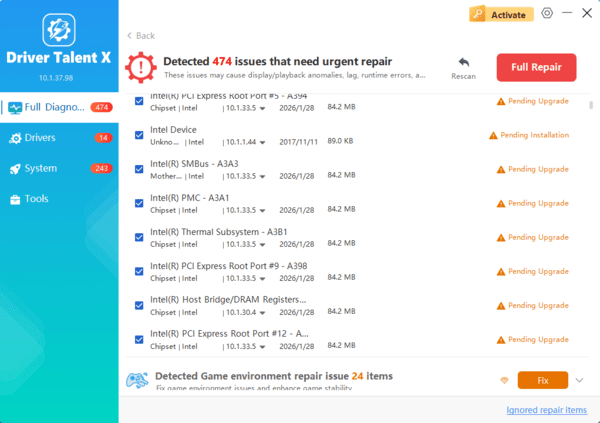
After the scan is complete, the software will display a list of all drivers that need attention.
Simply click the "Repair Now" button. The tool will automatically download and install the latest, verified versions for you.
Restart Your PC:
Once the installation is finished, it's crucial to restart your computer.
This allows the new drivers to take full effect and fully integrate with your HP system.
Frequently Asked Questions
How do I identify my exact HP model before downloading drivers?
Press Win + R, enter msinfo32, and check System Model and System SKU. You can also find the product number on the laptop label or in HP Support Assistant. Matching the exact product number helps prevent incompatible installations.
Should I use HP or component-manufacturer drivers?
Start with HP's driver for chipset, audio, touchpad, power-management, and other model-specific components. NVIDIA, AMD, or Intel may offer newer graphics drivers, but HP's customized version may provide better compatibility on some laptops.
What should I do if an HP driver update causes problems?
Open Device Manager, right-click the affected device, and select Properties > Driver > Roll Back Driver. If rollback is unavailable, uninstall the problematic driver and reinstall the previous compatible version from HP's support page or restore your system using a restore point.
Conclusion
Regularly performing an HP driver update is the single best way to maximize the lifespan and performance of your computer.
While the official HP Support Assistant provides manufacturer-specific updates, using Driver Talent X is the quickest and most reliable method to ensure every component in your system has the latest, compatible software.
