

An HP EliteBook that refuses to power on can be caused by anything from a temporary power-state problem to BIOS corruption, loose internal hardware, or Windows-related startup issues. Some laptops may show no lights at all, while others appear to turn on but remain stuck on a black screen. This guide helps you narrow down the cause by checking the charger and battery, performing a hard reset, testing an external display, reseating RAM and storage, restoring BIOS settings, booting into Safe Mode, and using Driver Talent X to check chipset, graphics, and power-related drivers when Windows is still accessible.
Solution 1: Perform a Hard Reset
A hard reset clears static charge that may prevent the laptop from powering on.
Power off the laptop completely.
Disconnect the power adapter.
Remove the battery if it is removable.
Press and hold the power button for 30 seconds.
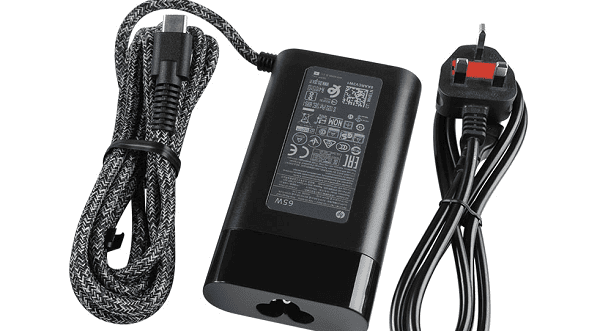
Reconnect the power adapter (do not insert the battery yet).
Turn on the laptop and check for signs of life.
Solution 2: Check Power Adapter and Charging Port
Verify the power adapter LED is on.
Try a different compatible HP charger if available.
Inspect the charging port for loose connections or debris.
Plug the charger directly into a wall outlet instead of a power strip.
Solution 3: Test External Display Output
Sometimes the laptop powers on, but the screen does not display anything.
Connect the HP EliteBook to an external monitor using HDMI or DisplayPort.
Power on the laptop.
Press Windows + P repeatedly to switch display modes.
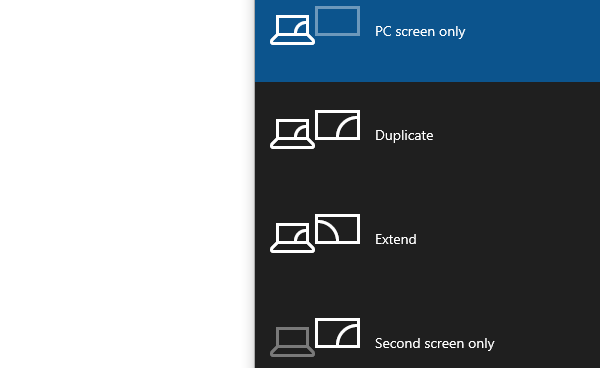
If the external display works, the internal screen or graphics driver may be the issue.
Solution 4: Reseat RAM and Storage
Loose memory or SSD connections can stop the system from booting.
Power off the laptop and unplug all cables.
Remove the back cover carefully.
Reseat the RAM modules.
Remove and reinstall the SSD.
Reassemble the laptop and attempt to power it on.
Solution 5: Reset BIOS Settings
Corrupted BIOS settings can prevent startup.
Turn off the laptop.
Turn it on and immediately press Esc, then F10 to enter BIOS.
Select "Load Setup Defaults".
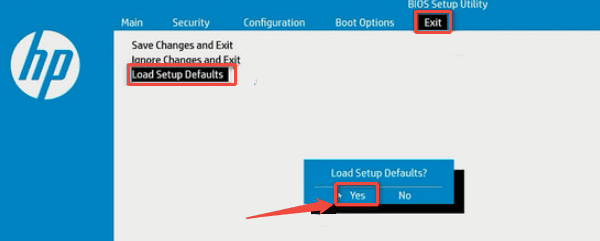
Save changes and exit BIOS.
Restart the laptop.
Solution 6: Update BIOS and Firmware
If the system can power on intermittently:
Download the latest BIOS version from HP Support.
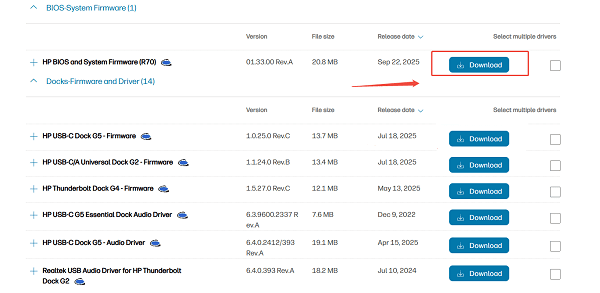
Run the BIOS update utility following HP instructions.
Do not interrupt the update process.
Restart after completion.
Solution 7: Boot into Safe Mode
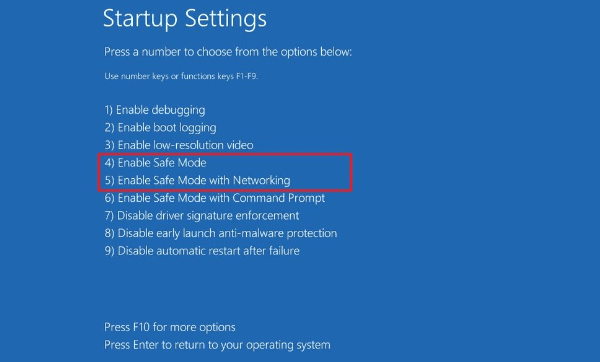
Power on and interrupt boot three times to enter recovery mode.
Go to "Advanced options" > "Startup Settings" > "Restart".
Select Safe Mode.
Solution 8: Update Drivers
Outdated chipset, graphics, power management, or BIOS-related drivers can prevent your HP EliteBook from booting correctly. Driver Talent X helps identify and fix these issues automatically.
Download and Install:
Click the "Download" button to download the software package.
Run the installer, follow the on-screen instructions, select an installation location, and complete the setup.
Run a Full System Scan:
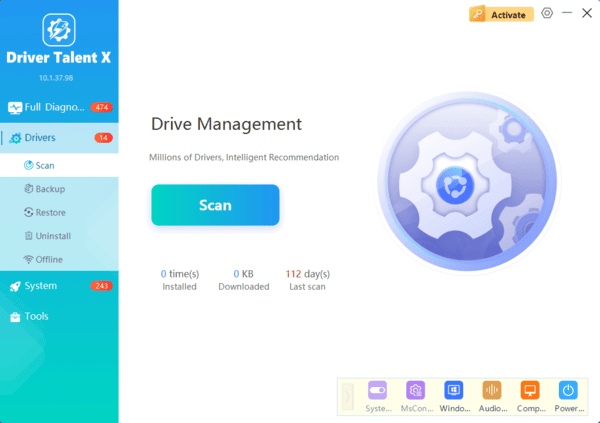
Open the program from the desktop shortcut or Windows Start menu, go to "Drivers" > "Scan", click "Scan".
Driver Talent X will detect missing, outdated, or corrupted drivers, including chipset, power management, graphics, and system firmware-related drivers.
Update All Drivers:
After the scan is complete, the software will display a list of all drivers that need attention. Select the necessary drivers and click the "Upgrade" or "Repair Now" button.
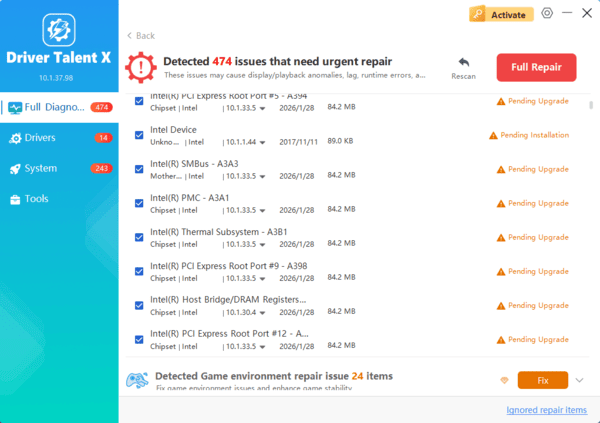
Driver Talent X will download the latest, certified drivers that are customized for your Lenovo ThinkPad, which is critical for restoring system stability.
Restart the Laptop:
Restart the system to apply all driver updates properly.
If the HP EliteBook still does not turn on after driver updates, proceed with the solutions below.
Additional Troubleshooting Tips
Disconnect all external devices before powering on.
Ensure Windows updates are not interrupted during shutdown.
Avoid BIOS updates when battery level is low.
Conclusion
When an HP EliteBook is not turning on, the issue is often related to driver conflicts, power delivery problems, or firmware errors rather than permanent hardware failure. By updating critical drivers first with Driver Talent X and applying the multiple solutions outlined above, most startup issues can be resolved effectively. Keeping drivers and firmware up to date is essential for long-term system stability and reliable performance.
