

If your HP laptop touch screen is not working, responds inaccurately, or stops reacting intermittently, the problem may be caused by disabled touch settings, outdated drivers, calibration errors, corrupted system files, Windows updates, or hardware faults. In many cases, the issue can be resolved without replacing the screen. This guide walks you through all the solutions, including using Driver Talent X for automated driver management.
Preliminary Checks
Before diving into technical fixes, start with basic checks:
Clean the Screen: Dust, fingerprints, and moisture can interfere with touch detection. Use a microfiber cloth to clean the screen gently
Remove Protective Films or Cases: Some screen protectors or thick cases can prevent the touch sensor from detecting inputs
Restart the Laptop: A simple restart can clear temporary glitches affecting the touch screen
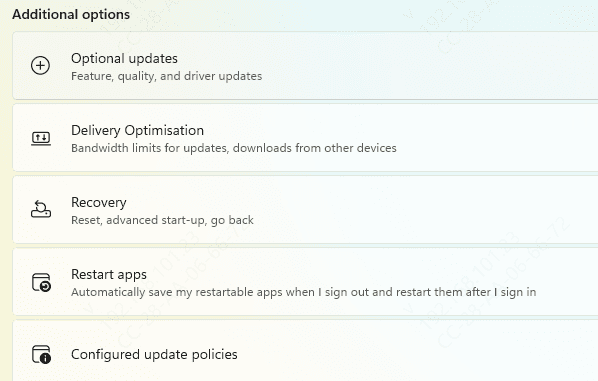
Check for Windows Updates: Sometimes, missing system updates can cause touch issues. Navigate to Settings > Update & Security > Windows Update and ensure your laptop is fully updated
Enable Touch Screen in Device Manager
If the touch screen is disabled in Windows, it will not respond:
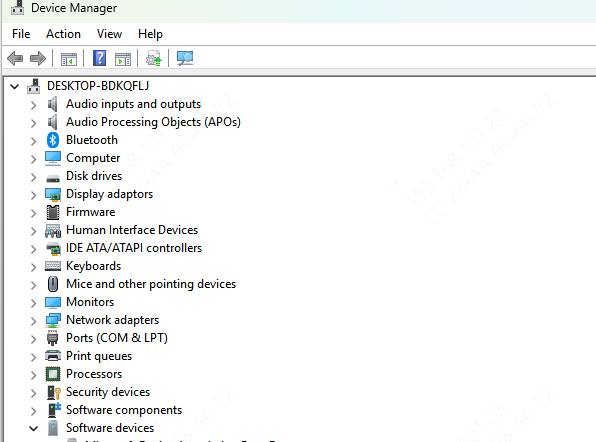
Press Win + X and select Device Manager
Expand Human Interface Devices
Locate HID-compliant touch screen
Right-click and select Enable device if it's disabled
Calibrate the Touch Screen
Calibration ensures the system correctly interprets your touch inputs:
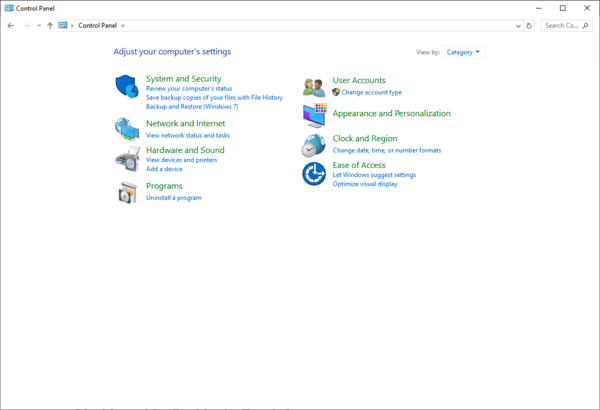
Open Control Panel > Hardware and Sound > Tablet PC Settings
Click Calibrate the screen for pen or touch input
Follow the on-screen instructions to recalibrate
Disable and Re-Enable the Touch Screen
Sometimes, the touch screen becomes temporarily unresponsive. A quick reset often restores functionality:
Open Device Manager and locate HID-compliant touch screen
Right-click and select Disable device. Confirm if prompted
Wait a few seconds, then Enable device
Perform a System File Check
Corrupted system files can interfere with touch functionality:
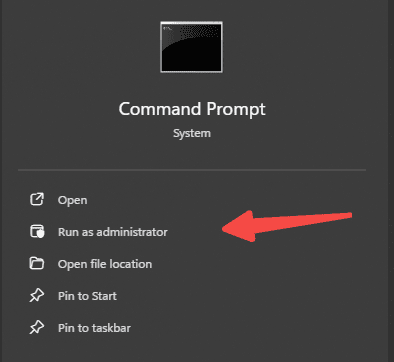
Press Win + X > Command Prompt (Admin)
Enter the command:
sfc /scannow
Wait for the scan to complete and restart the laptop
Update or Reinstall Touch Screen Drivers
Outdated or corrupted drivers are a common cause of touch screen failure. Keeping drivers current ensures proper communication between the operating system and touch hardware.
Device Manager Update
In Device Manager, right-click HID-compliant touch screen
Select Update driver > Search automatically for drivers
Restart the laptop after installation
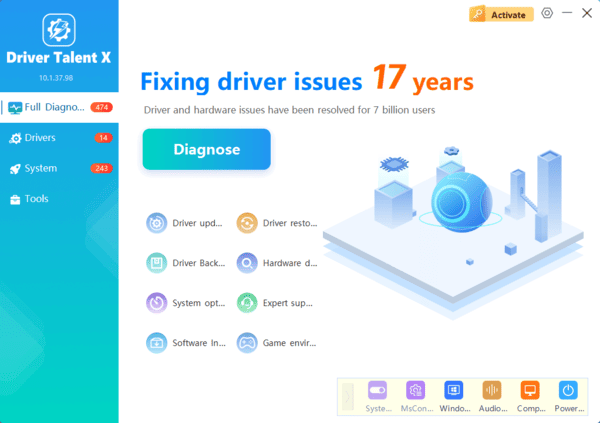
Automated Driver Management with Driver Talent X
Download and install Driver Talent X from the official website
Run a full system scan to detect outdated or missing drivers, including touch screen, USB, and chipset drivers
Click Repair or Update All to ensure your system communicates properly with the touch hardware
Restart your laptop to apply the updates
Check Windows Updates and Restore Points
Touch screen problems may occur after recent Windows updates:
Go to Settings > Update & Security > Windows Update > View update history > Uninstall updates
Select the most recent update and remove it
If the issue started recently, use System Restore to revert to a previous stable state
Press Win + R, type rstrui, and press Enter
Advanced Troubleshooting
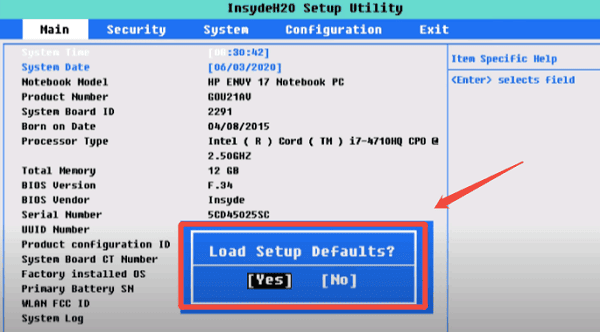
BIOS Check
Restart the laptop and press F10 repeatedly during startup
Navigate to System Configuration > Touch Screen (if available)
Ensure the touch screen is Enabled in BIOS
Hardware Diagnostics
Run HP Hardware Diagnostics (restart laptop and press Esc > F2) to check if the issue is hardware-related
If diagnostics indicate a hardware failure, professional repair may be required
Frequently Asked Questions
How can I tell whether the touch-screen problem is hardware-related?
Open the BIOS or HP Hardware Diagnostics and test the screen outside Windows when a touch test is available. If touch also fails there, the digitizer, display cable, or touch controller probably requires professional inspection.
Will calibrating the screen fix a completely unresponsive touch screen?
No. Calibration helps when touches register in the wrong location or the pointer is inaccurate. It cannot repair a touch screen that detects no input. For total failure, check Device Manager, drivers, diagnostics, and hardware connections.
Why does the touch screen stop working after sleep mode?
Windows may fail to restore power to the touch controller. Update the BIOS, chipset, I2C, and touch drivers. If the device has a Power Management tab, disable the option that allows Windows to turn it off to save power.
Conclusion
HP laptop touch screen issues are usually caused by software conflicts, outdated drivers, calibration errors, or disabled settings. By following this guide—preliminary checks, enabling the touch screen, updating drivers with Driver Talent X, recalibrating, and performing system maintenance—you can restore touch functionality in most cases.
