

If your HP Smart printer shows as offline, it can be frustrating, especially when important print jobs are waiting. The offline status means your computer, tablet, or smartphone cannot communicate with the printer, even though the device appears to be powered on and connected. This issue can happen due to connection problems, incorrect printer settings, outdated drivers, network errors, or software conflicts. In this guide, we'll provide a detailed step-by-step approach to fix HP Smart printer offline issues for both wired and wireless setups, helping you restore normal printing quickly.
Check Printer Power and Connection
Start with the basics:
Ensure the printer is powered on and ready
Check cables: USB or Ethernet connections should be secure
For wireless printers, confirm the printer is connected to the correct Wi-Fi network
Restart both your printer and your computer or mobile device to refresh the connection
Often, a simple power cycle can resolve temporary offline issues
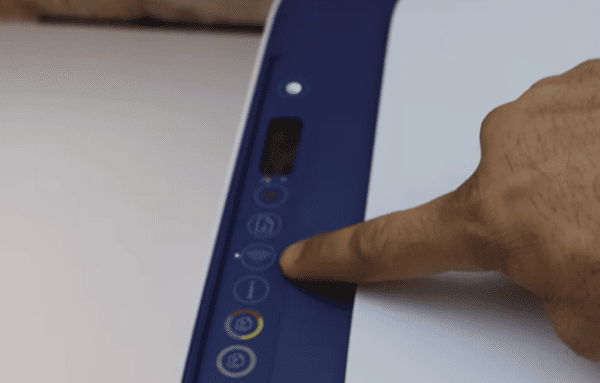
Verify Network Connectivity (Wireless Printers)
Wireless printers rely on stable network connections:
Make sure the computer or mobile device and the HP Smart printer are on the same Wi-Fi network
Restart your router if necessary
Confirm the printer's IP address matches what is displayed in the HP Smart app
Proper network configuration ensures that the printer can communicate with devices reliably
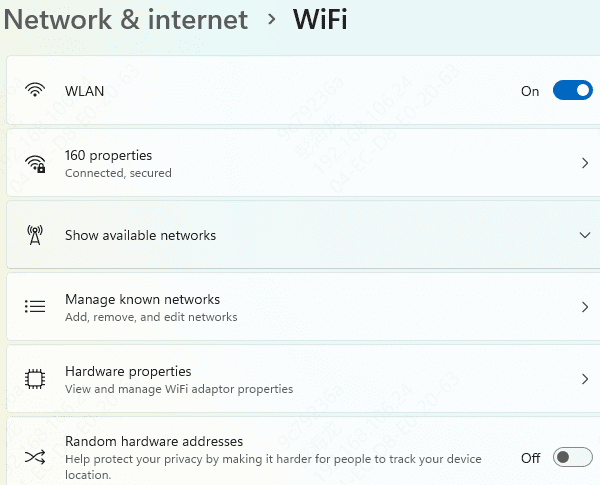
Set Printer as Default and Clear Print Queue
Sometimes the offline issue is due to system settings:
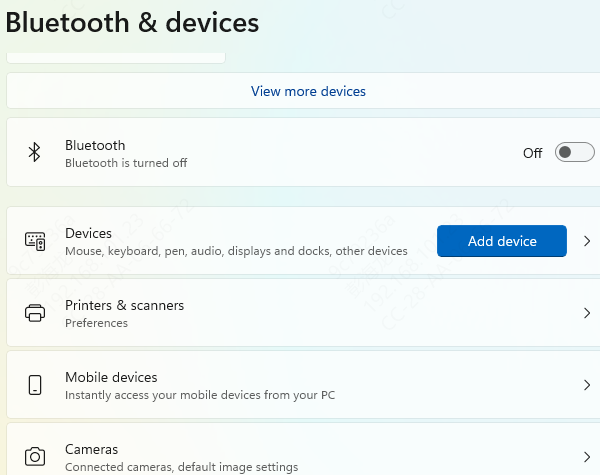
Open Settings → Devices → Printers & Scanners
Right-click the HP Smart printer and select Set as default printer
Open the printer queue and cancel all pending print jobs
Try printing a test page to check functionality
This step resolves issues caused by conflicting printer selections or blocked print jobs.
Driver Update
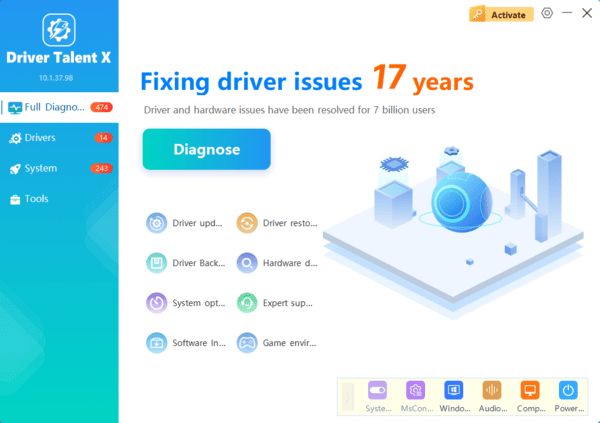
To simplify updates and avoid offline issues in the future, you can use Driver Talent X:
Install Driver Talent X on your computer
Run a Scan to detect outdated, missing, or corrupted printer drivers
Click Update or Repair to automatically install the correct driver version
Restart your computer to apply changes
Use HP Print and Scan Doctor
HP provides a powerful diagnostic tool:
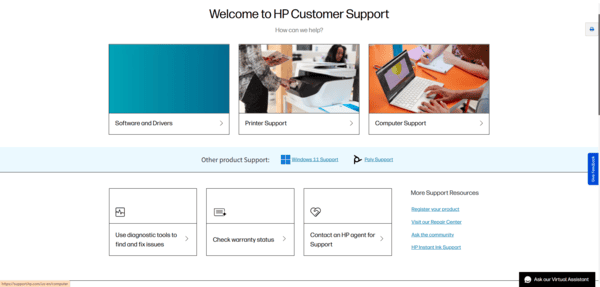
Download and run HP Print and Scan Doctor
The tool automatically detects and fixes connectivity, driver, and offline issues
Follow the on-screen instructions to repair your printer and restore its online status
This tool simplifies troubleshooting and often resolves complex problems automatically
Disable "Use Printer Offline" Mode
Sometimes Windows mistakenly marks the printer as offline:
Open Printers & Scanners → HP Smart Printer → Open Queue → Printer menu
Make sure Use Printer Offline is unchecked
Unchecking this ensures the printer is ready to receive jobs from your computer or mobile device
Advanced Troubleshooting
If the printer is still offline:
Reset printer network settings to default and reconnect to Wi-Fi
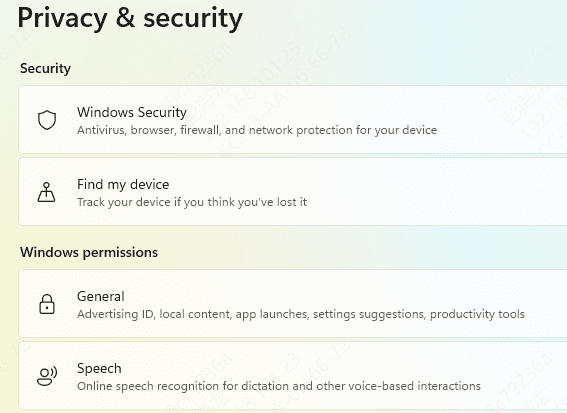
Check firewall or antivirus software to ensure they are not blocking printer connections
Perform a factory reset on the printer if all else fails
Contact HP Support for persistent hardware issues
Conclusion
Fixing an HP Smart printer offline status requires a systematic approach: check power and connections, verify network settings, clear the print queue, update the HP Smart app and drivers, and use diagnostic tools. For hassle-free updates and long-term reliability, tools like Driver Talent X offer automatic scanning, repair, and driver updates. Regular maintenance, proper network configuration, and updated drivers help prevent offline errors, ensuring your HP Smart printer always works when you need it.
