

If your HP printer suddenly shows as "Offline," it can be confusing and frustrating. This message typically appears when your computer cannot communicate with the printer, even if it's physically connected. Offline status is usually caused by driver issues, network misconfigurations, or temporary software glitches. This guide will walk you through the most effective ways to fix the problem and ensure your printer stays online.
Common Reasons Your HP Printer Shows as Offline
Windows mistakenly enables "Use Printer Offline" mode
Stuck print jobs or Print Spooler service errors
Outdated, corrupted, or incompatible HP printer drivers
Wi-Fi instability (printer and computer on different networks or dynamic IP changes)
Firewall/antivirus blocking communication
Power-saving settings or recent Windows 11 updates (including 24H2)
Step 1: Quick Basic Fixes
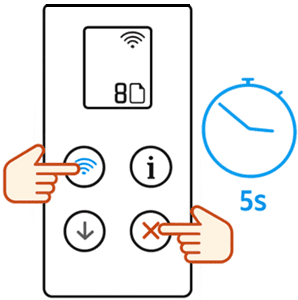
Power cycle everything — Turn off your HP printer, unplug the power cord (and USB cable if used) for 60 seconds. Restart your computer and Wi-Fi router. Plug the printer back in and turn it on. Wait for the Wi-Fi light to become solid
Confirm network connection — Ensure your computer and printer are on the exact same Wi-Fi network (check 2.4 GHz vs 5 GHz if applicable)
Set as default printer — Go to Settings → Bluetooth & devices → Printers & scanners → Select your HP printer → Click Set as default
Step 2: Set the Printer to Online in Windows
Go to Settings → Bluetooth & devices → Printers & scanners
Click your HP printer → Open print queue
In the queue window, click Printer in the top menu
Uncheck Use Printer Offline and Pause Printing if selected
Cancel any stuck print jobs
Step 3: Clear Print Queue and Restart Print Spooler
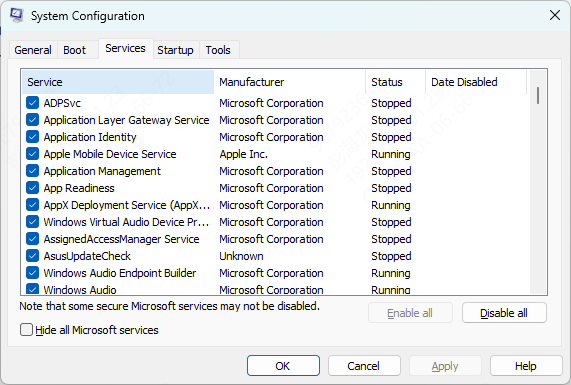
Press Windows + R, type services.msc, and press Enter
Find Print Spooler, right-click → Restart
Return to the print queue and delete all pending documents
Step 4: Update or Reinstall HP Printer Drivers
Manual Reinstall
In Printers & scanners, remove your HP printer completely
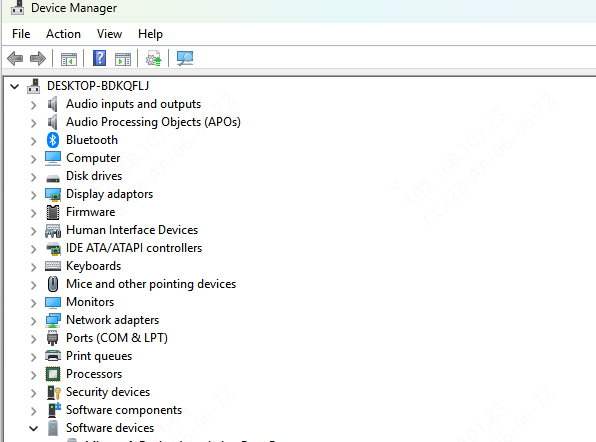
In Device Manager (right-click Start), uninstall the printer under Print queues.
Visit the official HP Support
Enter your exact model, select Windows 10 or 11, and download the full feature driver/software package
Install as administrator, restart your PC, and re-add the printer
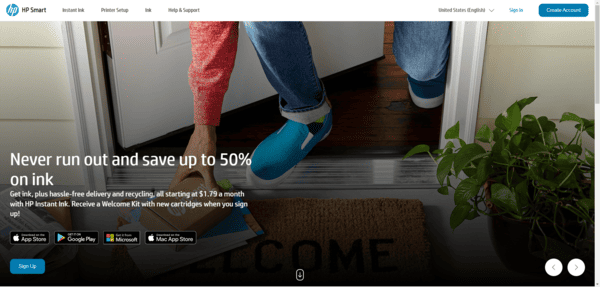
Use HP Smart App
Download HP Smart from the Microsoft Store or HP website
Add your printer and use the built-in Diagnose & Fix tool (wrench icon) — it automatically detects and resolves connectivity, driver, and offline issues
Automatic Driver Update with Driver Talent X
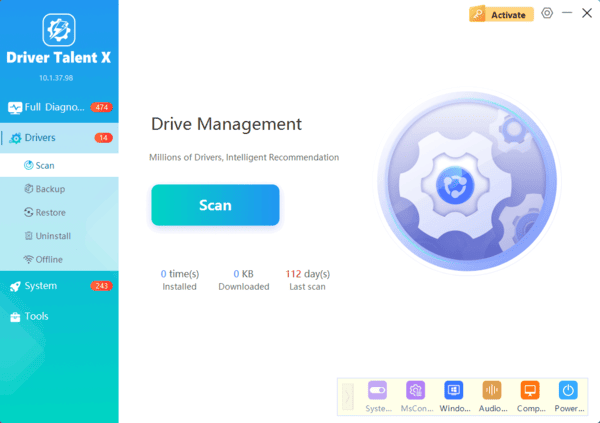
Download and install Driver Talent X from its official website
Launch the program and click Scan
Select your HP printer driver and click Update or Repair
Restart your computer
Step 5: Fix Network Issues for Wireless HP Printers
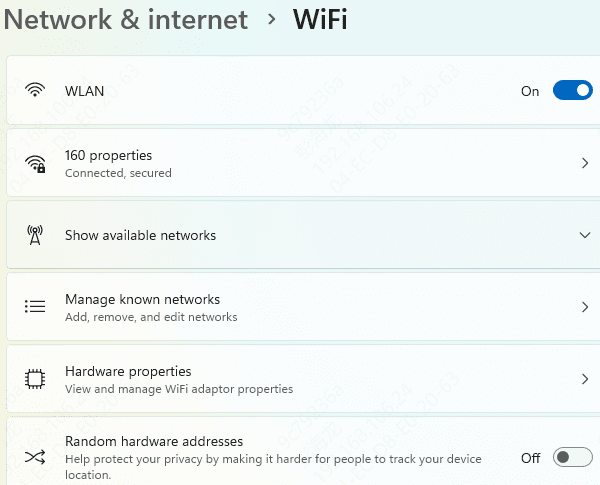
Wireless printers frequently go offline due to network changes:
Verify same network and strong signal
Assign a static IP address (strong prevention tip): Use HP Smart → Printer settings → Network → Set manual IP (choose an address outside your router's DHCP range, e.g., 192.168.1.200)
In Printer Properties → Ports tab, change from WSD port to Standard TCP/IP Port using the static IP
Temporarily disable firewall or antivirus to test
Step 6: Additional Troubleshooting Steps
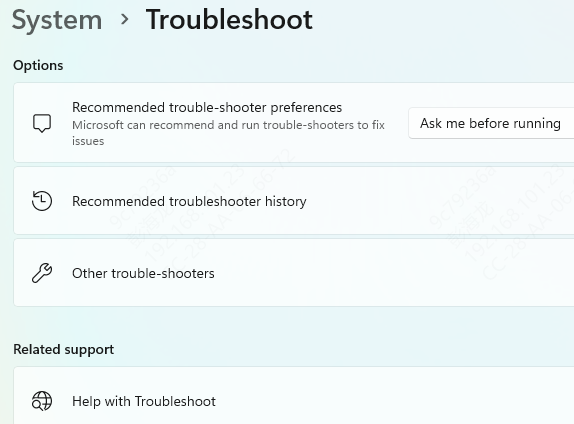
Run the built-in Windows Troubleshooter: Settings → System → Troubleshoot → Other troubleshooters → Printer
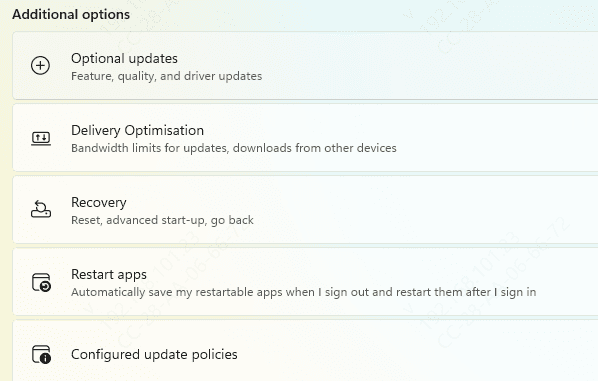
Update Windows fully
Disable "Let Windows manage my default printer" in printer settings
For stubborn cases, remove the printer and re-add it using the static IP
Best Practices to Prevent HP Printer Offline Issues
Assign a static IP for wireless printers
Avoid unnecessary unplugging or power cycling during use
Periodically restart the Print Spooler
Maintain stable Wi-Fi and back up drivers before major Windows updates
Conclusion
An HP printer showing "Offline" while connected is usually caused by driver, network, or software issues rather than hardware failure. By checking connections, updating drivers manually or using Driver Talent X, configuring network settings, and restarting the print spooler, most offline problems can be quickly resolved. Keeping drivers updated and monitoring network stability ensures your HP printer stays online and ready to print whenever you need it.
