

HP printer driver problems are among the most frustrating issues users face. Whether you see the "printer driver is unavailable" error, your HP printer won't print after a Windows update, jobs get stuck, or advanced features like scanning are missing — the root cause is usually outdated, corrupted, or incompatible drivers. This comprehensive troubleshooting guide will help you quickly resolve HP printer driver issues.
Step 1: Identify Your HP Printer Model and Current Driver
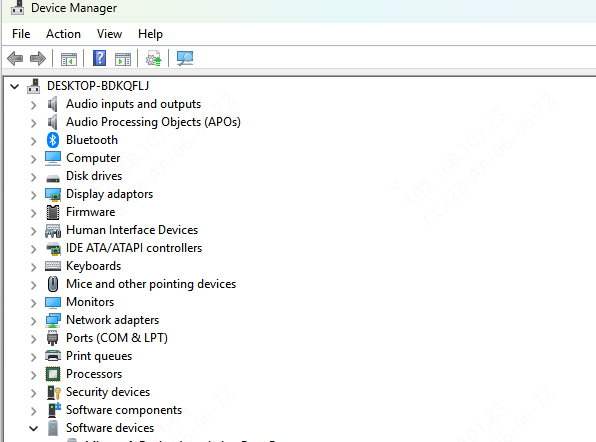
On Windows: Right-click Start → Device Manager → Expand Print queues or Printers → Right-click your HP printer → Properties → Driver tab. Note the driver version and provider
Write down your exact model number (usually on the printer label or in Settings)
Step 2: Quick Basic Fixes
Restart everything — Turn off your printer, unplug it for 30 seconds, restart your computer, then reconnect
Run HP Print and Scan Doctor (Recommended first step)
Download the free tool from the official HP website. It automatically diagnoses driver, connection, and spooler issues and often fixes them instantly
Clear the Print Spooler
Search for Services → Find Print Spooler → Right-click → Restart
Delete stuck jobs from the print queue in Settings → Bluetooth & devices → Printers & scanners
Step 3: Uninstall and Reinstall HP Printer Drivers (Most Effective Fix)
Manual Method
Go to Settings → Bluetooth & devices → Printers & scanners
Select your HP printer → Remove device (remove all duplicate entries if any)
In Device Manager, uninstall the printer under Print queues
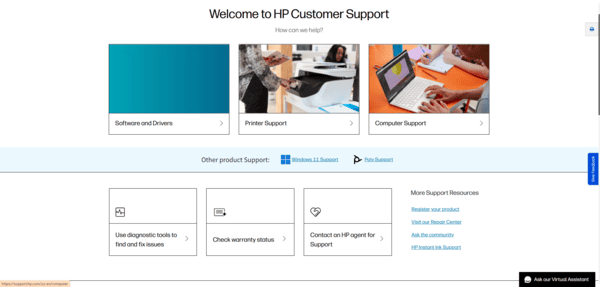
Visit the official HP Support Drivers page
Enter your printer model, select your Windows version (10 or 11), and download the full feature driver package (not the basic one)
Run the installer as administrator, follow prompts, and restart your PC
Using HP Smart App
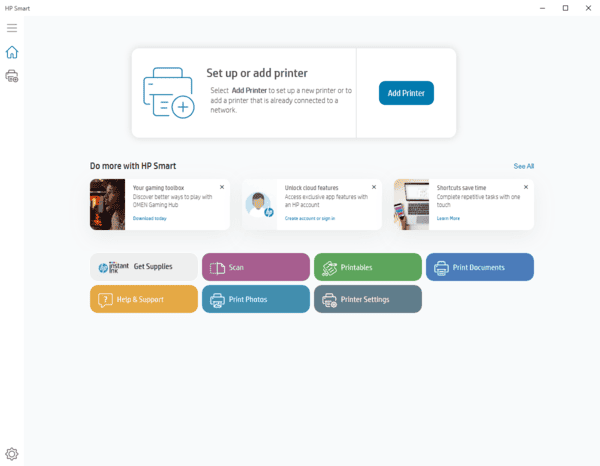
Download HP Smart from the Microsoft Store or HP website
Open the app, add your printer, and let it handle driver installation and updates automatically
Use the built-in Diagnose & Fix tool for common errors
If you have an older printer relying on legacy drivers, you may need the full HP software package instead of relying on Windows Update
Step 4: Update Drivers Automatically with Driver Talent X
For a faster, error-free experience, especially if you're not comfortable with manual downloads:
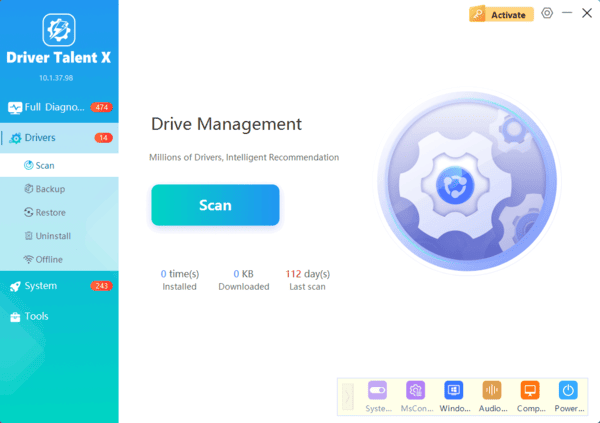
Download and install Driver Talent X from its official website
Launch the program and click Scan — it will detect outdated, missing, or corrupted drivers, including your HP printer driver
Select the HP printer driver and click Update or Repair
Restart your computer after installation
Step 5: Troubleshoot Specific HP Printer Driver Errors
Printer driver unavailable — Reinstall using the full driver from HP (avoid generic Windows drivers)
Printer not detected — Check USB cable/port, ensure Wi-Fi is on the same network, or run HP Print and Scan Doctor
Print jobs stuck — Restart Print Spooler service and clear the queue
Missing features (scan/fax) — Install the full-feature software instead of basic driver
Compatibility issues after Windows 11 update — Uninstall old drivers completely, then install the latest HP version
Step 6: Additional Advanced Fixes
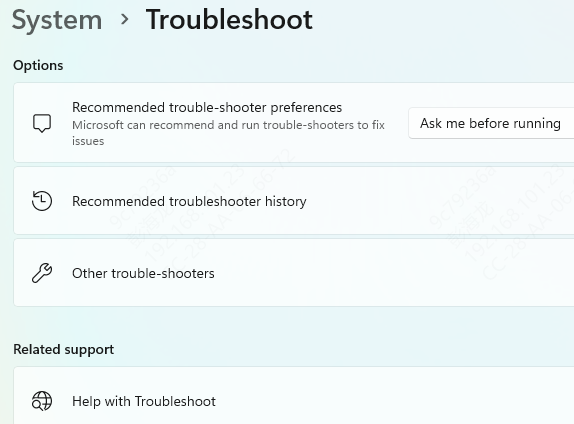
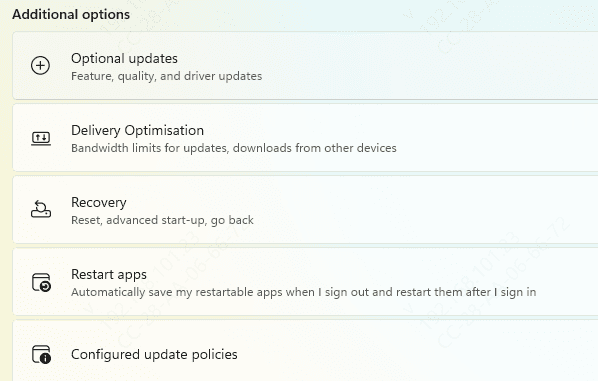
Update Windows fully via Settings → Windows Update
Temporarily disable antivirus/firewall to test
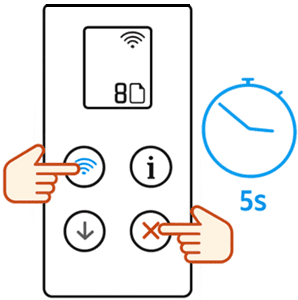
Perform a printer hard reset (check your model's manual or use the control panel)
For persistent issues, try the HP Universal Print Driver as a temporary workaround
Roll back the driver in Device Manager if a recent update caused the problem
Best Practices to Prevent Future HP Printer Driver Problems
Keep Windows and your HP printer firmware updated
Use the full-feature driver package for complete functionality
Avoid sudden USB disconnections or power outages during printing
Regularly scan for driver updates with a trusted tool like Driver Talent X
Back up your current drivers before major Windows updates
