

If your HP OfficeJet Pro 8600 Plus is experiencing printing, scanning, faxing, or connection problems, an outdated or incompatible driver may be the cause. Keeping the correct printer driver installed helps Windows communicate properly with the device and ensures that all supported features work reliably. This guide explains several ways to update HP OfficeJet Pro 8600 Plus drivers, including HP Support Assistant, the official HP website, Windows Device Manager, and Driver Talent X, along with troubleshooting tips for common driver-related issues.
1. Check Current Driver Version and System Compatibility
Before updating, determine your current driver version and operating system:
Find your printer driver version:
Open Devices and Printers in Windows
Right-click HP Officejet Pro 8600 Plus → Printer Properties → Driver tab
Check OS compatibility
Ensure your Windows version matches the driver version you intend to install
Optional backup:
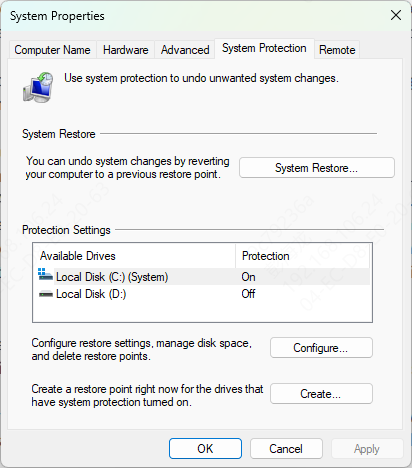
Create a system restore point to revert changes if needed
2. HP Support Assistant
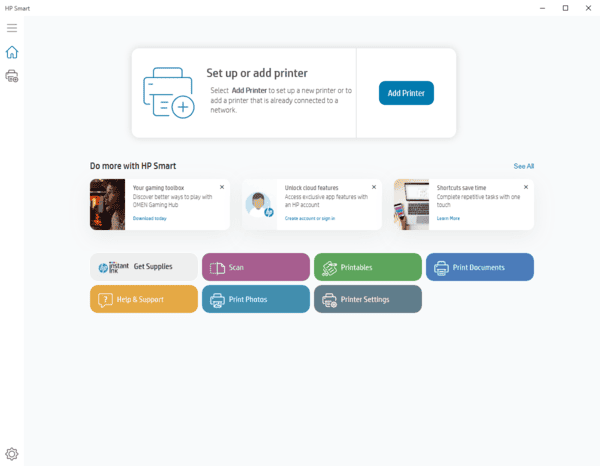
HP Support Assistant simplifies updates for your printer:
Open HP Support Assistant on your computer
Navigate to the Updates section
Click Check for updates and messages
Install any available printer driver updates
Restart your computer to complete the update
Why it works: HP Support Assistant automatically matches the correct driver for your printer and operating system.
3. Manual Driver Installation from HP Website
For users who prefer to download drivers manually:
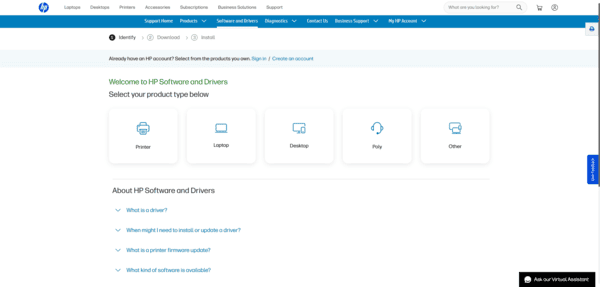
Visit HP Support → Software & Drivers
Enter Officejet Pro 8600 Plus in the search field
Select your operating system from the drop-down menu
Download the latest full feature driver package or basic driver depending on your needs
Run the downloaded file and follow the on-screen instructions to install
Restart your computer after installation
Pro Tip: Choose the full feature driver if you use advanced scanning, faxing, or network features.
4. Update Using Windows Device Manager
Windows Device Manager can update drivers without extra software:
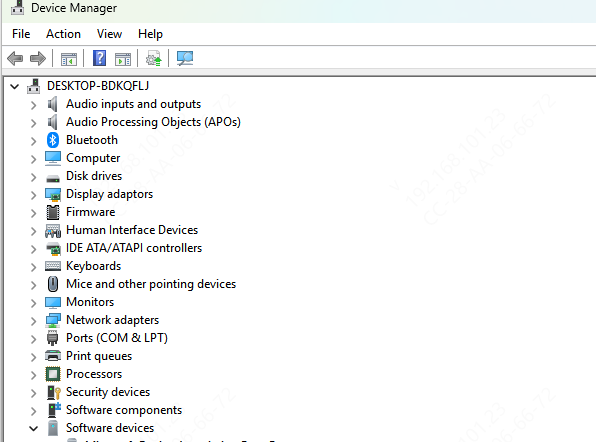
Press Windows + X → Device Manager
Expand Printers (or Universal Serial Bus controllers for USB connections)
Right-click HP Officejet Pro 8600 Plus → Update driver → Search automatically for drivers
Follow prompts to install the latest driver
Restart your PC to apply changes
Note: Device Manager may not always provide the latest version; always check HP's website for the newest drivers.
5. Driver Update with Driver Talent X
For the easiest and most reliable way to keep drivers updated, Driver Talent X is highly recommended:
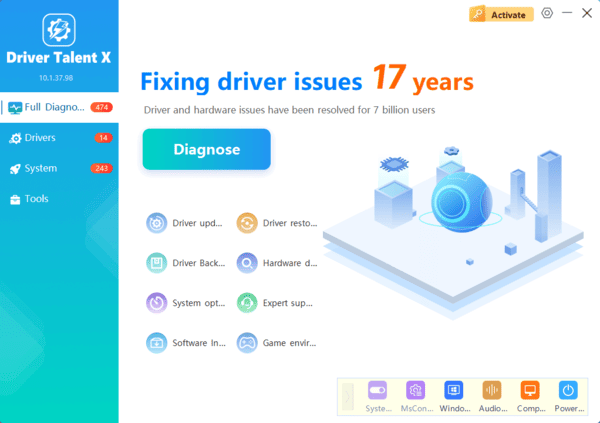
Download and install Driver Talent X
Open the software and click Scan to detect outdated or missing drivers, including your printer
Click Repair/Update All to automatically download and install the correct drivers
The software automatically creates a backup restore point before updating
Restart your computer after updates are applied
6. Troubleshooting Common Issues
Even after updating, you may encounter problems. Here's how to resolve them:
Printer not recognized: Check USB or network connections and ensure the printer is powered on
Installation fails: Temporarily disable antivirus/firewall and retry
Print jobs stuck or fail: Uninstall old drivers and reinstall the latest version
Scanning issues: Make sure scanning software is compatible with the latest driver
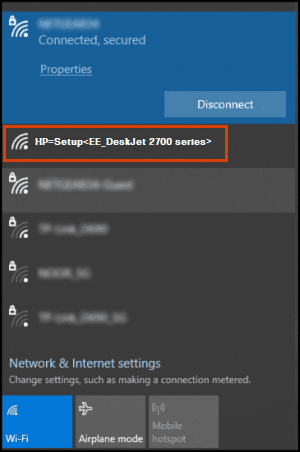
Network printer errors: Confirm printer IP and ensure firewall settings allow communication
7. Tips for Maintaining Printer Drivers
Use Driver Talent X periodically to ensure all drivers stay up to date
Keep printer firmware updated if using advanced features like wireless printing or scanning
Avoid installing multiple conflicting drivers to prevent performance issues
Updating your HP Officejet Pro 8600 Plus driver is essential for optimal printer performance, smooth scanning, and reliable printing. Whether you use HP Support Assistant, manual downloads from HP's official website, Windows Device Manager, or Driver Talent X, keeping drivers current ensures your printer functions efficiently and prevents common errors. Regular maintenance saves time, avoids frustration, and keeps your office or home printing setup running seamlessly.
