

The HP Smart Tank 5102 is a wireless inkjet printer that may encounter issues such as failed printing, connection problems, or being shown as offline in Windows. Most problems are related to three main areas: missing or outdated drivers, unstable Wi-Fi connections, or incorrect printer status settings. Common symptoms include stuck print jobs, the HP Smart app not detecting the printer, or the device disappearing from Windows after an update. In this guide, we'll cover solutions for HP Smart Tank 5102 issues, starting with quick checks before moving on to driver updates and network troubleshooting methods.
Basic Checks Before Troubleshooting
Confirm the printer is powered on and the power light is solid rather than flashing. A flashing light usually indicates an error state — check the printer's display for any message about paper jams, low ink, or open covers
Check ink levels. The HP Smart Tank 5102 uses refillable ink tanks visible through the front of the printer. Very low ink on any color can cause the printer to pause or refuse jobs. Refill if any tank is near empty
Restart the printer by pressing the power button, waiting 30 seconds, and powering it back on. Restart the PC and the router
Fix 1: Download and Install the HP Smart Tank 5102 Driver
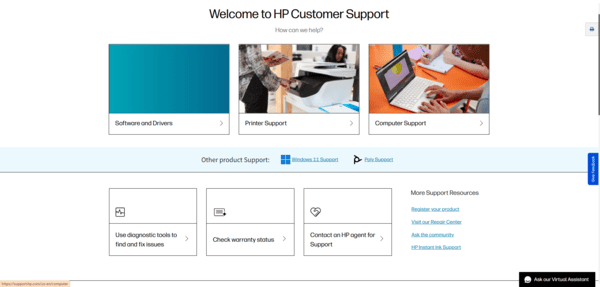
Go to support hp and search for "HP Smart Tank 5102." Select your Windows version and download either the HP Smart app or the full driver and software package. The full package is recommended as it includes all printer components
Before installing, clean out any existing HP software. Go to Settings, then Apps, search for HP Smart and any other HP printer entries, and uninstall them. Go to Settings, then Devices, then Printers and scanners, and remove the HP Smart Tank 5102 entry. Restart the PC
After the restart, run the downloaded installer as administrator. The setup wizard guides through the WiFi connection step — follow it to connect the printer to the same network as the PC. Restart after installation completes and print a test page
Fix 2: Update the Printer Driver
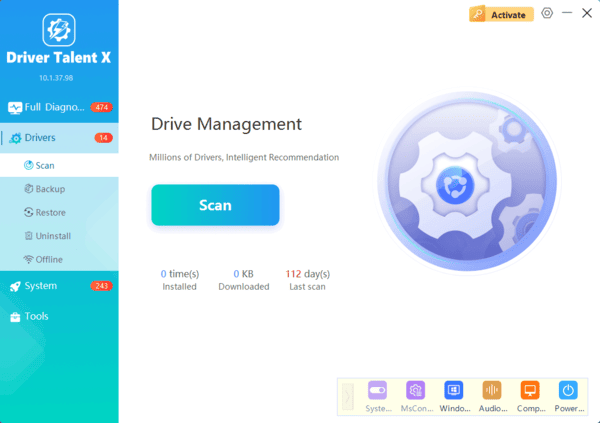
When the HP installer produces an error, the printer disappeared from Windows after a Windows update, or the setup wizard fails to detect the printer on the network, Driver Talent X identifies the HP Smart Tank 5102 by hardware ID and installs the correct matched driver without requiring the HP setup wizard to complete.
Fix 3: Fix the Printer Showing as Offline
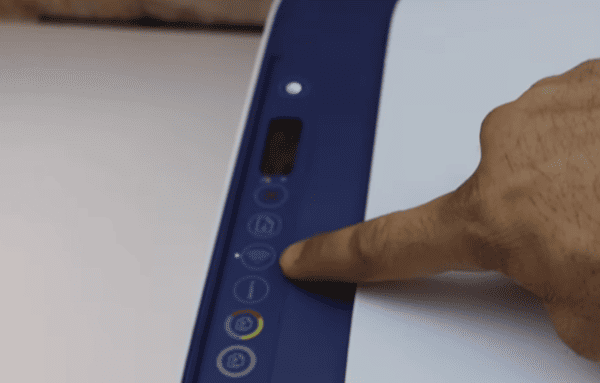
First, confirm the printer is on the same WiFi network as the PC. On the printer's control panel, press the Wireless button and check the network name shown. Alternatively, print a network configuration page from the printer's wireless menu — it shows the current IP address and network name
Open the print queue in Windows. Go to Settings, then Devices, then Printers and scanners. Click the HP Smart Tank 5102 and select Open print queue. Click the Printer menu at the top of the queue window. If "Use Printer Offline" is checked, click it to uncheck it
If the printer remains offline, remove it and add it again. Go to Printers and scanners, select the HP Smart Tank 5102, and remove it. Click Add a printer or scanner and wait for Windows to detect it on the network. Select it when it appears and follow the prompts
Fix 4: Reconnect the Printer to WiFi
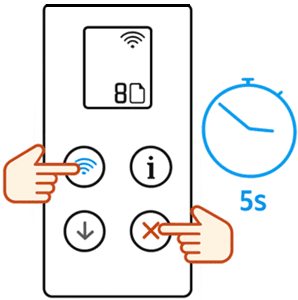
On the printer's control panel, press the Wireless button. Navigate to Wireless Setup Wizard. Select the correct network name and enter the WiFi password. The printer will attempt to connect and the wireless indicator should become solid when successful
For a faster method if the router supports WPS, press and hold the WPS button on the router, then press the wireless button on the printer within two minutes. The printer connects automatically without entering a password
After reconnecting, print a network test page to confirm the printer has received an IP address. On the PC, remove the existing HP Smart Tank 5102 entry from Printers and scanners and add it again so Windows picks up the current IP
Fix 5: Restart the Print Spooler Service
A stuck Print Spooler prevents all print jobs from processing regardless of whether the printer is connected and online
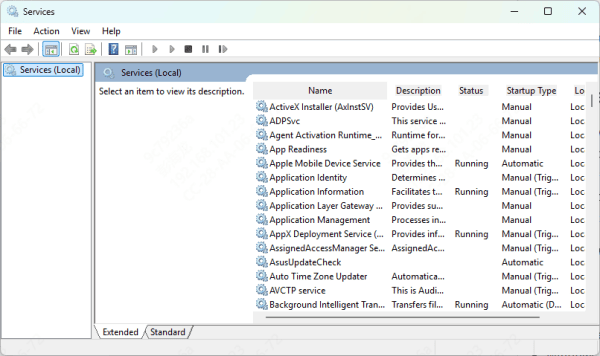
Press Win + R, type services.msc, and press Enter. Scroll to Print Spooler. Right-click it and select Restart. Confirm the Startup type is set to Automatic
Open File Explorer and navigate to C:\Windows\System32\spool\PRINTERS. Delete all files inside this folder — do not delete the folder itself, only its contents. Return to Services and confirm Print Spooler is still running. Restart the PC and attempt printing
Fix 6: Run the Windows Printer Troubleshooter
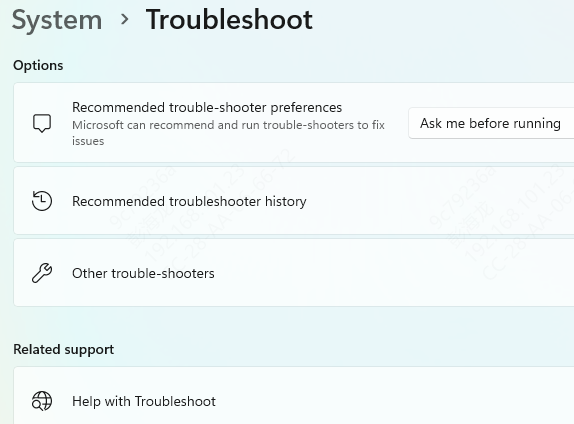
On Windows 10, go to Settings, then Update and Security, then Troubleshoot, then Additional troubleshooters. Run the Printer troubleshooter. On Windows 11, go to Settings, then System, then Troubleshoot, then Other troubleshooters, and run Printer
For HP-specific diagnostics, download HP Print and Scan Doctor from HP's support site. This tool checks for HP printer connection issues, driver problems, and print queue errors that the Windows troubleshooter doesn't cover. Run it and apply any suggested fixes
Fix 7: Use HP Smart App to Reconnect and Diagnose
The HP Smart app provides guided connection setup and print quality diagnostics that go beyond standard Windows printer management
Download HP Smart from the Microsoft Store if it is not already installed. Open it — the app detects the HP Smart Tank 5102 on the network automatically if the printer and PC are on the same network. If it doesn't detect the printer, click Add Printer and follow the guided WiFi setup
If the printer connects but prints are blank, faded, or have missing colors, open HP Smart and run the Print Quality Diagnostics option. This prints a diagnostic page and guides through printhead cleaning and alignment steps specific to the Smart Tank series
Fix 8: Check Firewall Settings
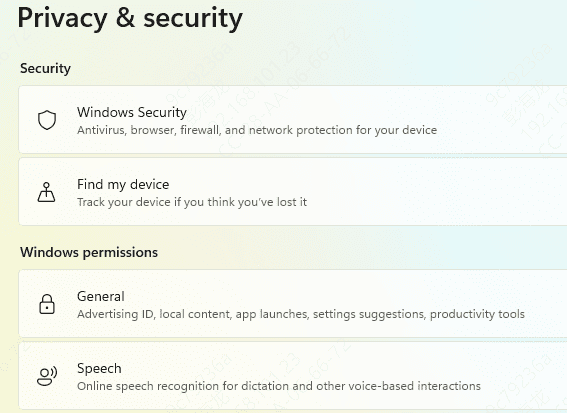
Windows Firewall or third-party antivirus can block network communication between Windows and the HP Smart Tank 5102, causing it to appear offline or unreachable despite being connected to the same network
Open the Control Panel and go to Windows Defender Firewall. Click "Allow an app or feature through Windows Defender Firewall." Scroll through the list and confirm HP Smart has both Private and Public checkboxes ticked. If it isn't listed, click Allow another app and browse to the HP Smart executable
If third-party antivirus is installed, temporarily disable it and test printing. If printing works with it disabled, add HP Smart and the printer's IP address to the antivirus exception list
Most HP Smart Tank 5102 printing failures trace back to a missing or outdated driver, a lost WiFi connection, or the printer being flagged as offline in Windows. Installing the full HP driver package from HP's support site resolves the majority of driver-related failures. For cases where the HP installer fails, Driver Talent X installs the correct driver automatically. For offline and WiFi issues, removing and re-adding the printer after confirming it's on the correct network resolves most cases — and assigning a static IP through the router prevents the problem from recurring.
