

Connecting an HP printer to Wi-Fi allows you to print wirelessly from Windows computers, smartphones, and tablets without relying on a USB cable. Depending on your printer model and network setup, you can connect using HP Smart, WPS, the printer's control panel, or Wi-Fi Direct. If the printer is not detected, appears offline, or frequently disconnects, the issue may be related to network settings, weak wireless signals, or outdated drivers. This guide explains several practical ways to connect an HP printer to Wi-Fi and troubleshoot common wireless printing problems.
Method 1: Using HP Smart App
Open the HP Smart app on your computer (install it first if needed)
Click the "+" sign or "Add Printer" / "Set up a new printer" option
If your printer is brand new or has been reset, it should enter setup mode automatically (Wi-Fi light blinks blue). If not, press and hold the Wireless button on the printer for 3 seconds or follow printer instructions to start setup mode
The app scans and detects your printer. Select your model when it appears
Choose your home Wi-Fi network from the list
Enter your Wi-Fi password (case-sensitive)
Method 2: Using WPS Push Button
Locate the WPS button on your router (usually labeled "WPS" and may need to be pressed for 1–2 seconds)
On the printer: Press and hold the Wireless button (or go to Setup > Network Setup > Wi-Fi Protected Setup on touchscreen models)
Select "Push Button" or press the WPS icon on the printer panel
Within 2 minutes, press the WPS button on your router
Windows: Settings > Bluetooth & devices > Printers & scanners > Add device
Your HP printer should appear. Select it and let the system install basic drivers (HP Smart may open to finish)
Method 3: Manual Wi-Fi Setup Using Printer Control Panel
On the printer touchscreen or control panel: Navigate to Setup (gear icon) > Network Setup > Wireless Settings > Wireless Setup Wizard
Select your network name (SSID) from the list
Enter your Wi-Fi password using the on-screen keyboard (use arrows or touchscreen)
Confirm. The printer connects (Wi-Fi light turns solid blue or white)
Settings > Printers & scanners > Add a printer or scanner
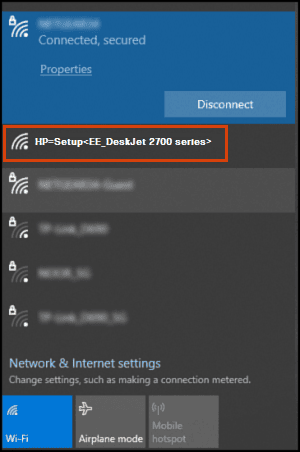
Select your HP printer (may appear as "HP-Setup-[model]" initially)
Method 4: Using Wi-Fi Direct (No Router or Internet Needed)
On the printer: Go to Setup > Network Setup > Wi-Fi Direct > Turn On (or press the Wi-Fi Direct button if available)
Note the Wi-Fi Direct name (usually "DIRECT-xx-HP [model]") and password shown on the screen
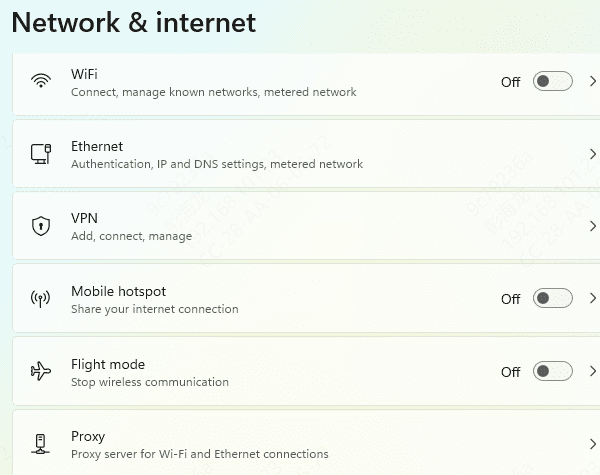
On your computer: Go to Wi-Fi settings and connect to the printer's Wi-Fi Direct network (enter the password)
Open HP Smart app or go to Printers & scanners settings
Add the printer—it should appear now that you're connected directly
Print as usual. When finished, reconnect your computer to your regular home Wi-Fi
Bonus: Keep Your Printer Drivers Updated
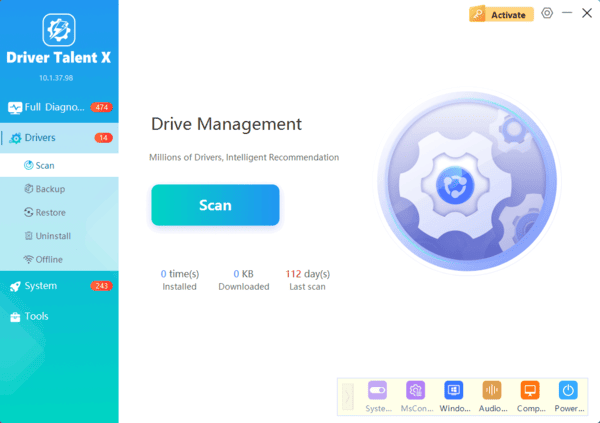
To ensure your printer works seamlessly, it's essential to keep its drivers up to date. Driver Talent X is an automated tool that can help you keep all your device drivers, including your HP printer drivers, up to date
With Driver Talent X, you no longer need to manually search for driver updates—simply run the software, and it will detect outdated or missing drivers, automatically download and install the latest versions
This ensures optimal printer performance, prevents compatibility issues with your computer, and resolves common printing errors
Troubleshooting Common Wireless Problems
Printer not found: Restart printer, router, and computer. Move printer closer to router. Ensure 2.4 GHz band is enabled
Wi-Fi light keeps blinking: Wrong password (double-check case), weak signal, or incompatible 5 GHz network—switch router to mixed 2.4/5 GHz mode
Printer shows "Offline": Confirm same network, restart all devices, run Windows Printer Troubleshooter (Settings > System > Troubleshoot > Other troubleshooters > Printer)
No drivers installed: Download full driver package from support.hp.com (enter your model, choose OS)
Connection drops: Update printer firmware via HP Smart app > Printer Settings > Advanced > Firmware Update
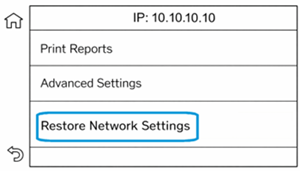
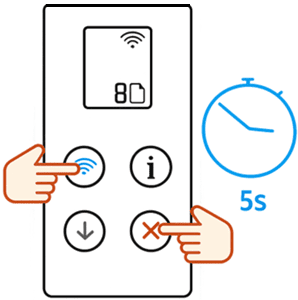
Still fails: Reset network settings on printer (hold Wireless + Cancel buttons for 5 seconds or via menu), then restart setup from scratch
Conclusion
For the vast majority of users, starting with the HP Smart app provides the smoothest, most guided wireless setup experience. Once connected, you'll enjoy hassle-free printing from any device on your network. Test it right away with a simple document or photo to confirm everything works perfectly.
