

If your HP Smart Tank 5000 is not printing, stays offline, produces blank pages, or fails to respond to print jobs, the problem may be caused by low ink, clogged printheads, Wi-Fi or USB connection issues, outdated drivers, printer software errors, or firmware problems. This guide explains several practical ways to fix HP Smart Tank 5000 printing issues, including checking ink levels, cleaning the printhead, disabling offline mode, reconnecting the printer, reinstalling HP software, updating firmware, resetting the printer, and repairing printer-related drivers with Driver Talent X.
1. Check Ink Levels and Refill if Necessary
Low or empty ink tanks prevent the printer from printing properly.
Look at the front ink tank windows on the printer.
Ensure that cyan, magenta, yellow, and black tanks have sufficient ink.
If any tank is low, refill it using genuine HP ink.
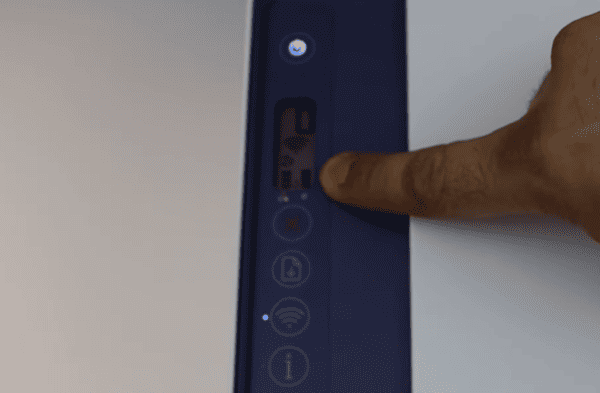
After refilling, run a cleaning cycle using the HP Smart app or printer menu.
2. Clean Printhead to Fix Blank or Faded Prints
A clogged printhead may cause the printer to output blank pages.
Open the HP Smart App.
Select your HP Smart Tank 5000 printer.
Open Printer Settings.
Choose "Maintenance" or "Tools".
Click "Clean Printhead" and follow the on-screen instructions.
Print a test page.
Repeat the cleaning process up to three times if needed.
3. Ensure the Printer Is Not Set to Offline Mode
Windows may mistakenly set the printer to offline.
Open Settings on Windows.
Go to "Devices" > "Printers & Scanners".
Select HP Smart Tank 5000.
Click "Open Print Queue".
Uncheck "Use Printer Offline" if enabled.

4. Restart HP Smart Tank 5000 and Your PC
A simple restart can clear configuration conflicts.
Turn off the printer using the power button.
Unplug the power cable from the printer for 60 seconds.
Plug it back in and power it on.
Restart your computer.
Attempt to print again.
5. Check WiFi or USB Connection
Poor connectivity may prevent print jobs from sending.
For WiFi Connection:
Ensure your printer and computer are connected to the same WiFi network.
Move the printer closer to the router.
Reconnect WiFi using the printer control panel or HP Smart app.
For USB Connection:
Use a high-quality USB cable.
Try connecting to a different USB port.
Avoid using USB hubs or adapters.
6. Reinstall HP Smart
If the software installation is incomplete, printing issues can occur.
Open "Control Panel" > "Programs and Features".
Uninstall the following:
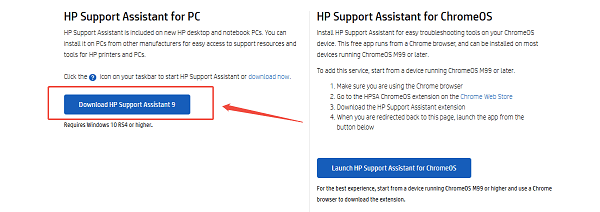
HP Smart
HP Support Assistant
HP Smart Tank 5000 driver packages
Restart your computer.
Download the full driver package from HP's official website.
Install and follow the setup instructions.
7. Reset the Printer to Factory Default Settings
This can fix firmware and internal errors.
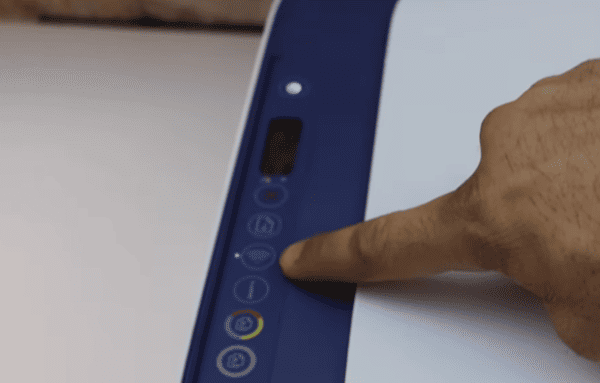
Press and hold the Wireless and Cancel buttons simultaneously for a few seconds.
Release them when the printer restarts.
Reconfigure your WiFi connection using HP Smart.
8. Check for Firmware Updates
Updating firmware improves reliability and fixes known bugs.
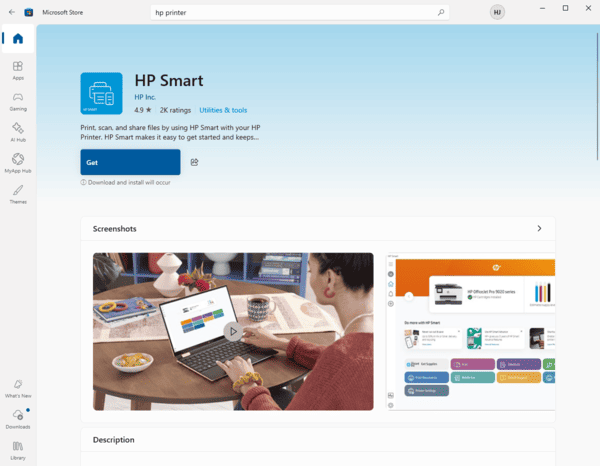
Open HP Smart.
Go to Settings.
Select "Advanced Settings".
Click "Printer Updates" and install available firmware.
9. Update HP Printer Drivers
Outdated or corrupted printer drivers are one of the most common causes of HP Smart Tank 5000 printing issues.

Download and Install:
Click the "Download" button to download the software package.
Install it on the PC you will use for the setup.
Run Scan:
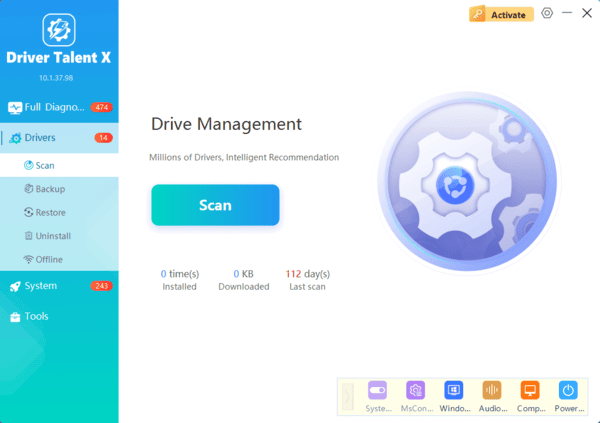
Launch Driver Talent X and go to "Drivers" > "Scan", click "Scan".
The software will perform a deep analysis of your system, focusing on network and peripheral components.
Execute Update:
After the scan is complete, the software will display a list of all drivers that need attention. Select the necessary drivers and click the "Upgrade" or "Repair Now" button.
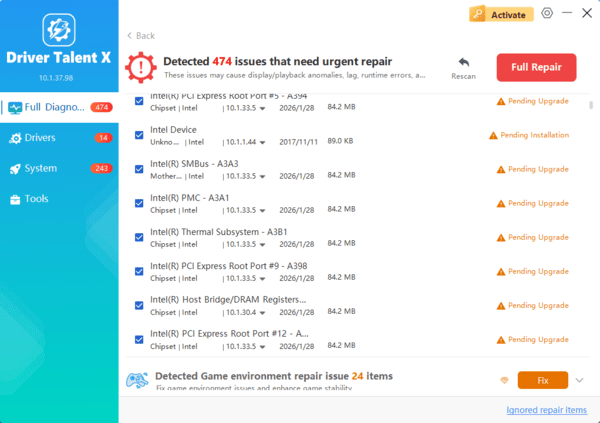
Driver Talent X will download the latest, certified versions specific to your hardware, ensuring optimal network stability for the setup process.
Restart Your PC:
Restart your computer and try printing again.
Final Thoughts
The HP Smart Tank 5000 printer may stop printing due to driver issues, low ink, clogged printheads, connection problems, or misconfigurations. Begin by updating your drivers with Driver Talent X, then work through the hardware and software fixes above.
In most cases, these steps will quickly restore proper printing functionality. If the printer still does not print after trying all solutions, professional HP support or hardware servicing may be required.
