

Connecting an HP DeskJet printer to WiFi allows convenient wireless printing, but setup issues may occur after a router change, password update, or network reset. Incorrect settings, unsupported WiFi bands, or missing drivers can prevent the printer from connecting properly. This guide explains how to connect HP DeskJet printers to WiFi and fix common connection problems using reliable methods.
Before You Start
Confirm the printer is powered on and no error lights are flashing. Have the WiFi network name and password ready before starting any setup method. The PC or phone being used for setup must be connected to the same 2.4GHz network the printer will join
Download the HP Smart app from the Microsoft Store before starting if using Method 1. HP Smart is the most reliable connection method and installs the printer driver at the same time
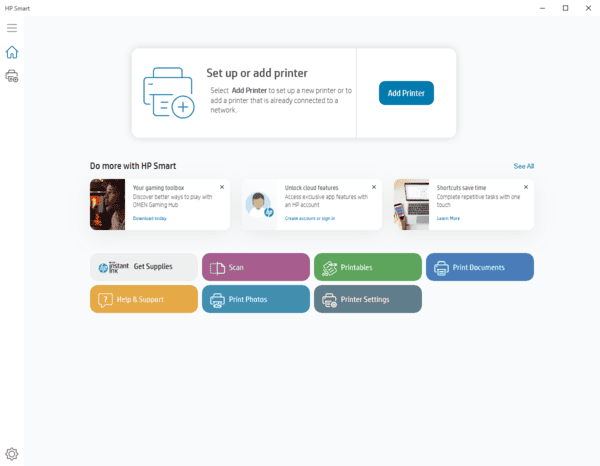
Method 1: Connect Using the HP Smart App
Install HP Smart from the Microsoft Store. Open it and click the plus icon or the option to set up a new printer. HP Smart searches for nearby printers
When prompted, put the printer into wireless setup mode. On most HP DeskJet models, press and hold the Wireless button until the wireless light begins flashing
Follow the HP Smart prompts to select the WiFi network and enter the password. The printer connects to the network and the wireless light becomes solid. HP Smart then installs the driver automatically. After setup completes, print a test page from within HP Smart to confirm both the connection and the driver are working
Method 2: Connect Using the WPS Button
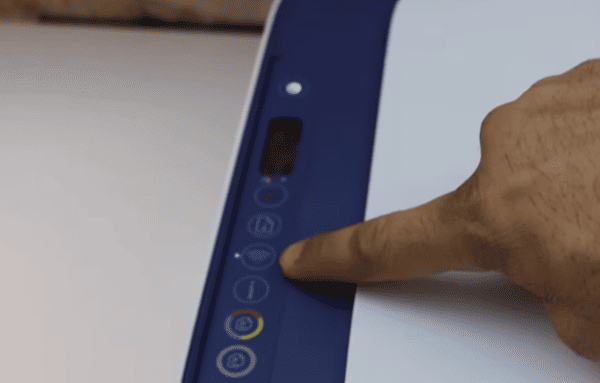
On the printer, press and hold the Wireless button until the wireless light starts flashing. This activates WPS pairing mode on the printer
Within two minutes, press and hold the WPS button on the router for three seconds. The printer and router communicate automatically. When the connection is established, the wireless light on the printer becomes solid
After the printer connects, add it to Windows. Go to Settings, then Devices, then Printers and scanners, and click Add a printer or scanner. Windows scans the network and the HP DeskJet should appear within a minute. Click Add device
Method 3: Reset Network Settings and Reconnect
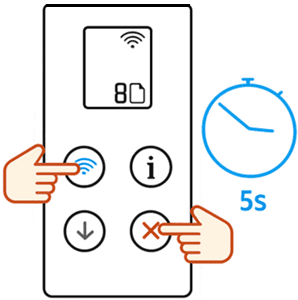
On most HP DeskJet models, press and hold the Wireless button and the Cancel button simultaneously for three seconds. The wireless light flashes to confirm the network settings have been cleared. The printer is now ready to connect to a new network
On HP DeskJet models with a display screen, navigate to Setup, then Network Setup, then Restore Network Settings to perform the reset
Method 4: Use the Wireless Setup Wizard (Models with Display)
On the printer's control panel, navigate to the Wireless menu or the Setup menu and select Wireless Setup Wizard. The printer scans for available networks and displays a list. Select the correct network name, enter the WiFi password using the on-screen keyboard, and confirm. The printer connects and the wireless light becomes solid when successful
After connecting, add the printer to Windows through Settings, then Devices, then Printers and scanners, and click Add a printer or scanner
Add the HP DeskJet to Windows After WiFi Connection
Go to Settings, then Devices, then Printers and scanners, and click Add a printer or scanner. Windows scans the local network and the HP DeskJet should appear within 30 to 60 seconds. Click the printer and select Add device
Set the HP DeskJet as the default printer if it is the primary printer on the system. Click the printer in Printers and scanners, select Manage, and click Set as default printer
Install or Update the HP DeskJet Driver
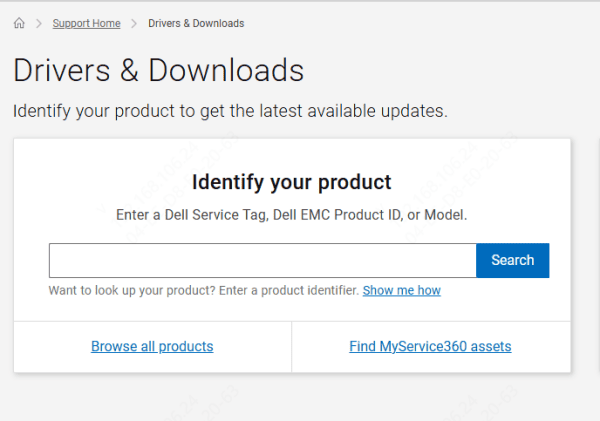
Download the HP DeskJet full driver package from HP's official support site. Search the printer model number, select the correct Windows version, and download the Full Feature Driver and Software package. Run the installer as administrator and restart after installation.
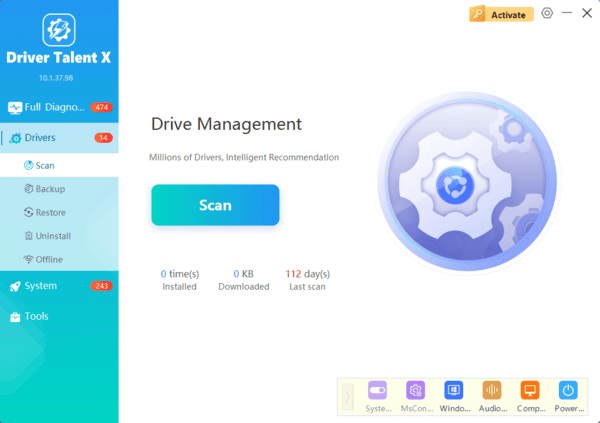
For an automated alternative, Driver Talent X detects the HP DeskJet by hardware ID and installs the correct driver without requiring manual navigation of HP's support site.
Conclusion
HP Smart guided setup is the most reliable method for connecting an HP DeskJet printer to WiFi — it handles the network connection and driver installation together in one process. WPS is the fastest option for routers that support it. For reconnecting after a router change or password update, resetting the printer's network settings first ensures old credentials are cleared before the new connection attempt. After connecting, confirm the printer appears in Windows Printers and scanners, print a test page, and assign a static IP to prevent recurring offline issues.
