

This article reviews the HP Smart Tank printer series, covering its key features like refillable ink tanks and wireless printing, step-by-step setup instructions, and a print quality evaluation. It also recommends updating system drivers with Driver Talent X before installation to ensure smooth connectivity and avoid setup errors.
HP Smart Tank Printer Features
The HP Smart Tank series offers a variety of features that make it a versatile and efficient printer for both home and office use:
High-Capacity Refillable Ink Tanks: Reduces printing costs by allowing bulk ink refills.
Wireless Printing: Supports Wi-Fi, mobile printing via HP Smart app, and cloud printing services.
Automatic Duplex Printing: Allows double-sided printing for reduced paper usage.
High-Quality Printing: Delivers sharp text and vivid images with a maximum print resolution up to 1200 x 1200 dpi.
Compact Design: Space-saving design suitable for desks and small offices.
Ink Level Monitoring: Smart sensors notify you when ink levels are low to prevent interruptions.
HP Smart Tank Printer Setup
Follow these detailed steps to set up your HP Smart Tank printer:
Step 1: Unbox and Prepare the Printer
Remove the printer from the box and remove all protective packaging.
Fill the ink tanks with the supplied ink bottles.
Power on the printer and allow it to initialize the ink system.
Step 2: Connect the Printer to Your PC
Wireless Connection:
Press the Wi-Fi button on the printer.
Open the HP Smart app on your PC or mobile device.
Follow the on-screen instructions to connect the printer to your Wi-Fi network.
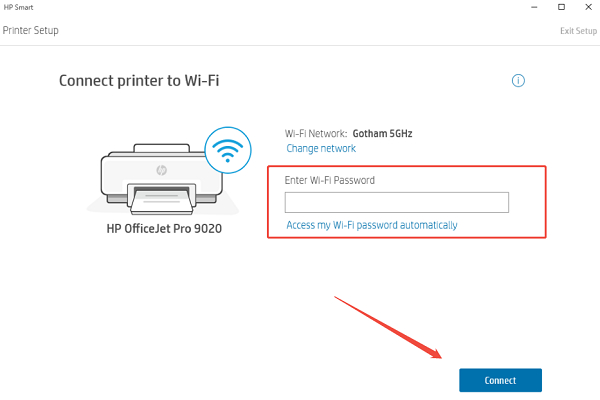
Wired USB Connection:
Connect the printer to your PC using the provided USB cable.
Step 3: Install Printer Software
Visit the HP Support website and download the latest HP Smart Tank software for your Windows version.
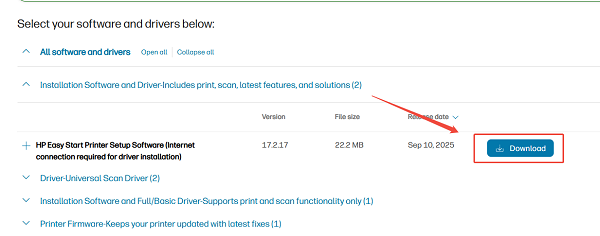
Run the installer and follow the prompts.
Complete the installation and add the printer to your PC.
Step 4: Perform a Test Print
Open any document or photo on your PC.
Select Print and choose your HP Smart Tank printer.
Check for proper text clarity, color accuracy, and alignment.
Print Quality Review
The HP Smart Tank series delivers professional-level print quality:
Text Printing: Sharp, clean, and legible documents suitable for reports and assignments.
Photo Printing: Vivid colors and smooth gradients with minimal banding.
Consistency: Reliable performance over large-volume print jobs without frequent errors.
Efficiency: Refillable ink system ensures uninterrupted printing and low per-page costs.
Update Drivers
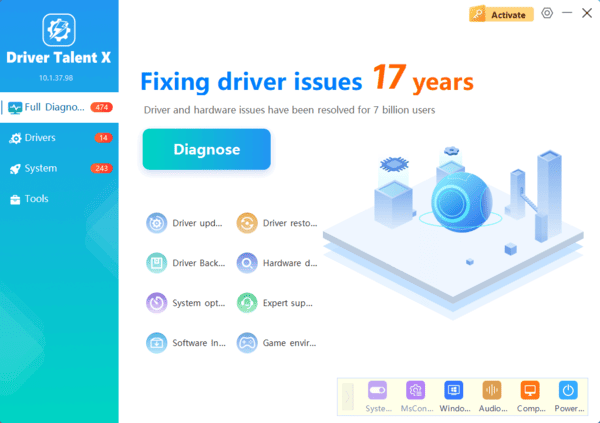
Updating your Windows drivers helps avoid installation failures, connectivity errors, and printing malfunctions. Driver Talent X automatically scans your PC for outdated, missing, or corrupted drivers and installs the latest versions.
Tips for Optimal Performance
Regularly check ink levels to avoid running out during large print jobs.
Use Driver Talent X to maintain updated USB, print spooler, and graphics drivers.
Keep the printer firmware updated via the HP Smart app.
Clean the printhead periodically to maintain color accuracy and prevent streaks.
Conclusion
The HP Smart Tank printers combine high-volume printing capability, excellent print quality, and cost-efficiency. By first updating your system drivers using Driver Talent X, you ensure a smooth installation process and reduce connectivity issues.
Following the setup and usage instructions above allows you to maximize your HP Smart Tank printer's features, delivering professional results for both documents and photos while maintaining long-term performance.
