The Intel Wi-Fi 6 AX201 is a wireless network adapter commonly found in Windows laptops and compatible desktop computers. It allows users to connect to Wi-Fi networks and access the internet without relying on a wired connection.
However, some users encounter an unexpected problem where the Intel AX201 stops working and displays Error Code 43 in Device Manager. When this happens, the Wi-Fi option may disappear from Windows, wireless connections may fail, or the adapter may show a yellow warning icon. This guide explains how to troubleshoot Intel AX201 Code 43 on Windows 10 and Windows 11.
Solution 1: Restart Windows and Perform a Power Reset
Save your work and close open applications.
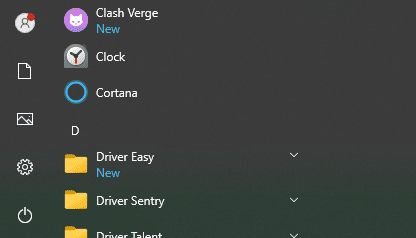
Click Start.
Select Power > Restart.
Wait for Windows to load.
Shut down Windows.
Disconnect unnecessary external devices.
Disconnect external power if appropriate for your computer.
Follow your computer manufacturer's instructions for a supported power reset.
Turn the computer back on.
After restarting, check whether Wi-Fi has returned.
Solution 2: Update the Intel AX201 Wireless Driver
An incompatible or damaged wireless driver is one possible cause of Intel AX201 Code 43.
Drivers allow Windows to communicate with the wireless adapter. If the installed driver cannot initialize the device correctly, the adapter may stop functioning.
Updating or reinstalling a compatible driver is therefore an important troubleshooting step.
Method A: Update Drivers with Driver Talent X
Driver Talent X is a Windows driver management utility that can check supported devices for missing, outdated, or problematic drivers.
To check the Intel AX201 driver:
Download Driver Talent X.
Install and launch the application.
Click Scan to check your computer.
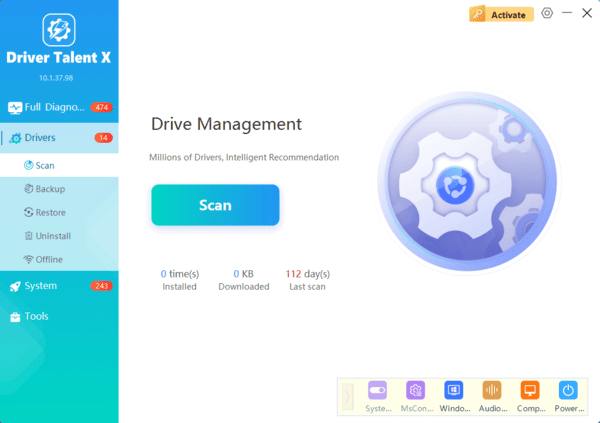
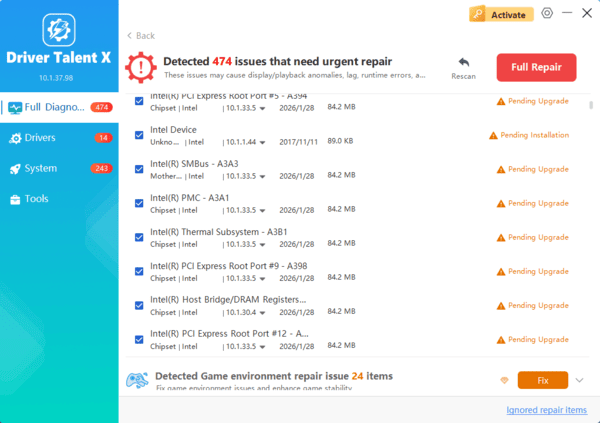
Look for the Intel AX201 wireless driver in the results.
Install an appropriate compatible driver if available.
Restart Windows.
After restarting, open Device Manager and check the adapter status.
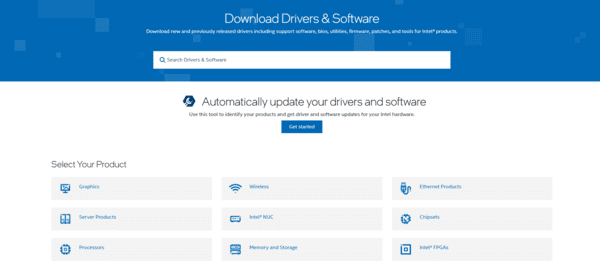
Method B: Download the Intel AX201 Driver Manually
You can also obtain the wireless driver directly from your computer manufacturer.
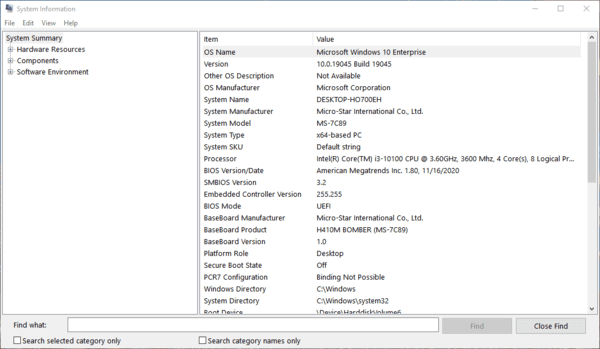
Identify your laptop or motherboard model.
Visit the manufacturer's official support website.
Open the driver download section.
Select your Windows version.
Locate the recommended Intel Wi-Fi 6 AX201 wireless driver.
Download and install the Intel driver.
Restart your computer.
Solution 3: Uninstall and Reinstall the Wireless Adapter
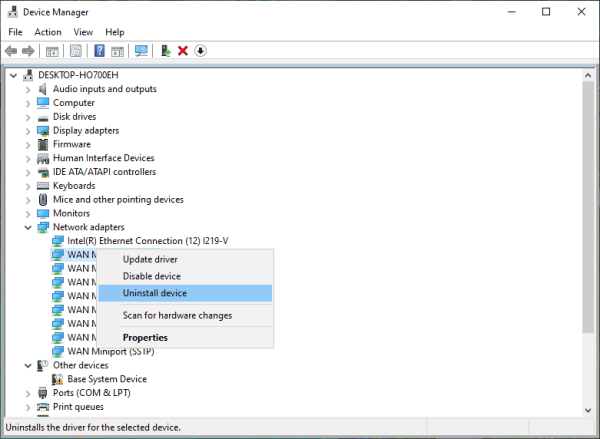
Press Windows + X.
Select Device Manager.
Expand Network adapters.
Right-click Intel(R) Wi-Fi 6 AX201.
Select Uninstall device.
Confirm the removal.
Restart your computer.
Solution 4: Reset Windows Network Settings
On Windows 11
Press Windows + I.
Open Network & internet.
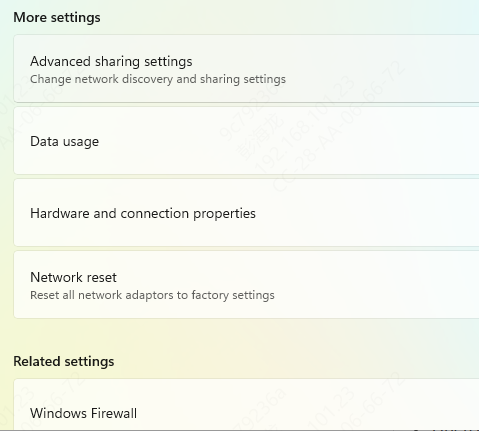
Select Advanced network settings.
Click Network reset.
Select Reset now.
Confirm the operation.
Restart Windows when prompted.
On Windows 10
Open Settings.
Select Network & Internet.
Open Status.
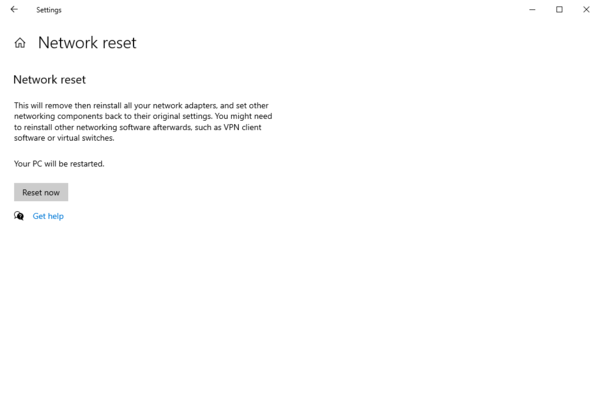
Click Network reset.
Select Reset now.
Restart your computer.
After the reset, reconnect to your Wi-Fi network if the adapter is functioning.
Solution 5: Install Windows Updates and Repair System Files
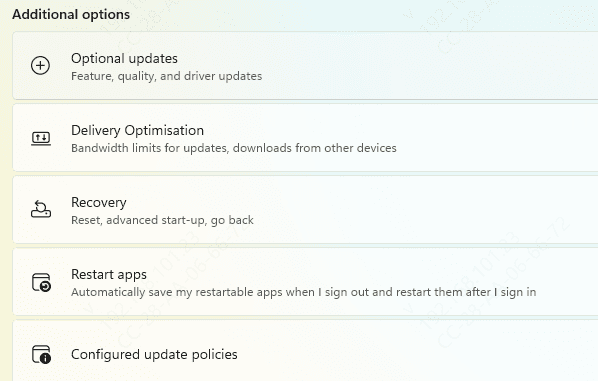
Install available Windows updates:
Press Windows + I.
Open Windows Update.
Click Check for updates.
Install applicable updates.
Restart your computer.
Check the system files:
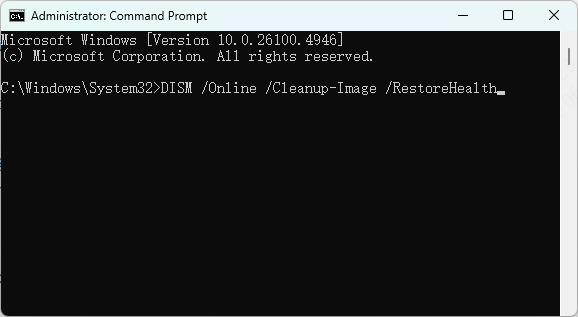
Open Command Prompt as an administrator and run:
DISM /Online /Cleanup-Image /RestoreHealth
Wait for the command to finish.
Next, run:
sfc /scannow
System File Checker will scan protected Windows files and attempt to repair detected corruption.
Restart Windows after completing the scan.
Check Device Manager again to see whether the Intel AX201 is functioning normally.
Frequently Asked Questions
Can restarting my router fix Intel AX201 Code 43?
A router restart may help if Wi-Fi connects but internet access fails. Code 43 points to a problem Windows detected with the adapter itself, so check Device Manager before changing router settings.
What should I do if Code 43 appeared right after a driver update?
In Device Manager, open the Intel AX201's Properties → Driver tab and select Roll Back Driver if available. If the option is unavailable, check your PC manufacturer's support page for a previously working driver for your exact model.
Does persistent Code 43 mean the Wi-Fi adapter needs to be replaced?
No. The code alone cannot distinguish a hardware fault from a driver or firmware problem. If it persists after a supported power reset and driver reinstall, run your PC manufacturer's hardware diagnostics or contact support before buying a replacement.
If Code 43 continues after software troubleshooting, hardware diagnostics or professional support may be necessary to restore wireless connectivity.