

KernelBase.dll errors can cause applications to crash, fail to launch, or become unstable on Windows. These crashes are often related to corrupted system files, missing runtime components, outdated drivers, software conflicts, or damaged user profiles. This guide explains the common causes of KernelBase.dll crashes and provides effective solutions, including repairing system files, updating drivers, restoring Windows components, and fixing related software issues.
Method 1: Run System File Checker
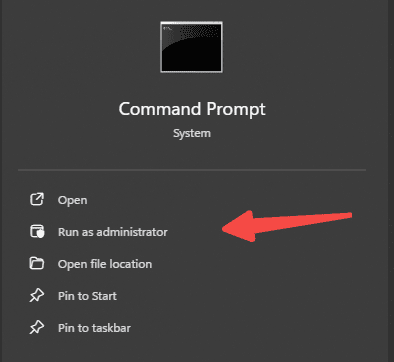
Press Win + S and search for CMD. Right-click Command Prompt and select Run as administrator. Type sfc /scannow and press Enter. The scan will take several minutes to complete. Do not close the window while it is running
When the scan finishes, if you see the message "Windows Resource Protection found corrupt files and successfully repaired them," restart your PC and test the application that was crashing. If the message says files were found but could not be repaired, proceed to Method 3
Method 2: Run DISM
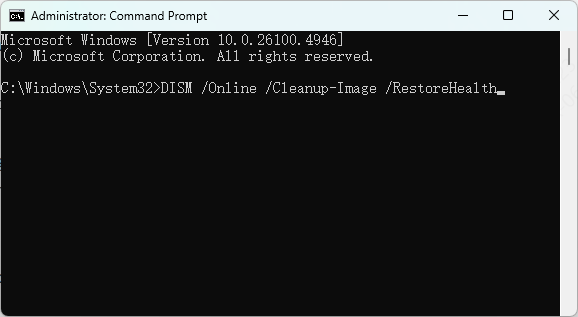
Open Command Prompt as Administrator using the same steps as Method 2. Type the following command and press Enter: DISM /Online /Cleanup-Image /RestoreHealth
This process requires an active internet connection and may take 15 to 20 minutes depending on your connection speed and the extent of the corruption
After DISM completes, run sfc /scannow again to allow SFC to use the newly repaired component store. Restart your computer when both tools have finished
Method 3: Reinstall Visual C++ Redistributables
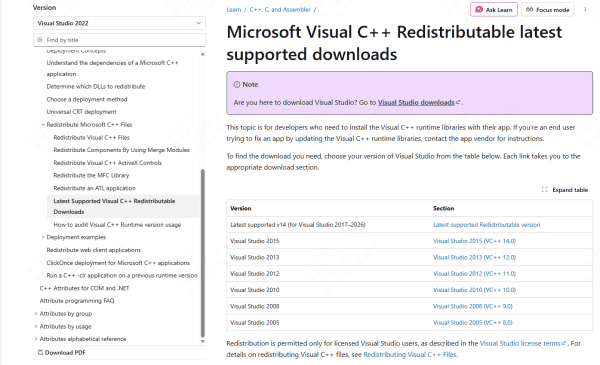
Open your browser and go to the official Microsoft Visual C++ Redistributable download page
Download all available versions, with particular attention to the 2015 through 2022 packages
For each version, install both the x64 file for 64-bit components and the x86 file even if you are running 64-bit Windows, because many applications still ship 32-bit components that require the x86 runtime
Run each installer and complete the installation. Restart your PC after all packages are installed, then test the application that was previously crashing
Method 4: Repair DLL Files with Driver Talent X

Driver Talent X includes a dedicated DLL file repair function that scans your system for missing or corrupted DLL files and repairs them automatically
This is faster than manual identification and avoids the risk of downloading incorrect DLL versions from third-party sites

Method 5: Uninstall Recently Installed or Conflicting Software
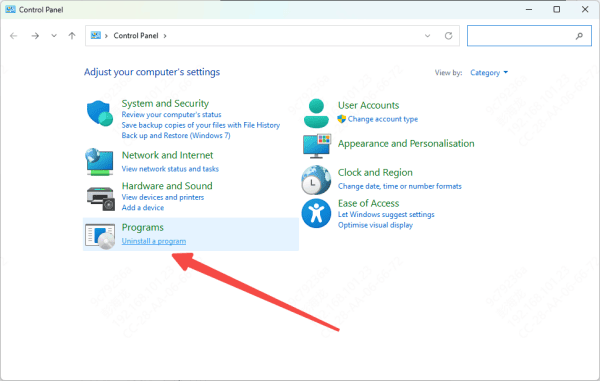
Press Win + R, type appwiz.cpl, and press Enter to open Programs and Features
Identify any software installed around the time the crashes began. Right-click each suspect application and select Uninstall. Restart your PC after uninstalling
If the crashes stop, the uninstalled software was the cause. Visit the developer's official website to check for an updated version that may have resolved the compatibility issue before reinstalling
Additional Steps If the Error Persists
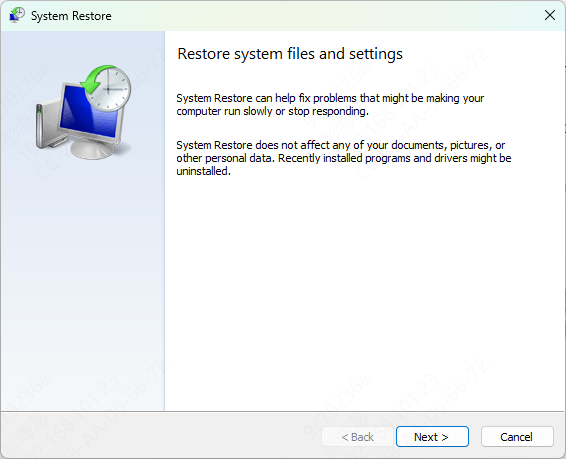
System Restore is the next option if Event Viewer does not point to a clear cause
If the crashes began after a specific Windows update or software installation, rolling back to a restore point from before that change will reverse the problem immediately
Conclusion
A KernelBase.dll crash is almost always caused by one of five things: corrupted system files, outdated or incompatible drivers, missing Visual C++ runtimes, conflicting software, or a damaged user profile. Working through the methods above in order will resolve the problem in the vast majority of cases. Use Driver Talent X for the fastest path to repairing DLL file issues automatically, and keep your drivers updated to prevent the driver conflicts that cause this error to reappear after system updates.
