Kyocera printers are widely used in homes, offices, and business environments for document printing and multifunction tasks. However, even a reliable printer may experience connectivity problems, printing failures, or missing features when its drivers are outdated, corrupted, or incompatible with Windows.
Installing the correct Kyocera print drivers allows your computer to communicate properly with the printer and access supported features such as duplex printing, paper tray selection, job accounting, and document finishing. This guide explains how to download, install and update Kyocera printer drivers on Windows 11 and Windows 10.
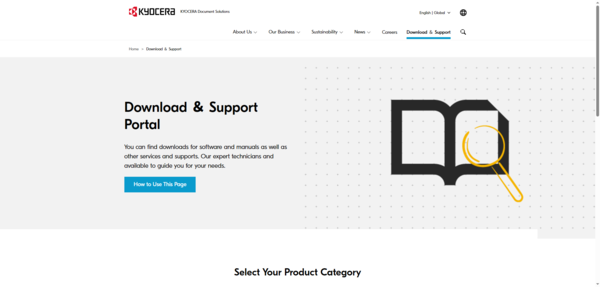
Method 1: Download Drivers from the Official Website
Downloading drivers directly from Kyocera is one of the most reliable ways to obtain a compatible installation package.
Visit the Kyocera Download Center.
Enter your printer model in the search field.
Navigate to the available drivers.
Choose the appropriate KX Print Driver or another compatible driver package.
Download the installation file.
Extract the downloaded ZIP file if necessary.
Run the installation program and follow the on-screen instructions.
Method 2: Download and Update Drivers with Driver Talent X
Printer problems are not always caused by the printer driver itself. Outdated USB controller, chipset, or network adapter drivers may also interfere with communication between Windows and the printer.
Driver Talent X is a Windows driver management utility that helps identify supported missing, outdated, and problematic device drivers.
It provides an additional way to investigate driver-related printer connectivity issues.
Download Driver Talent X from the official website.
Install and launch the software.
Click Scan to check your computer's drivers.
Review the detected printer and related hardware driver issues.
Install appropriate compatible drivers if available.
Restart your computer.
Reconnect your Kyocera printer and test its functionality.
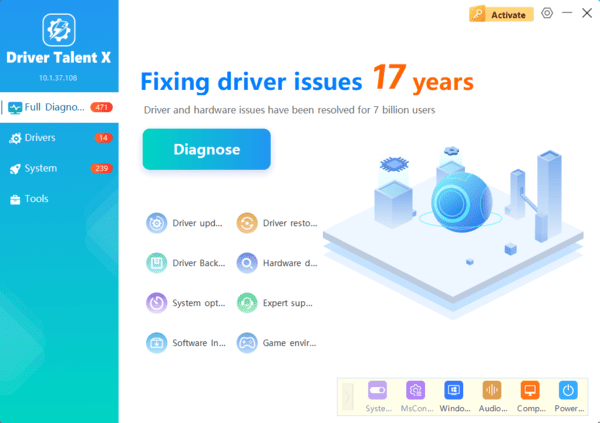
Driver Talent X can help address supported driver problems involving printer communication, USB connectivity, and network adapters.
If the required Kyocera model-specific driver is unavailable, download the official KX Driver or another compatible package directly from Kyocera.
Method 3: Install Drivers Through Windows Update
Windows Update may automatically provide compatible drivers for supported Kyocera printers.
This method is useful when Windows recognizes the printer but cannot complete its installation.
On Windows 11
Press Windows + I to open Settings.
Select Windows Update.
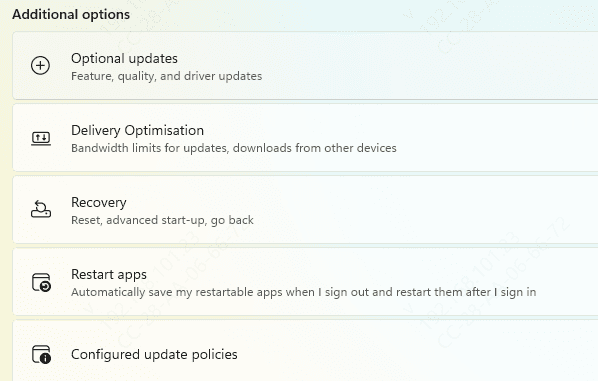
Click Advanced options.
Select Optional updates.
Expand Driver updates, if available.
Select the appropriate Kyocera printer driver.
Download and install the update.
On Windows 10
Open Settings.
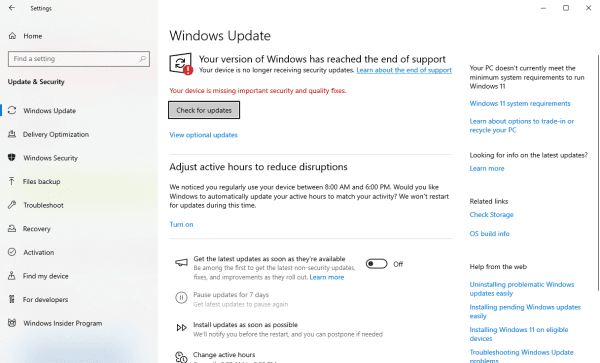
Navigate to Update & Security > Windows Update.
Click View optional updates, if available.
Expand the driver updates section.
Select the appropriate printer driver.
Complete the installation.
Method 4: Manually Install a Kyocera Printer on Windows
If the automatic installation process fails, you can manually add your printer through Windows Settings.
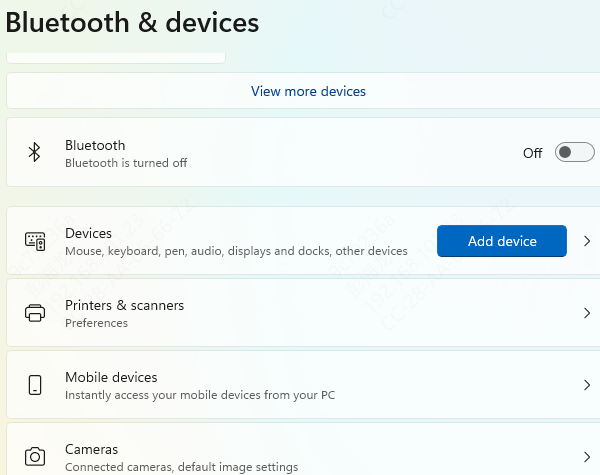
Install a Kyocera Printer on Windows 11
Open Settings.
Navigate to Bluetooth & devices > Printers & scanners.
Click Add device.
Wait for Windows to detect your printer.
Select the Kyocera printer.
Follow the installation instructions.
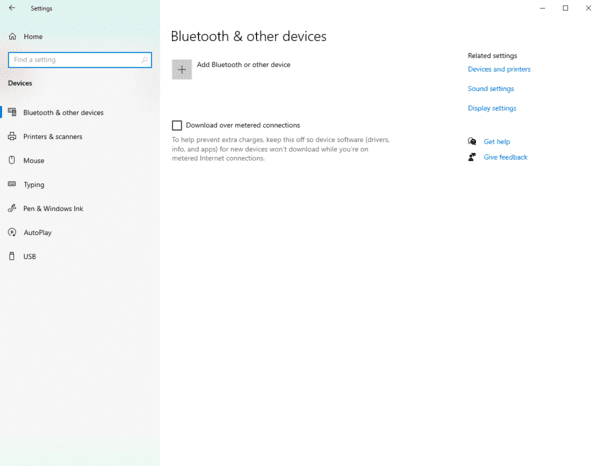
Install a Kyocera Printer on Windows 10
Open Settings.
Select Devices > Printers & scanners.
Click Add a printer or scanner.
Select your Kyocera printer from the available devices.
Complete the installation.
Fix Common Kyocera Printer Driver Problems
Installing the latest compatible driver does not always resolve every printing problem. If your Kyocera printer continues to experience errors, try the following troubleshooting methods.
Fix 1: Kyocera Printer Driver Is Unavailable
Remove the affected printer from Windows.
Download the appropriate driver from Kyocera.
Restart your computer.
Reinstall the printer using the downloaded driver package.
Print a test page.
Fix 2: Kyocera Printer Is Not Detected
For USB printers:
Try another USB port.
Check the USB cable.
Connect the printer directly to your computer.
Avoid unreliable USB hubs.
For network printers:
Confirm that the printer is powered on.
Check its network connection.
Verify the IP address.
Try adding the printer manually.
Fix 3: Kyocera Printer Keeps Going Offline
Open Printers & scanners, select your Kyocera printer, and review its print queue.
If the Use Printer Offline option is enabled and available, disable it.
Next, check Printer properties > Ports and confirm that the selected port corresponds to the correct printer connection.
Installing the correct Kyocera print drivers is essential for reliable printing, stable connectivity, and access to supported printer features on Windows 11 and Windows 10.