

If your Lenovo portable monitor is not working, you may see a black screen, screen flickering, a USB-C connection failure, or a second monitor that Windows cannot detect. The problem can be caused by an incompatible USB-C port or cable, insufficient power, incorrect Windows display settings, outdated graphics or chipset drivers, or a hardware connection issue. Fortunately, many Lenovo portable monitor problems can be fixed without replacing the display. This guide explains how to troubleshoot USB-C connections, check power and display settings, update important drivers with Driver Talent X, reset the monitor, and identify possible hardware problems.
1. Check the USB-C Port and Cable Compatibility
Not all USB-C ports support video output. Some ports only support data transfer or charging.
How to Check Compatibility:
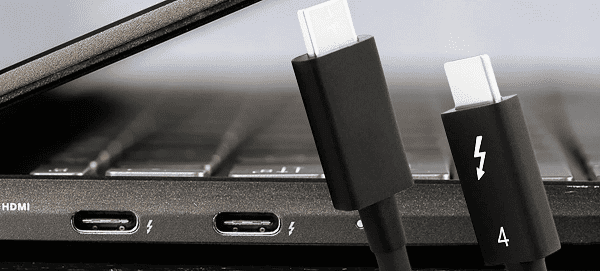
Look for a DisplayPort or Thunderbolt icon next to your laptop's USB-C port.
If your USB-C port does not have a video symbol, it cannot output display signals.
Try connecting to another USB-C port that supports DP Alt Mode or Thunderbolt 3/4.
Use the original Lenovo USB-C cable or a certified USB-C 3.1 Gen 2 cable that supports video transmission.
Avoid USB-C charging-only cables as they will not work for display output.
2. Ensure the Monitor Is Powered Properly
Some Lenovo portable monitors require additional power through a second USB-C or USB-A connection.
Steps:
Connect the primary USB-C cable to the laptop and the monitor.
If the screen still does not light up, connect the secondary USB-C or USB-A power cable to a wall adapter or USB port.
Check whether the power LED turns on.
Try switching to another power adapter with at least 10W output.
3. Adjust Windows Display Settings
Sometimes the system detects the monitor but does not activate the display.
Steps:
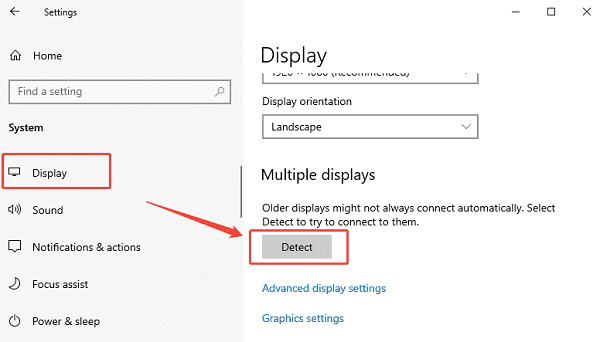
Right-click the desktop and select "Display settings".
Scroll down to "Multiple displays", click "Detect" if Windows does not show the second monitor.
Select "Extend these displays" from the dropdown menu.
Adjust the resolution to match the portable monitor's native resolution.
Click "Apply" and verify if the screen starts working.
4. Reset the Lenovo Portable Monitor Settings
A settings misconfiguration can cause your monitor to stop displaying.
Steps:
Press the menu or settings button on the portable monitor.
Navigate to Reset or Factory Reset using the side buttons.
Press OK to confirm.
Reconnect the monitor and test again.
5. Try Using HDMI (If Your Model Supports It)
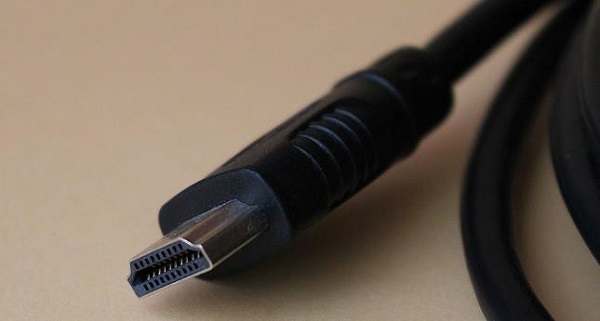
Some Lenovo portable monitors come with mini HDMI or micro HDMI ports.
Steps:
Use a high-quality mini HDMI to HDMI cable.
Connect the HDMI cable from the monitor to the laptop.
Ensure the monitor is powered through USB-C or USB-A.
Open Display settings on Windows and check if the monitor appears.
If HDMI works but USB-C does not, the issue may be related to USB video drivers or faulty USB-C hardware.
6. Update BIOS and Chipset Drivers
Incorrect firmware or outdated motherboard drivers can prevent USB-C displays from working.
Steps:
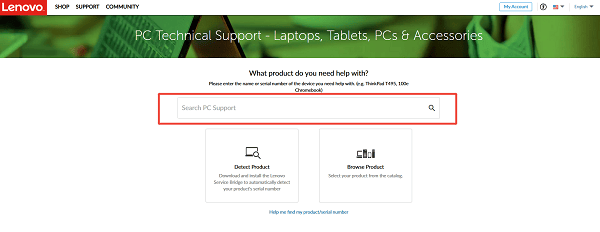
Visit the Lenovo support website.
Enter your laptop model number.
Download the latest BIOS update.
Install the update following on-screen instructions.
Download and install the latest chipset drivers.
Restart your system and reconnect the portable monitor.
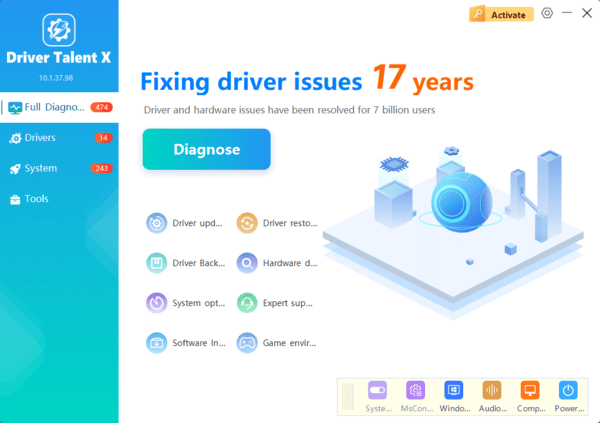
Use Driver Talent X:
Driver Talent X can automatically detect missing or malfunctioning drivers and install the correct versions.
7. Test the Monitor on Another Device
To confirm whether the issue is with the monitor or your laptop:
Connect the portable monitor to another Windows laptop or a USB-C smartphone with video output support.
If it works on another device, the problem is with your computer configuration.
If it still does not work, the monitor may have internal hardware damage.
8. Inspect for Hardware Issues
Portable monitors are prone to internal cable or port failures.
Check the following:
Loose USB-C port on the monitor
Physical damage on the cable
Bent pins inside the USB-C connector
Flickering or intermittent connection caused by worn wires
If hardware symptoms appear, professional repair may be required.
Conclusion
A Lenovo portable monitor may stop working due to driver issues, incorrect configurations, incompatible USB-C ports, or hardware failures. Updating all drivers with Driver Talent X is the most efficient first step and resolves display recognition issues in most cases. If the problem continues, the additional solutions in this guide will help you diagnose and fix the issue thoroughly.
