

The Logitech G Pro X Superlight is a top-tier wireless gaming mouse, known for its lightweight design, precise HERO sensor, and reliable performance. But even the best hardware can sometimes run into connectivity issues. If your mouse not connecting to your PC, it can be frustrating—especially during competitive gaming. The good news is that most connection problems are software- or driver-related and can be resolved quickly. This guide walks you through effective solutions to get your G Pro X Superlight back online.
Check Basic Connections
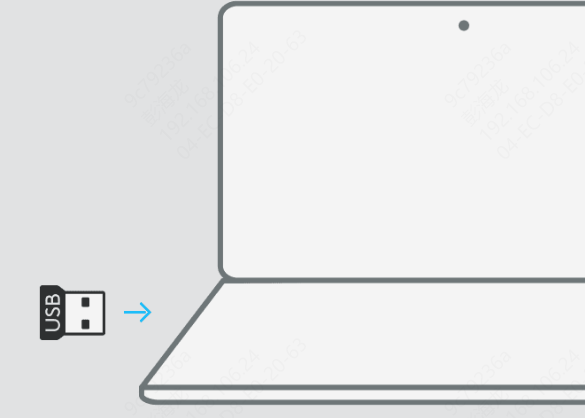
USB Receiver: Make sure the Lightspeed USB receiver is securely plugged into your PC. Avoid using USB hubs if possible; connect directly to your computer's USB port
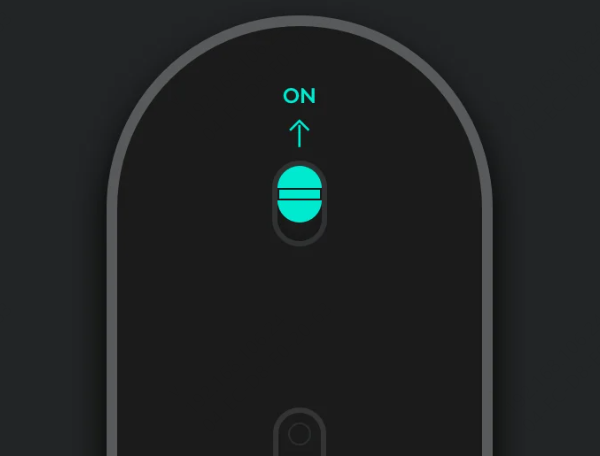
Power and Batteries: Confirm the mouse is turned on. If it uses a rechargeable battery, ensure it has sufficient charge
Alternate Ports: Try a different USB port. Sometimes individual ports can malfunction or have insufficient power
Restart and Re-Pair the Mouse
A simple restart can fix many connection issues:
Power Cycle: Turn off the mouse, wait a few seconds, and turn it back on
Re-Pair: Unplug and re-plug the USB receiver, or reconnect via Bluetooth if that's your setup
Reconnect to PC: Follow Logitech's pairing instructions to re-establish a stable connection
Update or Reinstall Drivers
Outdated or corrupted drivers are a common cause of connection problems. Keeping drivers up to date ensures your system recognizes the mouse and avoids performance issues.
Manual Update
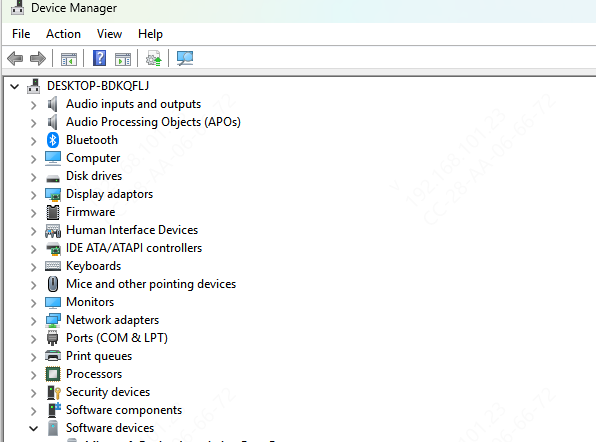
Open Device Manager on Windows
Locate the mouse under Mice and other pointing devices
Right-click → Update driver
Repeat for your USB controllers under Universal Serial Bus controllers
Automatic Update (Recommended)
For a faster and safer approach, use Driver Talent X:
Download and Install: Visit the Driver Talent X website and install the program
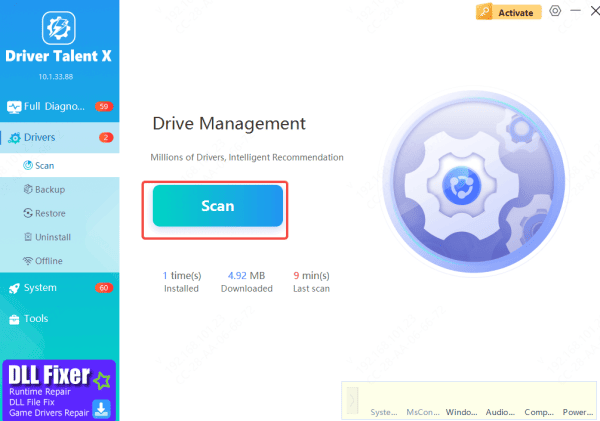
Scan: Launch the software → Drivers → Scan. The tool will detect missing, outdated, or corrupted drivers, including Logitech mouse and USB drivers
Repair: Click Repair Now or Update to automatically install the correct drivers
Restart: Reboot your computer and test your mouse. Most connection issues are resolved at this stage
Using Driver Talent X avoids compatibility issues, saves time, and ensures your Logitech G Pro X Superlight always has the latest certified drivers
Check for Software Conflicts
Other software can interfere with Logitech G HUB or your mouse:
Close third-party mouse utilities or customization software
Temporarily disable antivirus or firewall software to see if it's blocking the connection
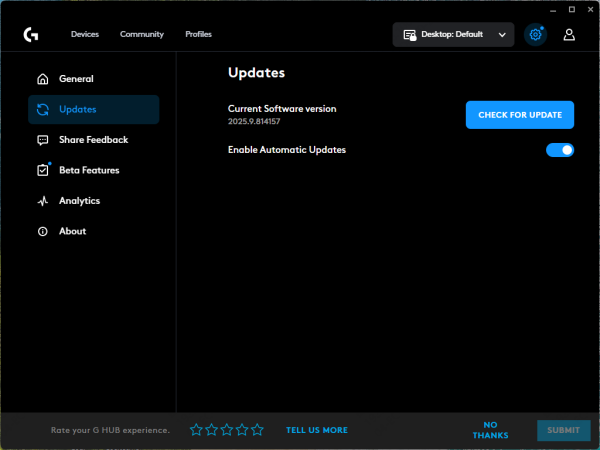
Ensure Logitech G HUB is installed and updated, as it is required for advanced settings and firmware updates
Windows Settings Troubleshooting
Sometimes, Windows settings can prevent your mouse from connecting properly:
USB Selective Suspend: Go to Control Panel → Power Options → Change plan settings → Advanced power settings, and disable USB selective suspend
Device Manager: Look for any unknown devices or warning signs and uninstall them if necessary
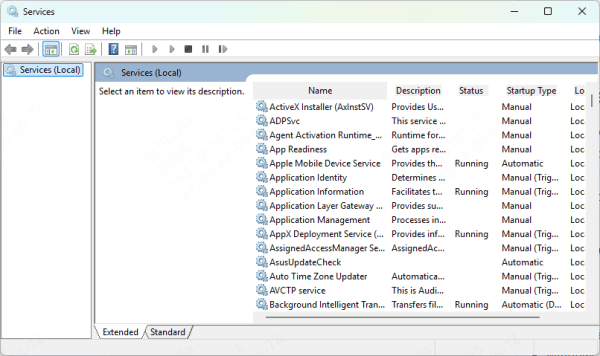
Restart Services: Occasionally, restarting Windows USB services can help. Press Win + R → services.msc and restart relevant services like USB Hub if available
Test on Another Computer
To determine whether the issue is with the mouse or your PC:
Connect your G Pro X Superlight to another computer
If it works on the second PC, the problem is likely with your original system's software or drivers
If it still doesn't work, the mouse may need servicing or replacement
Conclusion
Most Logitech G Pro X Superlight connection issues are related to drivers, software conflicts, or minor settings. Start with basic connection checks, re-pairing, and driver updates. Tools like Driver Talent X make updating drivers fast, safe, and automatic, often resolving connection issues immediately. By following these steps, you should have your G Pro X Superlight connected and performing reliably again, ready for smooth gaming sessions.
