

If your Logitech Zone Wireless headset is not detected by Windows, fails to appear in Bluetooth settings, or connects without working correctly, the issue may be caused by pairing errors, outdated firmware, corrupted Bluetooth or audio drivers, or temporary system conflicts. In most cases, the headset itself is still functioning normally and the connection can be restored through basic troubleshooting. This guide covers practical ways to fix Logitech Zone Wireless detection problems, including checking Bluetooth settings, re-pairing the headset, updating firmware, repairing drivers with Driver Talent X, and reinstalling the Windows Bluetooth adapter.
Step 1: Preliminary Checks
Before diving into software solutions, ensure the basics are covered:
Power and Battery: Confirm the headset is fully charged and powered on. A low battery can prevent detection
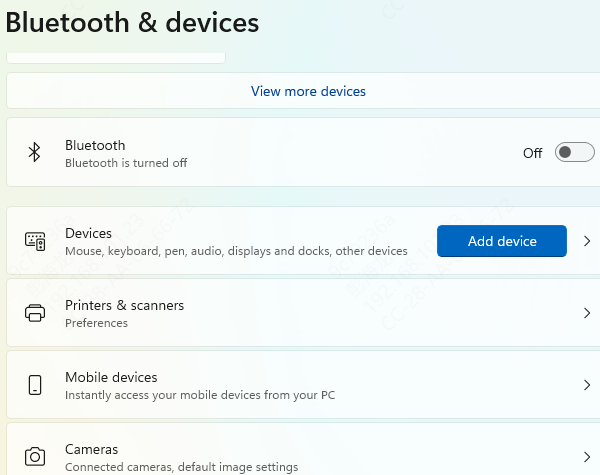
Bluetooth Status: Make sure Bluetooth is enabled on your Windows PC. Go to Settings → Bluetooth & devices and toggle Bluetooth on
Proximity: Keep your headset close to the PC during pairing (within 10 meters). Bluetooth signals can drop at longer distances
Test on Another Device: If possible, try connecting the headset to another computer or mobile device to verify it's not a hardware problem
Step 2: Restart and Reset Devices
Minor glitches often block proper pairing
Turn off the headset and power it back on
Restart your Windows PC
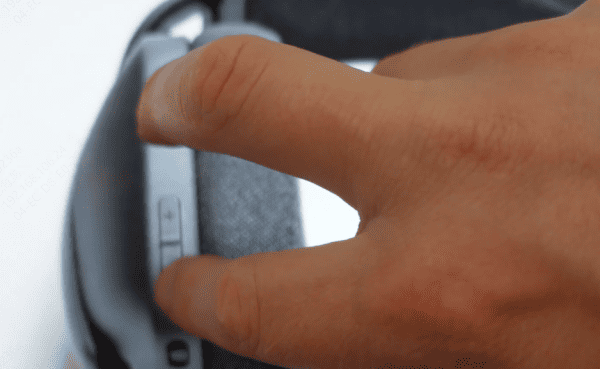
Perform a factory reset on the headset (check the user manual for specific button combinations)
Resetting the headset clears previous pairing information, which often resolves detection problems
Step 3: Remove and Re-Pair the Headset
Corrupted pairing data on Windows can prevent detection:
Go to Settings → Bluetooth & devices → Devices
Locate the Logitech Zone Wireless headset (if it appears) and click Remove device
Put the headset into pairing mode (consult the manual for instructions)
Click Add device → Bluetooth and select the headset
Ensure the headset is in pairing mode before clicking Add device, or it won't appear in Windows
Step 4: Update Headset Firmware
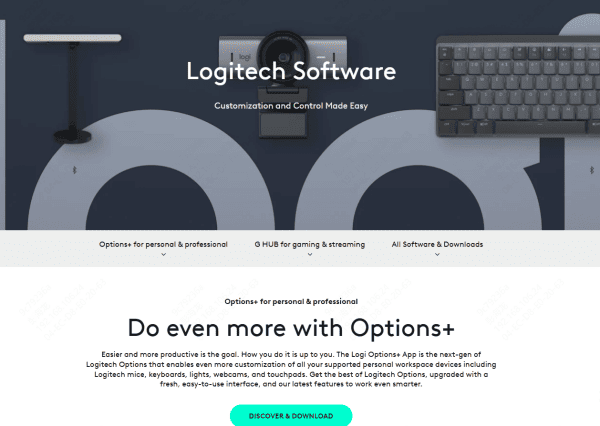
Download and install Logitech G Hub software from the official Logitech support site
Open the app and check for available firmware updates
Follow the on-screen instructions to update the headset firmware
Restart the headset after updating
Regular firmware updates prevent recurring detection issues and maintain compatibility with Windows
Step 5: Update Windows Bluetooth and Audio Drivers
Device Manager
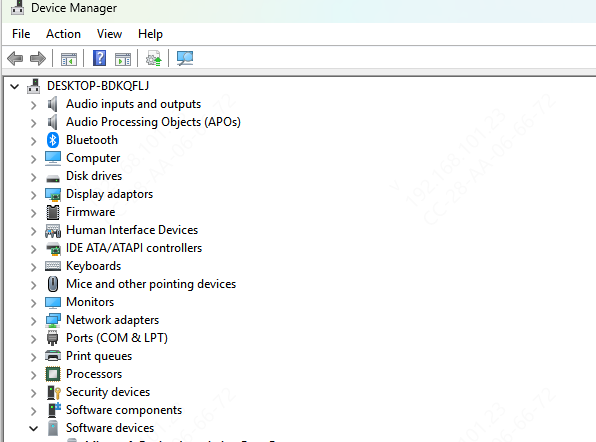
Press Win + X → Device Manager
Expand Bluetooth
Right-click your Bluetooth adapter → Update driver → Search automatically
Repeat for Sound, video, and game controllers to ensure audio drivers are up to date
Restart the PC
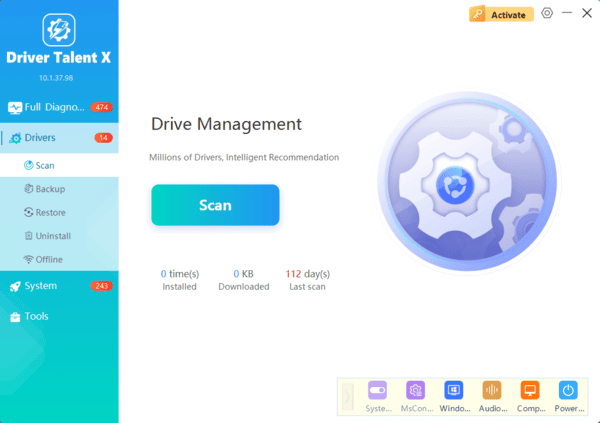
Automatic Update via Driver Talent X (Recommended)
Download and install Driver Talent X
Launch the program and click Diagnose
Scan for outdated, missing, or corrupted drivers, including Bluetooth, USB, and audio drivers
Click Repair or Update All to automatically install the latest drivers
Restart the PC
Advanced Troubleshooting
If the headset still isn't detected:
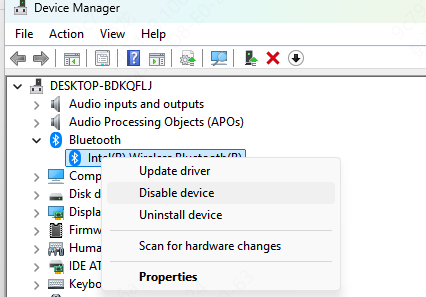
Reset Windows Bluetooth Module: Open Device Manager → Bluetooth → Right-click adapter → Uninstall device → Restart PC. Windows will reinstall the driver automatically
Contact Logitech Support: If software solutions fail, professional assistance may be needed
Frequently Asked Questions
Why is my Logitech Zone Wireless headset not appearing in Bluetooth settings?
The headset may not be in pairing mode, could already be connected to another device, or Windows may have corrupted pairing data. Remove previous connections, restart both devices, and pair them again.
Why is my Logitech Zone Wireless connected but producing no sound?
Windows may have selected another playback device. Open Settings > System > Sound, choose Logitech Zone Wireless as the output device, and confirm it is selected inside your meeting application.
What should I do if reinstalling the Bluetooth driver does not help?
Test the headset with another computer or phone. If it works elsewhere, update the original computer's Bluetooth, audio, USB, and chipset drivers. If no device detects it, contact Logitech Support.
Conclusion
Detection issues with the Logitech Zone Wireless headset on Windows are usually caused by low battery, outdated firmware, driver conflicts, or incorrect Bluetooth settings. By following these steps—pre-checks, restarting, firmware updates, driver repairs with Driver Talent X, and Windows Bluetooth settings adjustments—you can restore connectivity in most cases.
Routine maintenance, driver updates, and proper storage will ensure your Logitech Zone Wireless headset continues delivering clear audio and reliable performance for work, calls, and online meetings.
