

When a SteelSeries headset suddenly stops connecting to a Windows PC, the problem can affect more than just audio—you may also lose microphone access, wireless pairing, or recognition in SteelSeries GG. Depending on the headset model, the connection may rely on Bluetooth, a USB wireless dongle, or a direct USB connection, so the exact cause can vary. Common triggers include corrupted pairing information, outdated Bluetooth or USB drivers, firmware issues, incorrect Windows audio settings, and temporary software conflicts. This guide walks through practical ways to troubleshoot a SteelSeries headset that is not connecting, starting with basic connection checks before moving on to firmware and driver repairs with Driver Talent X.
Step 1: Preliminary Checks
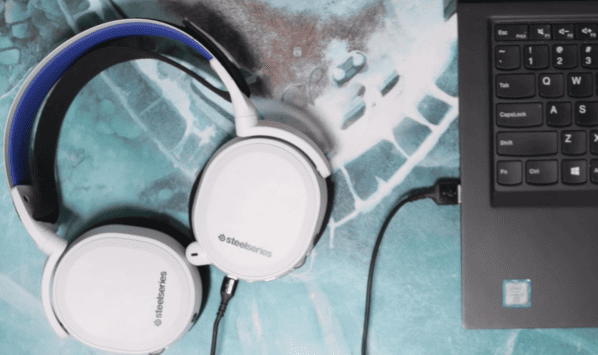
Power and Battery: Ensure your SteelSeries headset is fully charged and powered on. Low battery can prevent successful connections
Bluetooth or Wired Connection: Make sure Bluetooth is enabled on your PC or that the USB connection is properly plugged in
Test on Another PC (Optional): Connect your headset to another Windows machine to determine if the issue is PC-specific
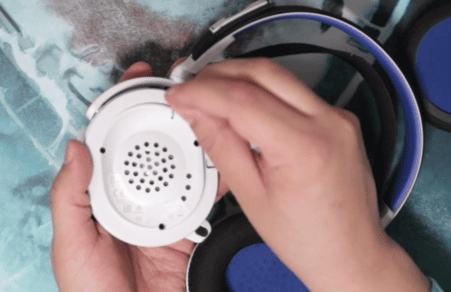
Inspect for Damage: Check for physical damage or loose components that may affect connectivity
Step 2: Restart and Reset
Turn off your SteelSeries headset and then turn it back on
Restart your Windows PC
Perform a factory reset on the headset (refer to the user manual for instructions)
Resetting restores the headset's connection settings to default
Step 3: Forget and Reconnect Devices
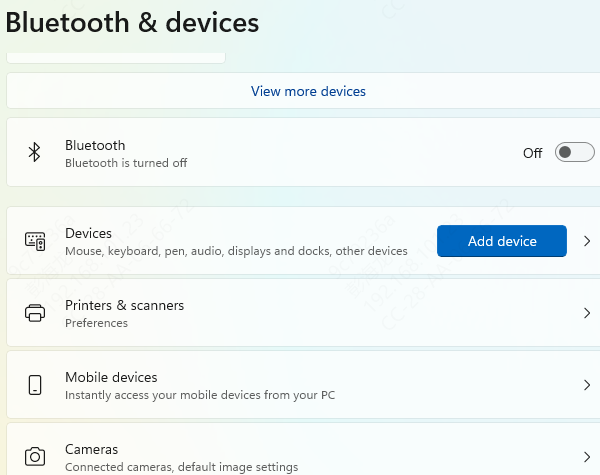
Go to Settings > Devices > Bluetooth & other devices
Find your SteelSeries headset and click Remove device
Put your headset back into pairing mode
Click Add Bluetooth or other device > Bluetooth and reconnect
Step 4: Update Headset Firmware
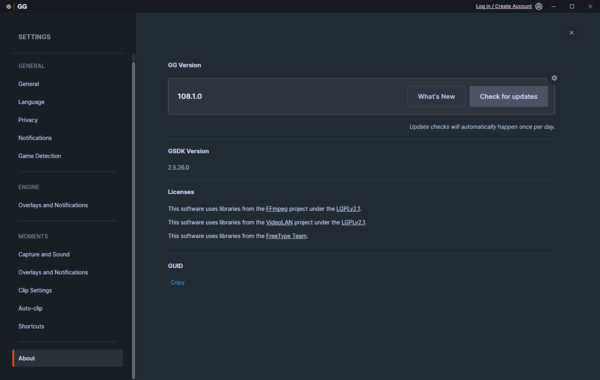
Download and install SteelSeries GG (or Engine) on your Windows PC
Open the app and check for available firmware updates for your headset
Follow the on-screen instructions to install updates
Restart the headset after updating
Step 5: Update Drivers
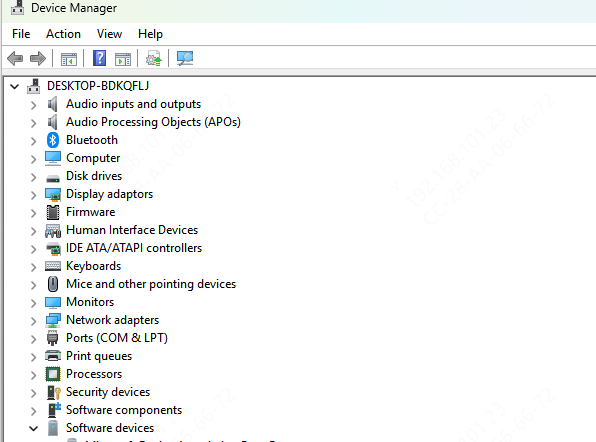
Device Manager
Press Win + X and select Device Manager
Expand Bluetooth or Audio inputs and outputs
Right-click your Bluetooth adapter or USB audio device and select Update driver > Search automatically
Restart your PC to apply updates
Update with Driver Talent X
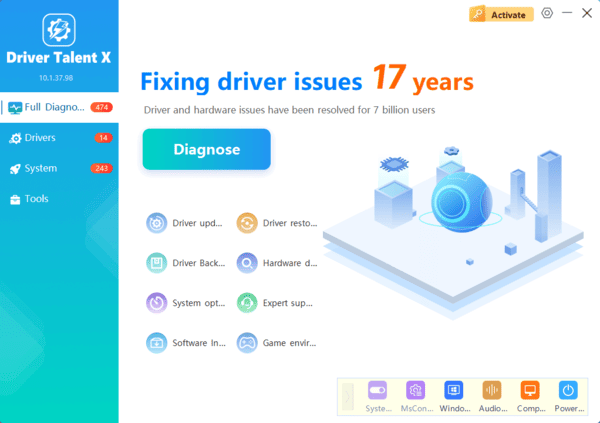
Download and install Driver Talent X
Launch the application and click Diagnose to scan for outdated or missing drivers, including Bluetooth, USB, and audio drivers
Click Repair or Update All to install the latest drivers automatically
Restart your PC to apply changes
Conclusion
SteelSeries headset connectivity issues on Windows are usually caused by low battery, outdated firmware, driver conflicts, or incorrect settings. By following this guide—pre-checks, restarting, firmware updates, driver repairs with Driver Talent X, and Windows settings adjustments—you can restore connectivity in most cases.
Routine maintenance, especially keeping drivers and firmware updated, ensures your headset continues delivering high-quality audio and stable performance for gaming, calls, and media.
