Saving a webpage as a PDF is one of the most convenient features in Microsoft Edge. Whether you need to keep an online receipt, save an article for offline reading, or share a document, the browser allows you to create PDF files without installing additional software.
However, the process does not always work as expected. Sometimes the print preview remains blank, the Save button does nothing, or Microsoft Print to PDF disappears from the printer list. You may even receive an error message when attempting to save a webpage.
If Microsoft Edge Print to PDF is not working, the problem could involve browser settings, extensions, Windows printing services, or file permissions. This guide explains how to identify the issue and restore PDF printing on Windows 10 and Windows 11.
Fix 1: Use Edge Built-in Save as PDF Feature
Open the webpage you want to save.
Press Ctrl + P.
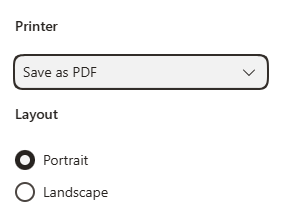
Find the printer or destination selection menu.
Select Save as PDF.
Choose the appropriate page range and layout.
Click Save.
Select a local folder and enter a filename.
Fix 2: Update Microsoft Edge
Open Microsoft Edge.
Click the three-dot menu in the upper-right corner.
Select Help and feedback.
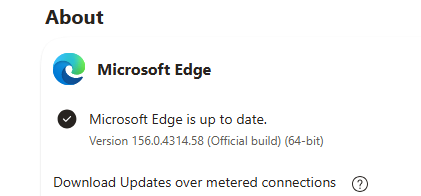
Click About Microsoft Edge.
Allow Edge to check for available updates.
Restart the browser if prompted.
Fix 3: Check Browser Extensions
Open Microsoft Edge.
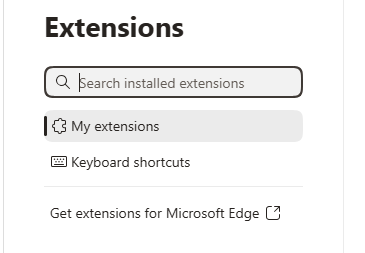
Enter edge://extensions/ in the address bar.
Temporarily disable installed extensions.
Close and reopen the affected webpage.
Press Ctrl + P and try saving it as a PDF.
If printing works, one of the disabled extensions may be responsible.
Enable the extensions individually and repeat the test until you identify the conflict.
Fix 4: Restore Microsoft Print to PDF in Windows
Press Windows + R.
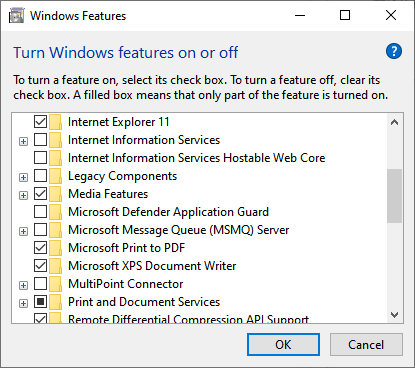
Type optionalfeatures and press Enter.Wait for the Windows Features window to open.
Locate Microsoft Print to PDF.
If the checkbox is empty, select it.
Click OK and follow the instructions.
Restart Windows if prompted.
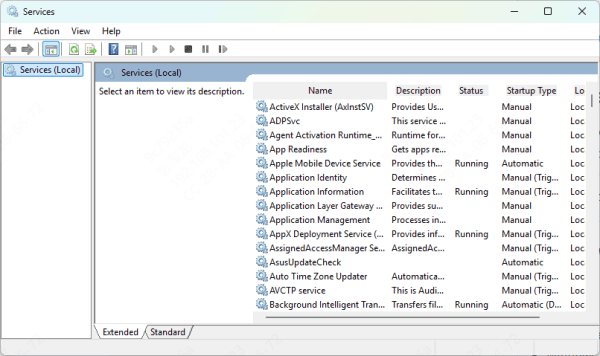
Fix 5: Restart the Windows Print Spooler
Press Windows + R.
Type services.msc and press Enter.
Find Print Spooler in the service list.
Right-click it.
Select Restart.
Wait for the service to restart.
Fix 6: Check Printer Drivers
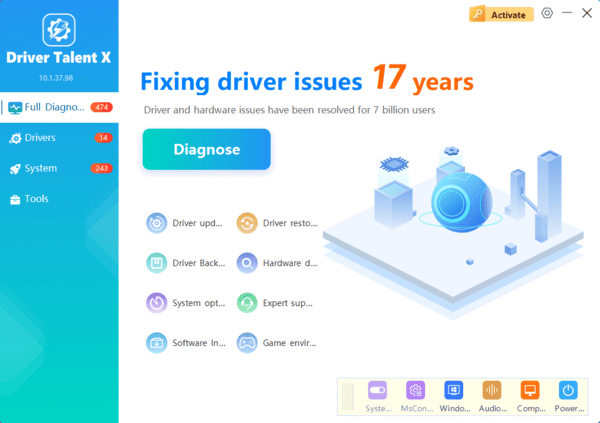
When Windows printing problems affect several applications, printer drivers may be worth investigating. Outdated or damaged printer drivers can interfere with communication between Windows and connected printing devices. Driver Talent X provides an additional way to check for supported missing, outdated, or problematic device drivers.
Download Driver Talent X.
Install and launch the software.
Click Scan to check for driver issues.
Review any detected printer-related driver problems.
Install an appropriate compatible driver update if available.
Restart Windows and test printing again.
Fix 7: Adjust Edge Print Settings
Open the affected webpage and press Ctrl + P.
Try the following adjustments:
Select the correct PDF destination.
Change the page layout between Portrait and Landscape.
Restore the scale to its default value.
Select an appropriate paper size.
Reset custom margins.
Fix 8: Repair Microsoft Edge
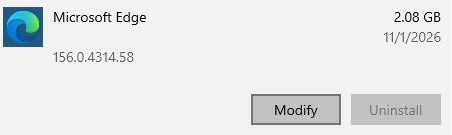
Open Windows Settings.
Navigate to Apps > Installed apps.
Locate Microsoft Edge.
Open the available application management options.
Select Modify, if available.
Follow the prompts to repair Edge.
The repair process may require an internet connection.
Once completed, restart the browser and test Print to PDF again.
Conclusion
If Microsoft Edge Print to PDF is not working, try Save as PDF, choose another save location, and update Edge. If Microsoft Print to PDF is missing, restore the Windows feature and check the Print Spooler service. Driver Talent X may help check supported printer driver issues if other printing functions are also affected.