

Outdated or missing Realtek drivers can cause a variety of problems: no sound, distorted audio, microphone malfunctions, or low volume output. Updating the driver restores full functionality, enhances audio performance, and ensures compatibility with the latest Windows updates. This guide walks you through updating Realtek audio drivers on MSI devices using multiple methods: automated, manual, manufacturer-direct, and with Driver Talent X for easy one-click updates.
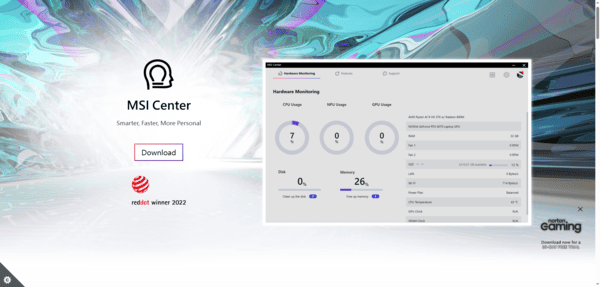
Update via MSI Center
Open MSI Center
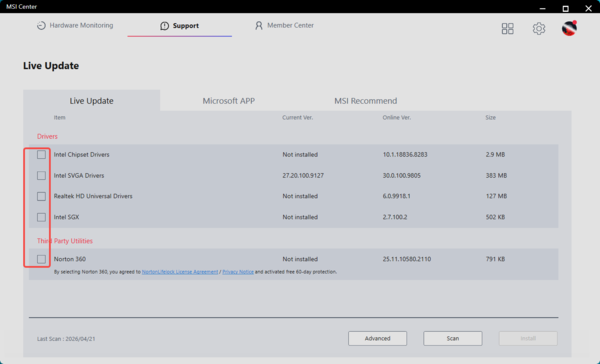
Navigate to Support > Live Update
Click Scan to detect available updates
Locate the Realtek Audio Driver in the results
Restart your PC to apply the update
Manual Update via MSI Support Websit
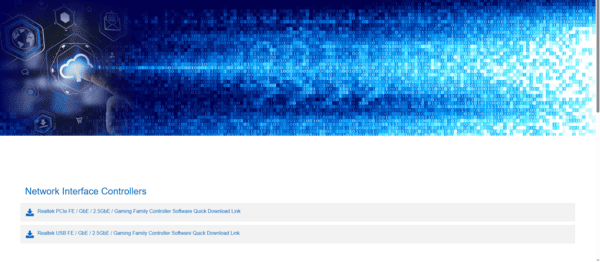
Visit the MSI Support Center
Go to the Driver tab > Audio section
Download the Realtek audio driver matching your Windows version
Extract the ZIP file and run Setup.exe
Restart your system to finalize installation
Update Directly from Realtek
Visit the Realtek High Definition Audio Drivers page
Select your driver for your Windows version
Download, install, and restart your system
Using Driver Talent X for Automated Updates
For a complete, one-click solution to update all system drivers, including Realtek audio:
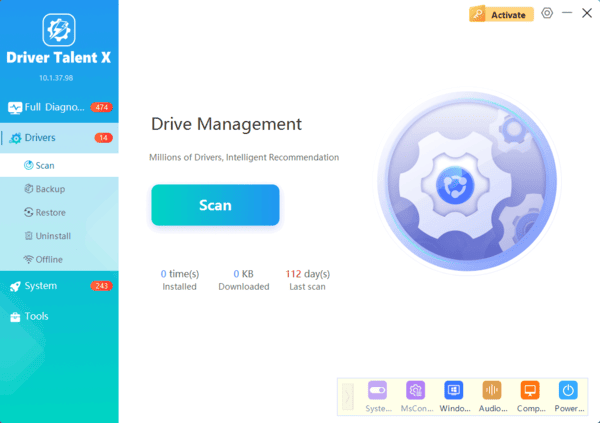
Install Driver Talent X: Download from the official website and follow the installation prompts
Scan for Drivers: Open the software and go to the Drivers tab, then click Diagnose. It detects missing, outdated, or corrupted drivers
Update Automatically: Select your Realtek audio driver and click Full Repair. Driver Talent X downloads and installs the correct driver automatically
Restart Your Device: After installation, reboot to ensure proper functionality
Troubleshooting Common Audio Issues
No Sound
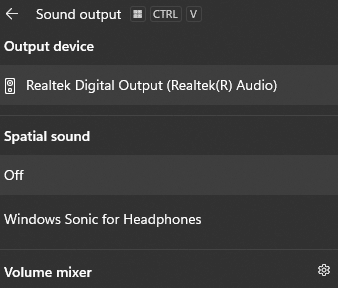
Ensure your playback device is set correctly: Right-click sound icon > Open Sound settings > Output device
Check Speakers/Headphones are selected and volume is not muted
Microphone Not Recognized
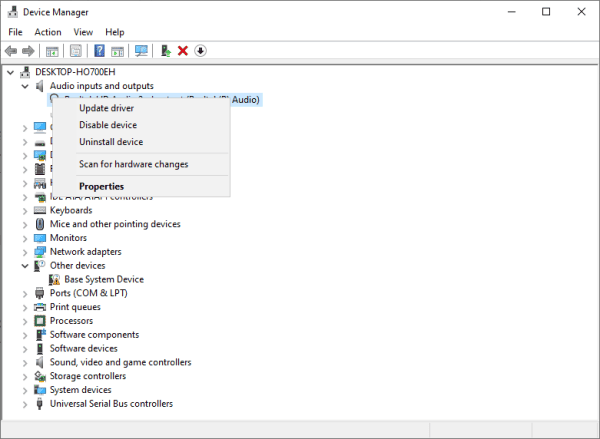
Go to Device Manager > Audio inputs and outputs
If the microphone is missing, reinstall the Realtek driver
Check privacy settings: Settings > Privacy & Security > Microphone > Allow apps to access microphone
Distorted or Crackling Audio
Open Realtek HD Audio Manager
Disable audio enhancements under Sound Effects
Update the driver again using Driver Talent X or the MSI Center for a clean install
Windows Audio Services
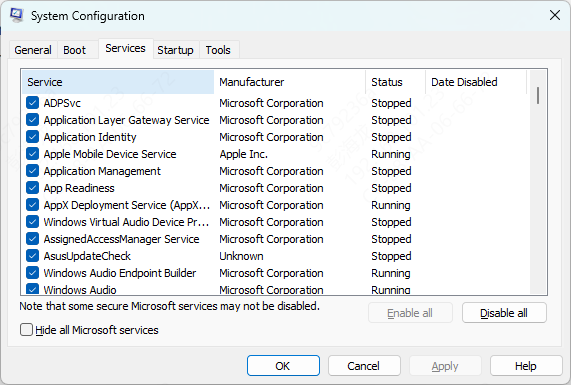
Press Win + R, type services.msc, and press Enter
Ensure Windows Audio and Windows Audio Endpoint Builder services are running. Restart them if needed
Conclusion
By routinely updating your audio drivers and following best practices, you can prevent most audio issues and enjoy stable, high-quality sound from your MSI device.
