

If Intel High Definition Audio is not working properly on Windows, you may experience no sound, distorted audio, missing playback devices, or warning icons in Device Manager. These problems may be caused by outdated or corrupted audio drivers, incorrect Windows sound settings, stopped audio services, firmware issues, or hardware conflicts. By following these practical solutions, you can restore crystal-clear sound and keep your audio system running smoothly.
Preliminary Checks Before Fixing Drivers
Check Device Connections: Ensure your headphones or speakers are properly connected
Verify Windows Sound Settings: Make sure the correct playback device is selected
Inspect Device Manager: Open Device Manager and check for warning symbols next to Intel High Definition Audio
Restart Your PC: Sometimes, a simple restart resolves temporary conflicts
Completing these checks can save time and may even fix the problem without further steps
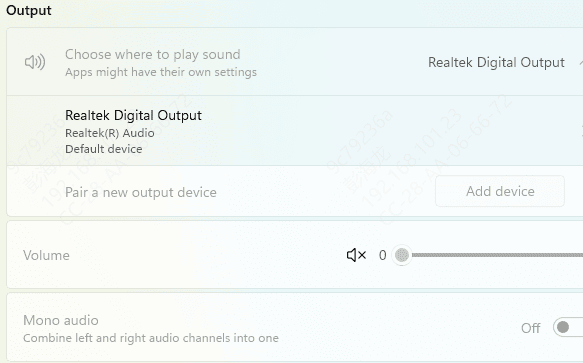
Adjust Windows Audio Settings
Right-click the speaker icon → Sounds → Playback tab
Select your default playback device → Properties → Advanced
Adjust sample rate and bit depth according to your device
Apply settings and test audio output
Troubleshoot Audio Services
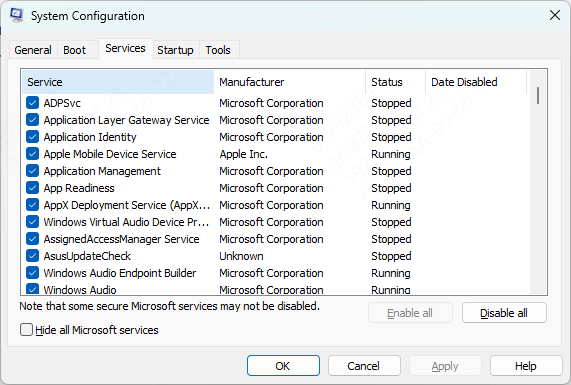
Press Win + R, type services.msc, and press Enter
Find Windows Audio and Windows Audio Endpoint Builder
Right-click each → Restart
Set Startup type to Automatic to prevent future interruptions
Restarting these services often restores audio functionality without reinstalling drivers
Check Drivers
Update Drivers via Device Manager
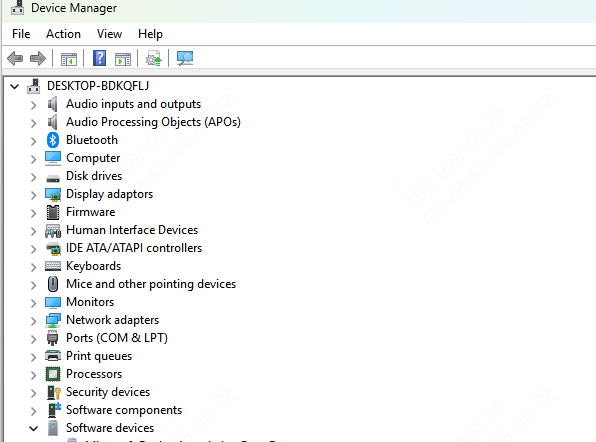
Press Win + X and select Device Manager
Expand Sound, video and game controllers
Right-click Intel High Definition Audio and select Update driver
Choose Search automatically for drivers and follow prompts
If Windows finds a new driver, install it and restart your PC. While this method works for basic updates, it may not always detect the latest Intel drivers
Reinstall Intel HD Audio Drivers
For corrupted or outdated drivers, reinstalling is often the best approach:
In Device Manager, right-click Intel High Definition Audio → Uninstall device
Check the option Delete the driver software for this device, then confirm
Restart your computer
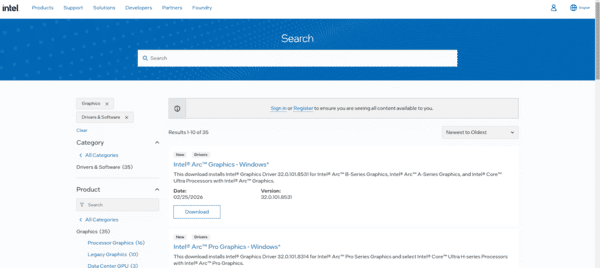
Download the latest Intel HD Audio driver from Intel's official website or your PC manufacturer
This clean installation ensures that outdated or corrupted files are fully replaced, resolving most driver-related issues
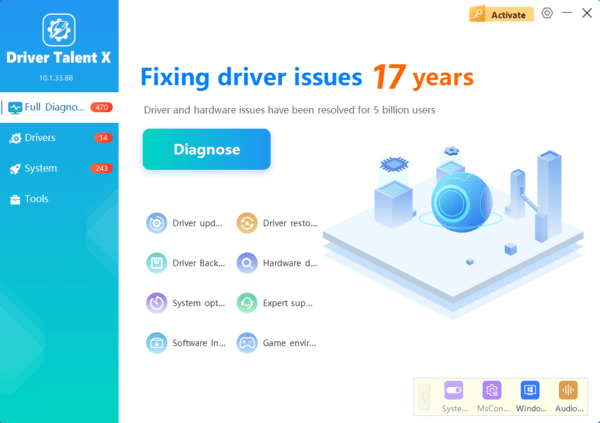
Use Driver Talent X
Manual updates can be time-consuming, and missing a driver can cause more problems. Driver Talent X offers a reliable way to detect, repair, and update Intel High Definition Audio drivers automatically:
Scans your system for outdated or corrupted drivers
Downloads the latest official driver versions safely
Fixes errors that may prevent your audio from functioning properly
Provides one-click repair for audio issues
Using Driver Talent X can save time and reduce the risk of mistakes during driver installation
Advanced Fixes (Optional)
Update BIOS/UEFI: Some audio problems stem from outdated system firmware. Check your motherboard manufacturer's instructions
Check Hardware Conflicts: Disconnect unnecessary audio devices and test the system
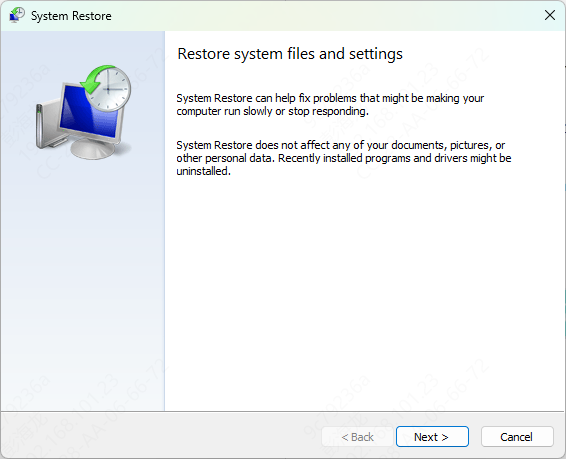
System Restore: If problems began after a recent update or software installation, restoring Windows to an earlier point can help
These steps are generally for advanced users but can fix persistent issues
Frequently Asked Questions
Is Intel High Definition Audio the same as Realtek Audio?
No. Intel High Definition Audio often handles audio transmitted through HDMI or DisplayPort, while Realtek commonly controls built-in speakers, microphones, and analog audio jacks. Some PCs require both drivers to work correctly.
Why did Intel High Definition Audio disappear from Device Manager?
The device may be hidden, disabled, or missing its supporting graphics or chipset driver. Select View > Show hidden devices, scan for hardware changes, and reinstall the appropriate graphics, chipset, and audio drivers for your computer model.
Why is there no sound through HDMI or DisplayPort?
Windows may still be using the built-in speakers as its output device. Open Settings > System > Sound and select the connected monitor or television. Also confirm that its volume is enabled and the display cable supports audio.
Conclusion
Intel High Definition Audio driver issues can disrupt daily computing, but they are usually fixable with the right approach. Start with preliminary checks, update or reinstall drivers, adjust audio settings, and leverage tools like Driver Talent X to automate repairs. Following these steps restores crystal-clear audio and prevents future problems. By staying proactive and using safe, reliable methods, you can enjoy smooth, high-quality sound on your Windows PC without frustration.
