

If your Razer Seiren V3 Mini produces distorted audio, static, crackling, or poor recording quality, the problem may be related to USB connection issues, incorrect Windows sound settings, outdated drivers, or firmware conflicts. These problems can affect voice calls, streaming, gaming, and recordings even when the microphone is detected normally. This guide explains several practical ways to fix Razer Seiren V3 Mini distorted sound, including checking USB connections, adjusting sample rate and audio settings, repairing drivers with Driver Talent X, updating firmware through Razer Synapse or Razer Support, and testing the microphone across different applications.
Why Distorted Sound Occurs on the Razer Seiren V3 Mini
Before applying fixes, it's essential to understand the root causes of distorted sound.
Outdated or Corrupted Drivers
Microphone drivers are essential for communication between your device and Windows
If drivers are outdated, missing, or corrupted, the Seiren V3 Mini may produce static, crackling, or distorted audio, making recordings unusable
Firmware Issues
Firmware controls your microphone's internal hardware
Outdated firmware can disrupt signal processing or cause conflicts with the Razer Synapse app, resulting in poor audio quality
Incorrect Windows Sound Settings
Windows sound settings like sample rates, audio enhancements, or volume levels can significantly affect microphone performance Misconfigured settings often lead to distorted or low-quality recordings
Tip: Regularly updating audio drivers and firmware can prevent most of these common issues.
Step 1: Check Microphone and USB Connections
Disconnect your Razer Seiren V3 Mini and reconnect it to a different USB port
Avoid connecting the microphone through USB hubs or extension cables during troubleshooting
Inspect the USB cable and connector for damage
Test the microphone on another PC to confirm it's functioning properly
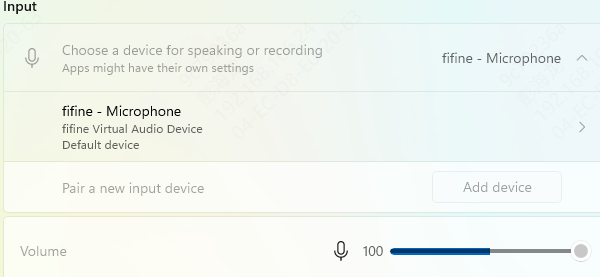
Step 2: Verify Windows Sound Settings
Incorrect audio settings are a common source of distortion. Adjust the following:
Adjust Sample Rate
Go to Settings → System → Sound → Input → Device Properties → Additional Device Properties → Advanced
Select a standard sample rate such as 48000 Hz, 24-bit
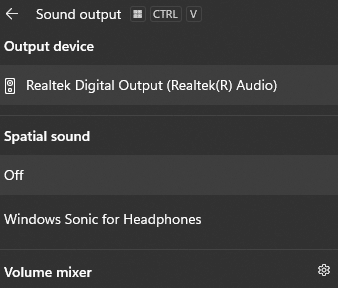
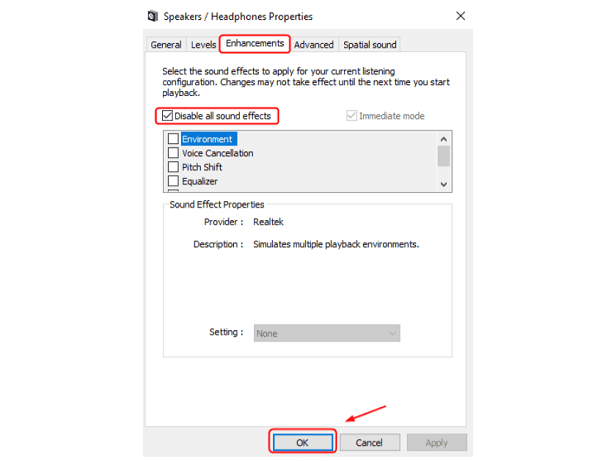
Disable Audio Enhancements
In the same Advanced tab, uncheck all audio enhancements to prevent software interference
Set as Default Device
Make sure the Razer Seiren V3 Mini is set as the default recording device in Windows
Pro Tip: Restart recording applications after changing settings to check if distortion is resolved.
Step 3: Update Drivers
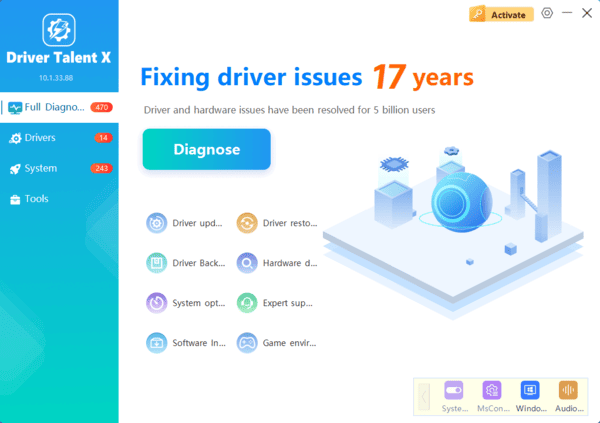
Driver Talent X is a professional tool that simplifies driver management and can automatically repair distorted sound issues caused by outdated or corrupted drivers.
Download and install Driver Talent X from the official website
Open the software and navigate to Drivers → Scan
Locate the Razer Seiren V3 Mini driver under the scan results
Click Repair or Update to automatically install the correct driver
Restart your computer to ensure all changes take effect
Benefits of Using Driver Talent X
One-click repair of all driver issues
Safe and compatible driver installation
Automatic backup and restore options to prevent errors
Step 4: Update Razer Seiren V3 Mini Firmware
Keeping your drivers and firmware updated is critical for optimal performance.
Using Razer Synapse
Open Razer Synapse → Devices → Seiren V3 Mini
Check the Firmware and Driver Version
Click Update if a newer version is available
Restart your PC to apply changes
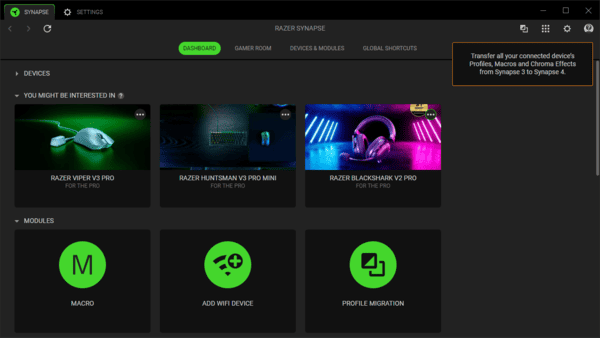
Manual Download from Razer
Visit the Razer Support Site
Select your Seiren V3 Mini model and download the latest driver and firmware
Follow installation instructions carefully
Restart your computer after installation
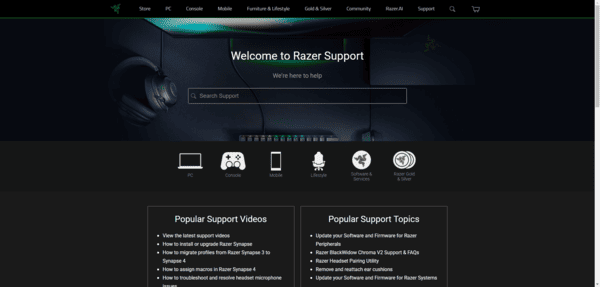
Tip: Always ensure that the downloaded drivers match your Windows version (Windows 10 or 11, 64-bit/32-bit).
Step 5: Test Your Microphone
After updating drivers and firmware:
Open a recording app like Audacity, OBS, or Windows Voice Recorder
Record a short clip to test for distortion or static
Adjust input levels and sample rates as necessary
If distortion persists, try reconnecting the USB cable or reinstalling the drivers
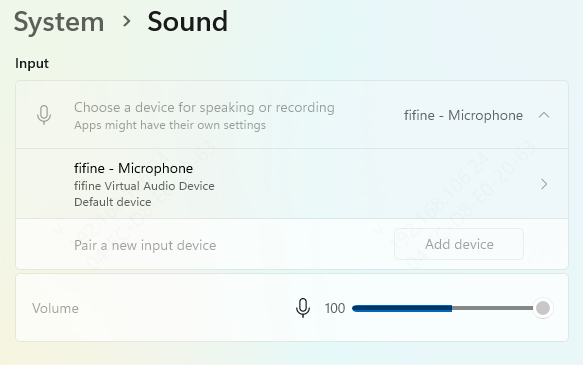
Tip: Test the microphone in multiple apps to ensure consistent sound quality.
Frequently Asked Questions
1. Why does my Razer Seiren V3 Mini sound distorted when I speak loudly?
The microphone input level may be too high, causing clipping. Lower the microphone gain in Windows, Razer Synapse, or your recording application, then test again while speaking at your normal volume.
2. Why does the microphone crackle only in OBS, Discord, or another specific app?
That app may use a different sample rate, input device, or audio-processing filter. Match its sample rate with Windows and temporarily disable noise suppression, automatic gain control, compressors, and other filters.
3. Can a USB hub cause static or distorted microphone audio?
Yes. An unpowered or overloaded hub may provide unstable power or data transmission. Connect the microphone directly to another USB port and disconnect unnecessary USB devices during testing.
Conclusion
Fixing distorted sound on the Razer Seiren V3 Mini ensures professional-quality audio for recording and streaming. By following this guide, users can troubleshoot hardware, adjust Windows settings, update drivers, and firmware, restoring clear, reliable audio. For a quick and safe solution, using Driver Talent X automates the process, repairing and updating all drivers without the risk of errors. Regular maintenance ensures that your Razer Seiren V3 Mini delivers consistent, high-quality sound for all your creative projects.
