

Keeping your NVIDIA GeForce GT 730 driver up to date is essential for maintaining smooth performance in gaming, creative applications, and everyday system use. When drivers become outdated or corrupted, users may experience issues such as game crashes, screen flickering, low frame rates, or even reduced GPU functionality. This article provides a clear, step-by-step checklist for updating your NVIDIA GeForce GT 730 driver, with practical instructions suitable for both beginners and advanced users to ensure stable and optimized system performance.
Step 1 – Verify Your GPU and Driver Version
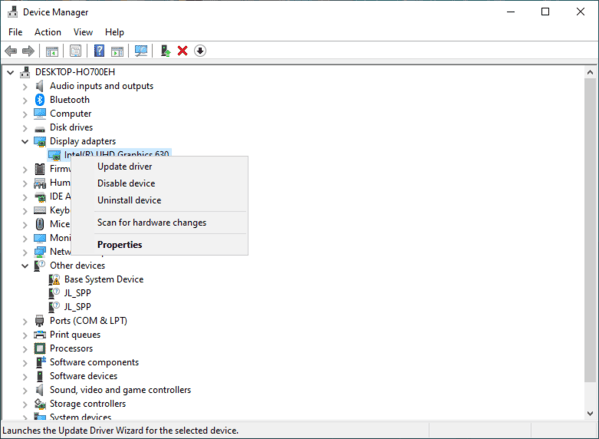
Press Windows + X → Device Manager → Display adapters
Find your NVIDIA GeForce GT 730
Right-click → Properties → Driver tab → check the version and date
Open NVIDIA Control Panel → System Information to confirm your GPU and driver
Why it matters: Installing the wrong driver can cause errors, system instability, or prevent Windows from recognizing your GPU
Step 2 – Backup Current Drivers
Before installing new drivers, create a backup:
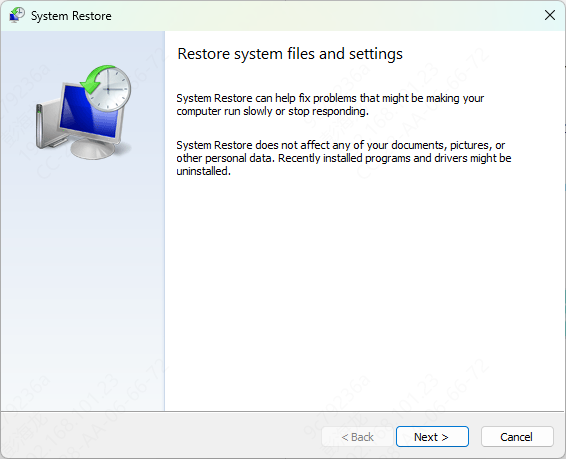
Windows System Restore: Press Windows + S → Create a restore point → System Restore
Driver Backup Tools: Use software like Driver Talent X to back up all GPU and system drivers
This ensures you can restore your previous setup if something goes wrong during the update
Step 3 – Driver Talent X Update
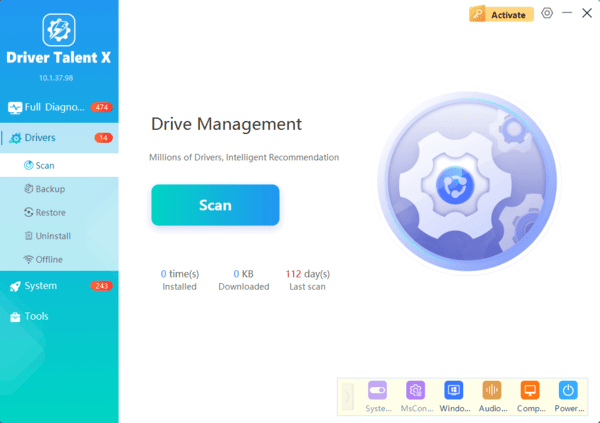
For effortless updates, Driver Talent X is a professional tool:
Features
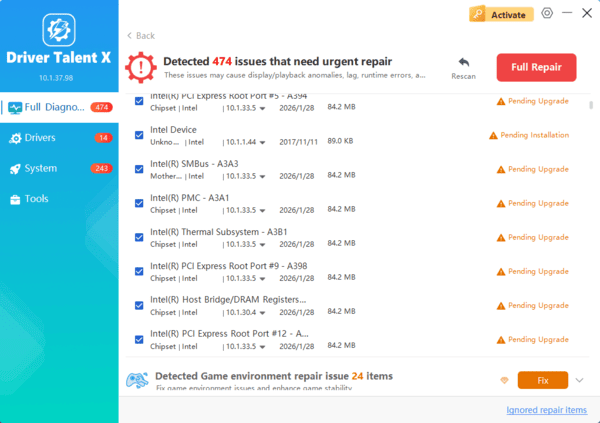
Automatically detects outdated, missing, or corrupted NVIDIA drivers
One-click repair and update for all system components
Backup and restore drivers to prevent errors
How to Use
Download and install Driver Talent X from the official website
Open the app → Click Scan
Click Repair/Update All or select your GT 730 driver
Restart your PC
Benefits: Saves time, reduces errors, and ensures your GPU and system remain fully stable
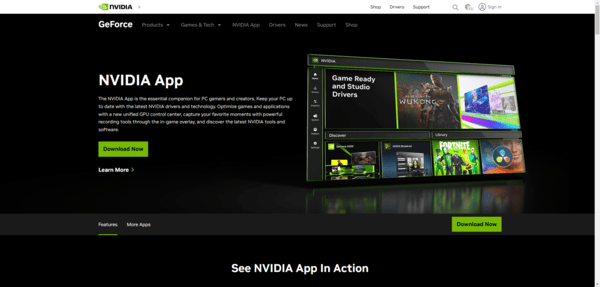
Step 4 – Download and Install GeForce Experience
Open GeForce Experience → Drivers tab → Check for Update
Click Download → Express Installation
Restart your PC
Step 5 – Windows Update
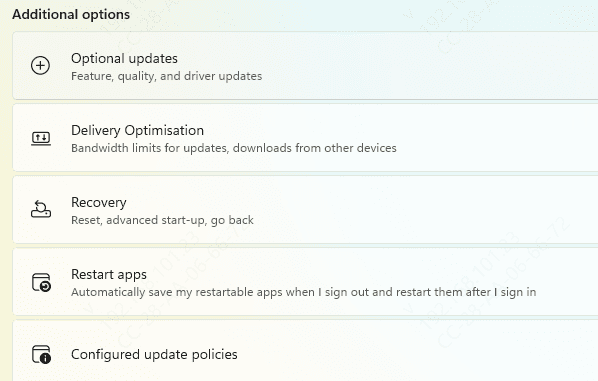
Press Windows + I → Update & Security → Windows Update
Click Check for Updates
Expand Optional Updates → look for NVIDIA GeForce GT 730 driver updates
Download, install, and restart
Step 6 – Update via Device Manager
If automatic tools fail, Device Manager can help:
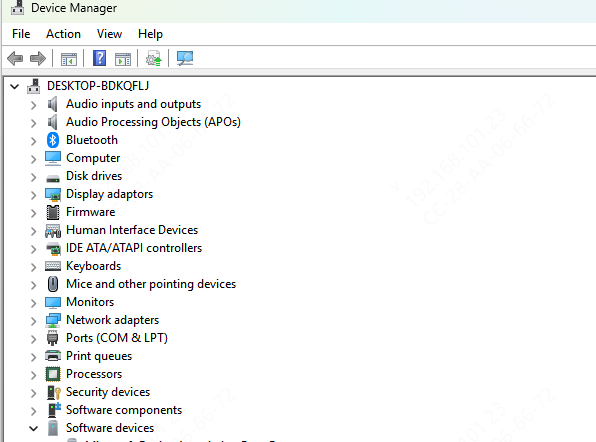
Open Device Manager → Display adapters → Right-click NVIDIA GeForce GT 730 → Update driver
Choose one of the following:
Search automatically for drivers – Windows finds the latest compatible driver
Browse my computer for drivers – If you downloaded the driver manually
Restart your system
This method is ideal for troubleshooting specific devices or installing drivers without GeForce Experience
Step 7 – Manual Driver Installation
For advanced users or when a clean installation is needed:
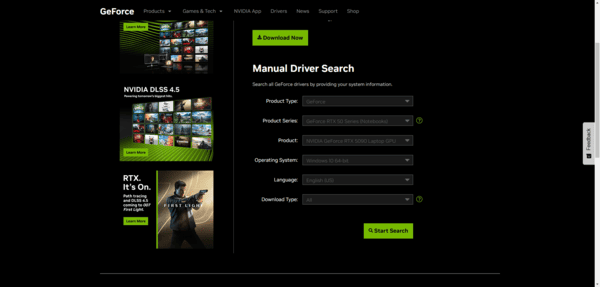
Go to NVIDIA Official Driver Download
Select your GT 730, OS, and driver type (Game Ready or Studio Driver)
Download the installer → Choose Custom Installation → Perform Clean Installation
Follow the prompts → Restart your system
Benefits: Removes old drivers, prevents conflicts, and ensures your GPU is fully recognized
Troubleshooting Errors
Sometimes driver updates fail. Common fixes include:
Use Display Driver Uninstaller (DDU) in Safe Mode to remove old or corrupted drivers
Rollback driver: Device Manager → Driver tab → Roll Back Driver
Temporarily disable antivirus/firewall if the installer is blocked
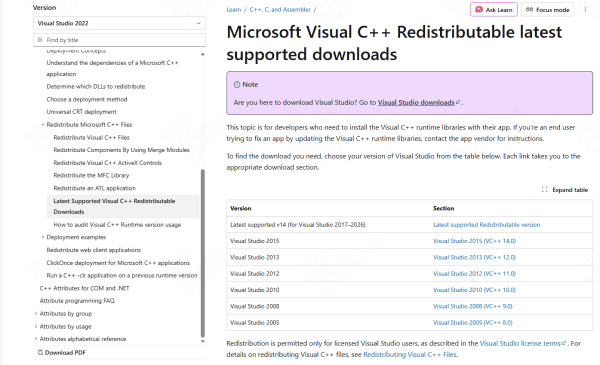
Update DirectX, Visual C++ Redistributables, and GPU firmware for full compatibility
These steps help solve installation issues and improve system stability
Prevent Future Driver Problems
Schedule automatic scans in GeForce Experience or Driver Talent X
Avoid beta or unofficial drivers unless necessary
Always create restore points before major updates
Test GPU performance after updates to ensure stability
Keep BIOS and firmware up to date for maximum compatibility
