The Elder Scrolls V: Skyrim Special Edition brings Bethesda's legendary open-world RPG to life with improved lighting, enhanced textures, volumetric effects, and detailed environments. Whether you are exploring the forests of Falkreath or walking through the streets of Whiterun, smooth performance makes the experience more enjoyable.
However, Skyrim Special Edition low FPS can still be a problem, even on relatively powerful gaming PCs. Some players experience frame rate drops in crowded cities, stuttering while exploring, or significant performance loss after installing graphics mods.
This guide explains how to improve Skyrim Special Edition performance by adjusting graphics settings, checking drivers, optimizing Windows, and managing demanding mods.
1. Check Your FPS and Hardware Usage
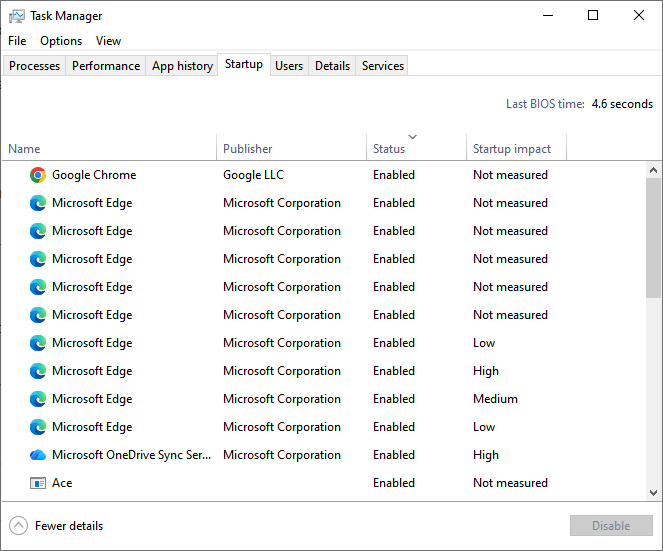
You can also use Task Manager or a trusted hardware monitoring utility to check CPU, GPU, RAM, and VRAM usage.
Monitor temperatures to make sure your hardware is not overheating.
For accurate comparisons, test the same location and weather conditions after each adjustment.
2. Optimize Skyrim Special Edition Graphics Settings
Lower Shadow Quality and Distance
Reduce God Rays Quality
Adjust Ambient Occlusion
Reduce View Distance
Choose a Suitable Resolution
3. Update Your Graphics Drivers
Outdated, corrupted, or incompatible drivers may contribute to stuttering, graphical errors, or performance instability.
If Skyrim Special Edition suddenly develops FPS problems after a Windows update or hardware change, checking the graphics driver is worthwhile.
Option A: Update Drivers with Driver Talent X
Driver Talent X provides an additional way to check for supported outdated, missing, or problematic Windows device drivers.
Download Driver Talent X.
Install and launch the software.
Click Scan to check your computer.
Review detected graphics driver issues.
Install an appropriate compatible driver update if available.
Restart Windows and launch Skyrim Special Edition again.

Driver Talent X may help address supported driver-related issues, although it cannot eliminate performance limitations caused by demanding mods or insufficient hardware.
Option B: Update Graphics Drivers Manually
You can also obtain drivers directly from NVIDIA, AMD, or Intel.
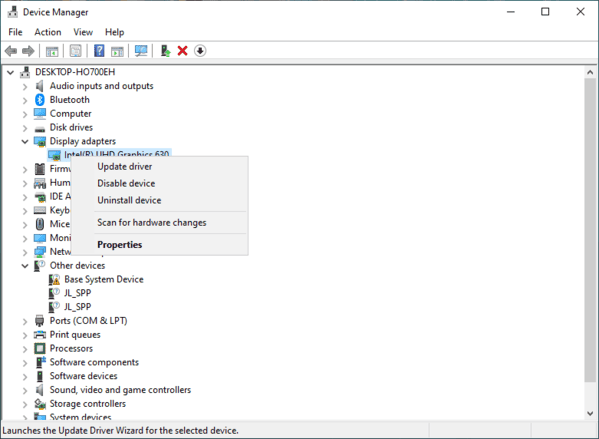
Open Device Manager, expand Display adapters, and identify your GPU.
Visit the manufacturer's official website and download a compatible driver.
Install it and restart your computer.
4. Optimize Windows for Better Gaming Performance
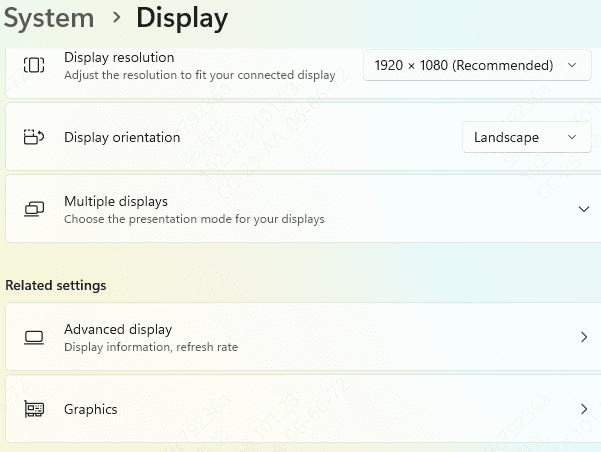
Open Settings > System > Display.
Select Graphics.
Locate or add Skyrim Special Edition.
Open its graphics preferences.
Select High performance when appropriate.
Save the setting and restart the game.
5. Verify Game Files and Check Mod Conflicts
If performance problems appeared after modifying the installation, damaged files or conflicting modifications may be involved.
For an unmodded Steam installation, file verification is straightforward.
Open Steam.
Navigate to your Library.
Right-click The Elder Scrolls V: Skyrim Special Edition.
Select Properties.
Open Installed Files.
Click Verify integrity of game files.
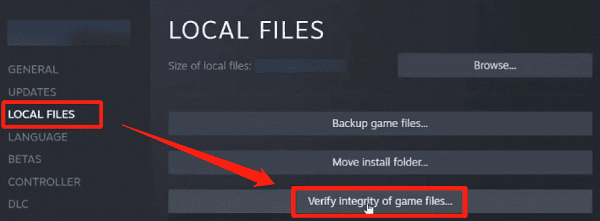
Steam will check the installation and replace missing or damaged official files when necessary.
Frequently Asked Questions
Why does Skyrim Special Edition run smoothly indoors but slow down outdoors?
Outdoor areas can render more objects, vegetation, and shadows at once. Lower shadow distance or object view distance first, then revisit the same outdoor location to see whether the change helped.
Can high-resolution texture mods cause stuttering even when average FPS is good?
Yes. Large texture packs can strain available video memory and cause brief pauses as new areas load. Try a lower-resolution version of the pack and compare performance along the same route.
Should I remove the FPS cap to fix low FPS?
Only consider changing the cap if the game consistently reaches it. Raising the cap will not fix dips below it, and running at higher frame rates can affect physics without a compatible setup.
Conclusion
To improve FPS in Skyrim Special Edition, start by lowering shadows, God Rays, ambient occlusion, and view distance. If frame rates still drop, check system resource usage and test with demanding ENB presets or texture mods disabled. Driver Talent X can also help check for graphics driver issues on supported hardware. Aim for a stable frame rate with settings that keep the game's physics working correctly.