

Your Bluetooth headphones worked yesterday, but after restarting or updating Windows 11, they suddenly refuse to connect. You might also notice that Bluetooth disappears from Settings, previously paired devices stop responding, or Device Manager shows a warning next to the Intel wireless adapter. These problems often occur when the installed Intel Bluetooth driver is outdated, damaged, or no longer fully compatible with the current Windows version. Updating or reinstalling the correct driver can restore device detection, pairing, and connection stability. Below, we'll cover several ways to update the Intel Bluetooth driver on Windows 11, from built-in Windows tools to Intel's official utility and automatic driver solutions.
Why Should You Update Bluetooth Drivers 11
Improved Device Compatibility: Updating the driver helps your Bluetooth devices, such as wireless headphones, speakers, and printers, work seamlessly with your system. It ensures compatibility with the latest Bluetooth standards and devices, offering better connectivity
Fix Pairing and Connection Problems: If your Bluetooth devices frequently disconnect or fail to pair with your PC, it could be caused by an outdated or malfunctioning Bluetooth driver. Updating it will help resolve such pairing issues and ensure a stable connection
Enhanced Bluetooth Performance: Updated Intel drivers can improve Bluetooth data transfer speed and connection stability, making it easier to use your Bluetooth peripherals, especially for activities like gaming, streaming, or video editing
Update Intel Bluetooth Driver Using Windows Update
Open Settings: Press Windows + I to open Settings. Navigate to Update & Security > Windows Update
Check for Updates: Click Check for Updates. Windows will automatically search for available updates, including driver updates
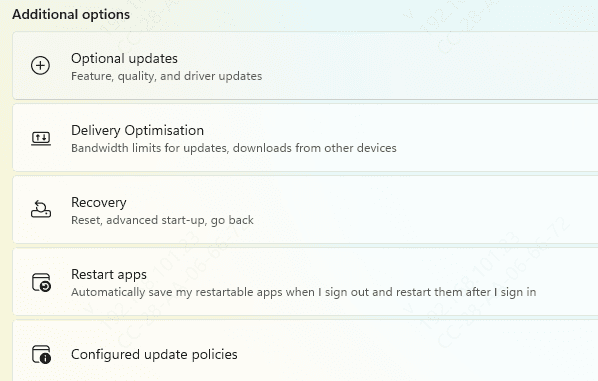
Advantages: Quick and easy. No need for external software
Limitations: Windows Update might not always offer the latest driver versions, especially if Intel has released an update after Microsoft's most recent catalog
Update Intel Bluetooth Driver Using Device Manager
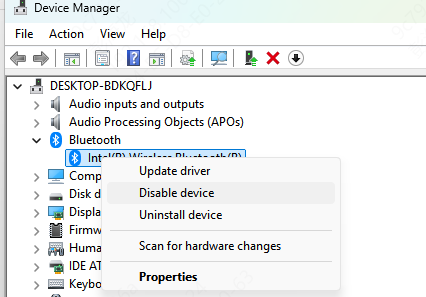
Open Device Manager:Right-click the Start menu and select Device Manager
Locate Bluetooth Section: Expand the Bluetooth section and find your Intel Bluetooth device
Update Driver: Right-click the Intel Bluetooth device and select Update Driver
Search for Updated Drivers: Choose Search automatically for updated driver software. Windows will search for the latest drivers
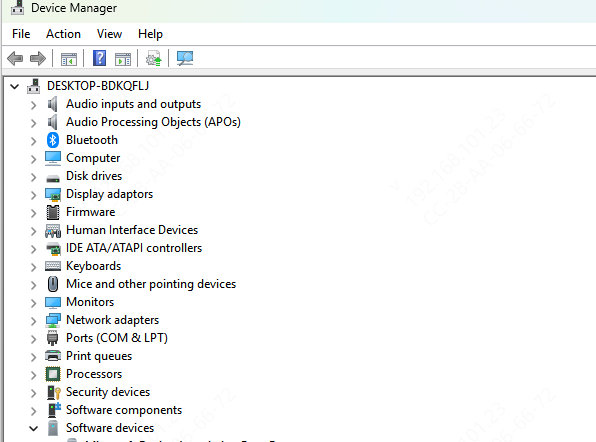
Advantages: This method allows you to directly manage drivers via Device Manager without additional tools
Limitations: Sometimes, it might not find the most up-to-date or stable driver version
Update Intel Bluetooth Driver with Driver Talent X
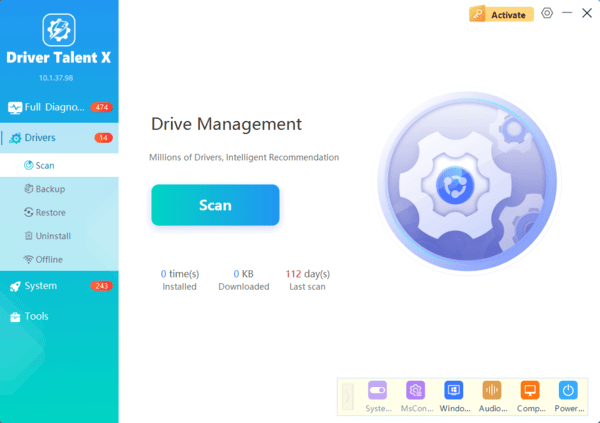
Driver Talent X offers an automated and safe way to identify outdated, missing, or corrupted Intel Bluetooth drivers and install the correct versions for your system, ensuring smooth connectivity and performance.
Step 1: Download and Install Driver Talent X
Step 2: Scan for Driver Issues
Step 3: Update All Drivers
Step 4: Restart Your Computer
Use Intel Software
Intel offers a powerful tool, Intel Driver & Support Assistant (DSA), which automatically detects and updates your Intel hardware drivers, including Bluetooth
Download Intel DSA: Go to the Intel Download Center and download the Intel Driver & Support Assistant
Run the Tool: After installing, launch Intel DSA. It will scan your system and check for outdated drivers, including Intel Bluetooth drivers
Install Updates: Once the scan is complete, Intel DSA will display a list of available updates. Click to download and install the Intel Bluetooth driver
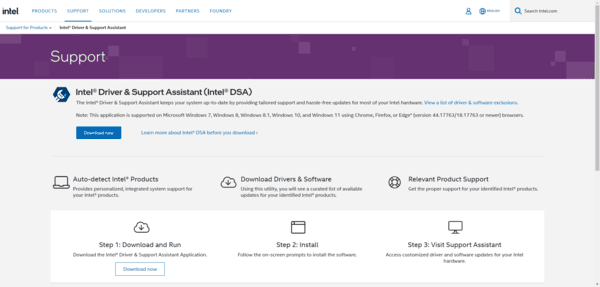
Advantages: Intel DSA automates the driver update process, ensuring that you always have the latest drivers installed
Limitations: Requires installing additional software, but it streamlines the process for users
Manually Download Intel Bluetooth Driver from Website
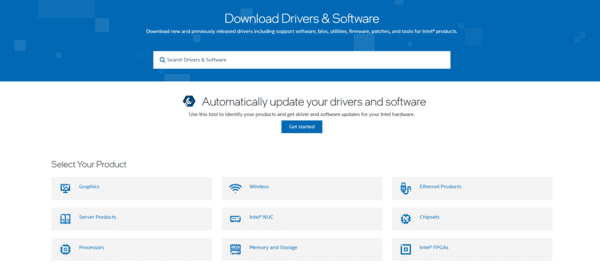
For users who prefer manual control, downloading the driver directly from Intel's website ensures you get the most recent updates.
Go to Intel's Download Center: Visit the Intel Download Center
Search for Intel Bluetooth Drivers: Search for the latest Intel Bluetooth driver compatible with your Windows 11 system
Download the Driver: Select and download the appropriate driver for your device
Advantages: You get the latest drivers directly from Intel, ensuring compatibility and stability
Limitations: Manual downloading and installation can be time-consuming compared to automatic methods
Troubleshooting Common Bluetooth Issues After Updating
Driver Installation Fails: If the installation fails, restart your computer and try the process again. You may also want to try installing the driver in Compatibility Mode
Bluetooth Devices Not Pairing: Ensure Bluetooth is enabled on both the device and your PC. You can also try removing paired devices and reconnecting them
Frequent Disconnections: If you continue to experience disconnections, check for potential interference from other wireless devices. Ensure you are using the correct driver version for your Intel Bluetooth hardware
Frequently Asked Questions
How do I confirm that my PC uses an Intel Bluetooth adapter?
Open Device Manager → Bluetooth and check the adapter name. If it is unclear, open Properties → Details → Hardware Ids. Do not install an Intel driver on a Realtek, Qualcomm, or other adapter.
What if Bluetooth disappears from Device Manager?
Restart the PC, then select View → Show hidden devices in Device Manager. Check Other devices for an unknown adapter. If it remains absent, inspect the laptop's wireless settings and manufacturer diagnostics; a driver installer cannot detect hardware that Windows does not see.
How can I undo an Intel Bluetooth driver update that caused disconnections?
In Device Manager, right-click the Intel Bluetooth adapter and select Properties → Driver → Roll Back Driver if available. Otherwise, reinstall the previously working package from your laptop manufacturer and pair your devices again.
Conclusion
Updating your Intel Bluetooth drivers is crucial for ensuring reliable Bluetooth connectivity and optimal performance on your Windows 11 system. Whether you use Windows Update, Device Manager, Intel DSA, or manually download the drivers from Intel's website, keeping your Bluetooth drivers up to date will help solve pairing issues, improve connection stability, and ensure that your Bluetooth devices perform at their best. By following this guide, you can easily fix Bluetooth issues, enhance your experience with Bluetooth peripherals, and ensure that your system stays connected without interruptions.
