

Bluetooth drivers play a crucial role in ensuring seamless communication between your computer and Bluetooth devices like headphones, keyboards, mice, and other peripherals. An outdated, missing, or corrupted Bluetooth driver can cause a range of issues, such as device connection failures, intermittent disconnections, or poor performance. In this article, we'll explore different methods to update your Bluetooth driver, from manual methods to using automated tools.
Method 1: Update Bluetooth Driver via Device Manager
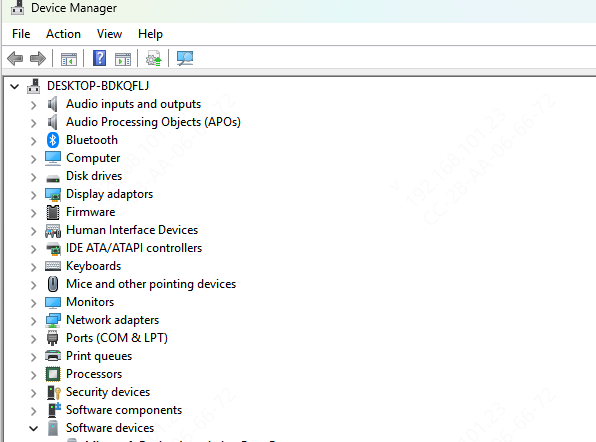
Open Device Manager: Right-click the Start menu and select Device Manager
Find Your Bluetooth Device: Under Bluetooth, right-click on the Bluetooth adapter (e.g., Intel Wireless Bluetooth or Realtek Bluetooth)
Search for Driver Updates: Click Update Driver
Select Search automatically for updated driver software
Windows will search online for the latest drivers and install them if available
Restart Your PC: After the update, restart your computer to ensure the new driver is applied properly
Update Bluetooth Driver Using Driver Talent X (Recommended)
For the easiest and most efficient solution, consider using a driver update tool like Driver Talent X. This tool automatically scans your system for outdated, missing, or corrupted drivers and installs the latest versions in just a few clicks.
Download and Install Driver Talent X: Visit the official website of Driver Talent X and download the latest version
Install the software by following the on-screen instructions
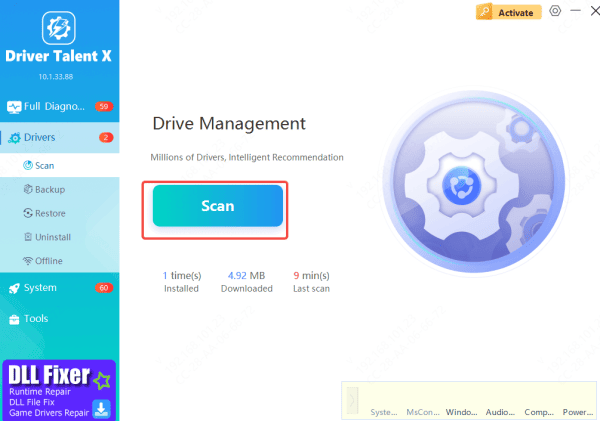
Scan Your System: Open Driver Talent X and click on Scan
The software will scan your system for outdated, missing, or incompatible drivers
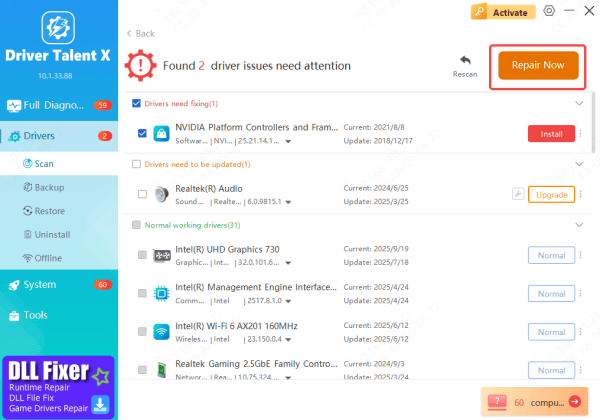
Find the Bluetooth Driver: Once the scan is complete, locate the Bluetooth driver in the list
Click Download next to the Bluetooth driver
Install the Latest Driver: After the download, click Install to update your Bluetooth driver
Restart Your PC: To ensure the driver update is applied successfully, restart your computer
Why Use Driver Talent X
Automated Process: Saves time by automatically detecting and updating drivers
Safety: Ensures that the right drivers are installed without the risk of downloading the wrong version
Convenience: Updates all drivers, not just Bluetooth, for a smoother system performance
Restart and Test Bluetooth Function
After updating your Bluetooth driver, it's crucial to test the Bluetooth functionality to ensure everything is working properly:
Restart Your Computer: Restarting your PC ensures that the updated drivers are applied properly
Test Bluetooth Devices: Pair your Bluetooth devices (e.g., headphones, speakers, mouse) with your computer
Check if the devices connect properly and function as expected
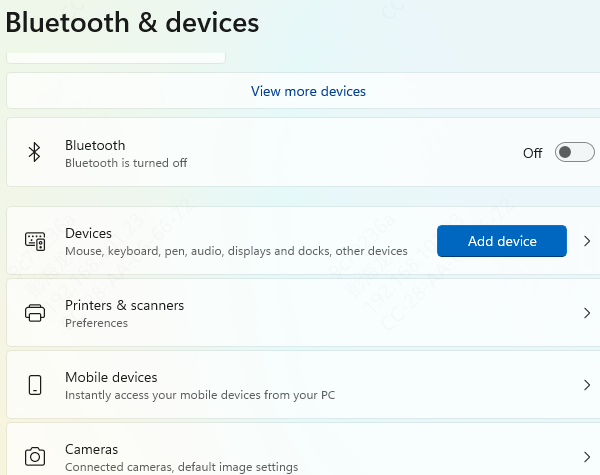
Troubleshooting If Bluetooth Still Doesn't Work
If your Bluetooth still doesn't work after updating the driver, here are some troubleshooting tips:
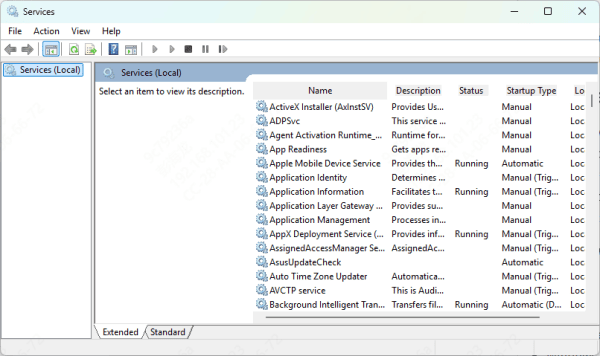
Check Bluetooth Service
Press Win + R, type services.msc, and press Enter
Ensure that Bluetooth Support Service is running and set to Automatic
Rollback the Driver
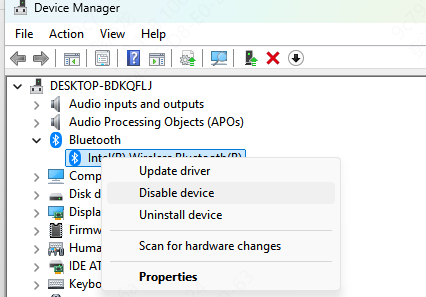
If the update caused issues, go back to Device Manager, right-click the Bluetooth device, and choose Properties
Under the Driver tab, select Roll Back Driver if the option is available
Reinstall Bluetooth Driver: Uninstall the Bluetooth driver from Device Manager, then restart your computer
Windows will attempt to reinstall the Bluetooth driver automatically
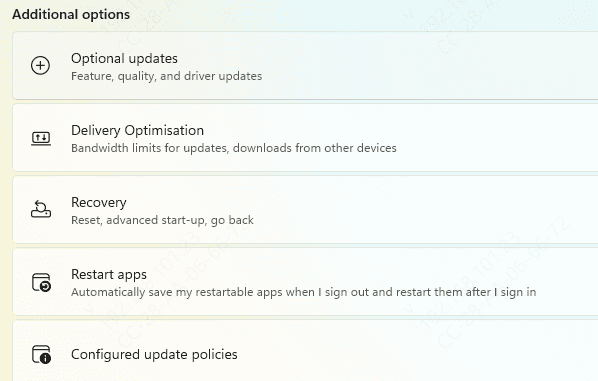
Perform a System Update
Make sure Windows is fully updated, as some updates may fix underlying issues
Conclusion
Updating your Bluetooth driver is essential to ensure your devices work smoothly and efficiently. You can manually update drivers through Device Manager or download them directly from the manufacturer's website. However, for a faster and more reliable solution, using Driver Talent X is the most efficient way to ensure all your drivers are up to date and your Bluetooth is functioning optimally. Don't forget to test your Bluetooth devices after updating, and use the troubleshooting tips if issues persist. By keeping your Bluetooth drivers updated, you'll ensure smooth connectivity and performance for all your wireless devices.
