

Updating the BIOS on an ASUS motherboard can help improve system stability, fix compatibility issues, enhance hardware support, and enable newer CPU or component upgrades. However, BIOS updates require careful preparation because an incorrect file or interrupted process may cause boot problems. This guide explains how to safely update an ASUS motherboard BIOS, including checking the current BIOS version, downloading the correct update file, using ASUS EZ Flash, and keeping system drivers updated after the upgrade.
Preparation Before Upgrading BIOS
Check Your Current BIOS Version
Before you begin, it's important to know the version of BIOS currently installed on your system. To check this:
From BIOS Setup: Reboot your computer and press the DEL or F2 key (depending on the motherboard) during boot-up to enter BIOS. Look for the BIOS version on the main screen or under the Information tab
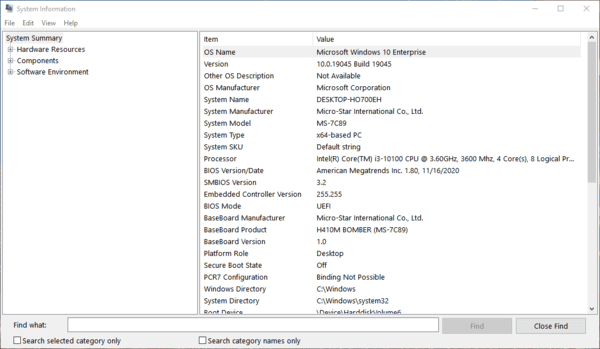
From Windows: Press Windows + R, type msinfo32, and press Enter. This opens the System Information window, where you can find your current BIOS version
Download BIOS Update from the ASUS Support Website
Access the ASUS Support Page: Visit the official ASUS Support Page and search for your motherboard model. Go to the Support tab and find the Drivers & Tools section
Download the BIOS Update: In the BIOS & FIRMWARE section, look for the latest stable BIOS version. Download the BIOS update file (usually a compressed .zip file)
Save the BIOS Update to USB Drive: Extract the BIOS file from the compressed folder and copy it to the formatted USB drive. Do not put it into any folder; it should be placed directly in the root directory of the USB drive

Access BIOS Setup (UEFI)
Restart the Computer: To enter BIOS, restart your computer and press the DEL or F2 key during the boot-up process (before Windows starts loading)
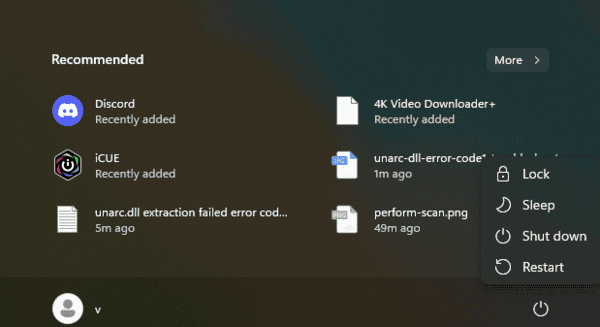
Navigate to the BIOS Update Section: Once inside the BIOS setup, locate the EZ Flash utility. It's typically found in the Tools or Advanced tab of the BIOS menu. This tool allows you to update the BIOS directly from a USB drive
Update BIOS Using EZ Flash
Select BIOS Update File: In the EZ Flash utility, you'll be prompted to choose the BIOS update file. Select your USB drive from the list of available storage devices and locate the BIOS file you copied earlier
Start the BIOS Update: After selecting the correct BIOS file, the system will ask you to confirm the update. Double-check that the correct file is selected, as an incorrect BIOS file could cause serious issues
Post-BIOS Update Setup
While updating the BIOS is essential for your system's overall performance and hardware compatibility, ensuring that your system drivers are also up to date is equally important. Outdated or corrupted drivers can lead to a range of problems, including hardware malfunctions, performance issues, and even system crashes
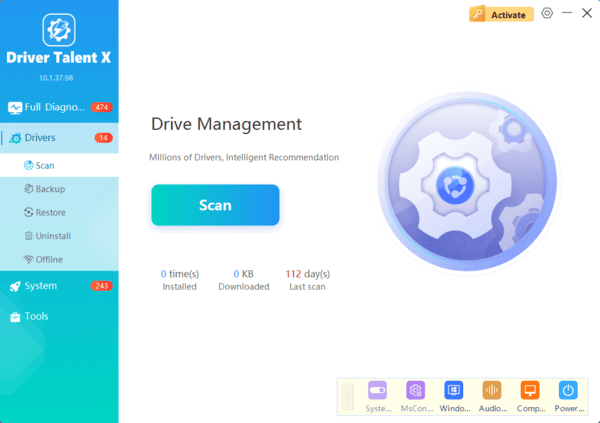
Driver Talent X is an excellent tool to help you keep all your system drivers updated automatically. It simplifies the process of downloading, installing, and updating drivers for your motherboard, graphics card, network adapters, audio system, and more saving you time and effort
Conclusion
Updating the BIOS on your ASUS motherboard is a simple but effective way to improve system performance, enhance compatibility with new hardware, and fix bugs. By following this step-by-step guide, you can easily update your BIOS and ensure your system operates smoothly. However, always be cautious when performing a BIOS update, as an incorrect or interrupted process can cause system instability.
