

Graphics driver problems can affect far more than gaming performance. On Windows 10, an incorrect or damaged GPU driver may cause blurry displays, random freezes, application crashes, unstable frame rates, or even prevent certain games from launching. Fortunately, there are several ways to install a suitable NVIDIA, AMD, or Intel graphics driver. This guide walks you through automatic and manual upgrade methods, along with practical steps for fixing driver conflicts and improving overall GPU stability.
Why You Should Upgrade Graphics Drivers on Windows 10
Updating your graphics driver provides several benefits:
Improved gaming performance and higher FPS
Better compatibility with new games and applications
Fixed display issues such as screen tearing, black screens, or flickering
Reduced crashes and blue screen errors
Enhanced support for Windows updates and DirectX versions
Method 1: Upgrade Graphics Driver via Device Manager
Windows 10 includes a built-in tool for basic driver updates.
Press Win + X and select Device Manager.
Expand "Display adapters", right-click your graphics card and choose "Update driver".
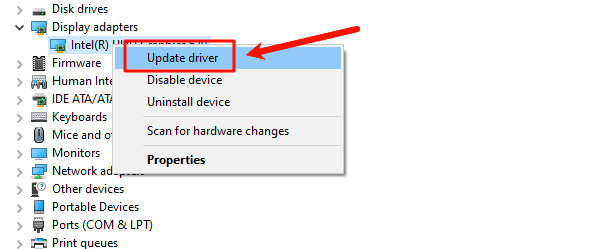
Select "Search automatically for drivers".
Follow the on-screen instructions and restart your PC.
Note that Device Manager often installs generic drivers, which may not deliver optimal performance.
Method 2: Download Graphics Driver from Manufacturer Website
For advanced users, downloading drivers directly from the official GPU manufacturer ensures access to the latest features.
NVIDIA Graphics Driver:
Use NVIDIA's official driver download page.
Select your GPU model and Windows 10 version.
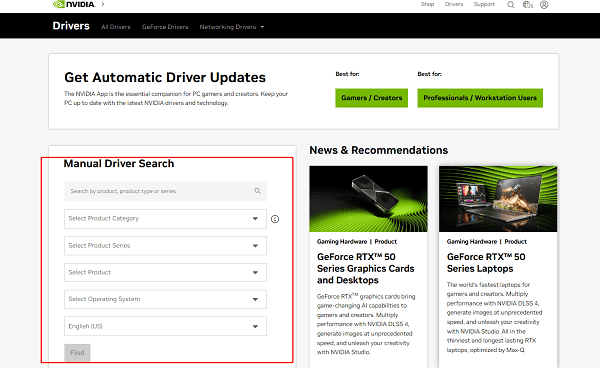
Download and install the latest Game Ready or Studio driver.
AMD Graphics Driver:
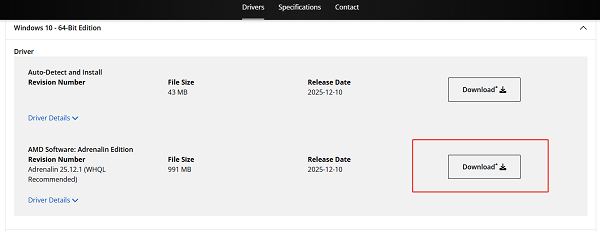
Visit AMD's official support page.
Choose your GPU series and operating system.
Download and install the latest Adrenalin Edition driver.
Intel Graphics Driver:
Download drivers from Intel's official website.
Use Intel Driver & Support Assistant if available.
Always restart your system after installation.
Mtehod 3: Update Graphics Driver Using Driver Talent X
Updating graphics drivers manually can be time-consuming and error-prone. Driver Talent X automates the process by detecting your exact GPU model and installing the most stable, compatible driver version.
Download and Install:
Click the "Download" button to download the Windows installer. Save the file to your Windows PC.
Double-click the installer and follow the on-screen instructions. Choose an installation directory and complete the setup.
Run a Full System Scan:
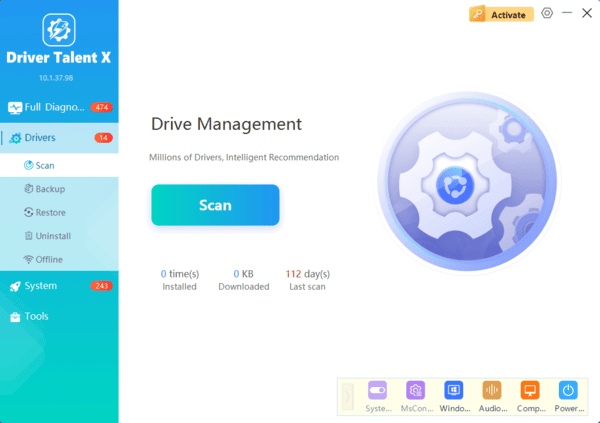
Open Driver Talent X from the desktop shortcut or the Windows Start menu, go to "Drivers" > "Scan", click "Scan".
Wait for the scan to complete. Driver Talent X will identify outdated, missing, corrupted, or incompatible drivers.
Update Graphics Driver:
After scanning, locate your graphics driver in the results list. Click the necessary drivers and click the "Upgrade" or "Repair Now" button.
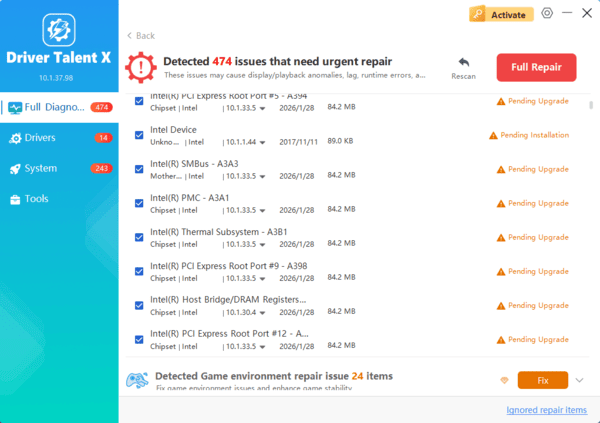
Driver Talent X will reliably download the latest drivers and execute a clean installation, critical for performance enhancements and stability fixes.
Restart Your Computer:
Allow the software to download and install the correct driver automatically.
Restart your computer to apply the changes.
This method ensures driver compatibility, reduces installation failures, and helps avoid system instability caused by incorrect driver versions.
Perform a Clean Graphics Driver Installation
If performance issues persist, a clean installation can remove corrupted driver remnants.
Uninstall the existing graphics driver from Apps & Features.
Restart Windows 10.
Restart again to complete the setup.
This method helps resolve crashes, stuttering, and driver conflicts.
Additional Tips to Improve Graphics Performance
Keep Windows 10 fully updated
Adjust graphics settings in NVIDIA Control Panel or AMD Software
Disable unnecessary background applications
Ensure your power plan is set to High performance
Monitor GPU temperature to avoid thermal throttling
Conclusion
Upgrading your graphics driver on Windows 10 is one of the most effective ways to boost system performance and fix display-related issues. Using Driver Talent X provides a fast, reliable, and safe solution, especially for users who want to avoid compatibility problems.
By combining automatic driver updates with manual checks and system optimizations, you can ensure your GPU runs at peak performance and remains stable across Windows updates and software changes.
