

Launching Minecraft only to find that all the sound is missing can make the game feel lifeless. If there are no footsteps, music, ambient effects, or mob sounds, the issue is usually related to audio settings rather than the game itself. In this guide, we'll walk you through the most effective solutions to restore Minecraft audio, from quick settings checks to driver-related fixes, so you can get back to playing with full sound.
Fix 1: Check In-Game Sound Settings
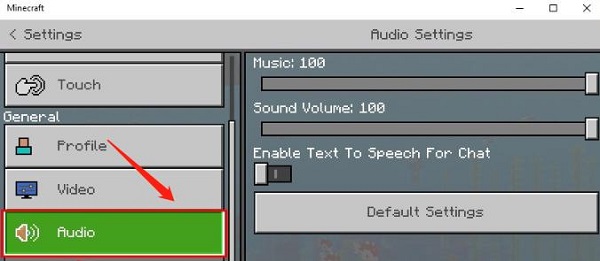
Start here before touching any Windows settings. Open Minecraft and go to the pause menu. Select Options, then Music and Sounds. A row of volume sliders controls every audio category in the game
Check the Master Volume slider first. If it's at zero or near zero, that's the cause — every other slider is irrelevant when Master Volume is muted. Set it to 100% and test immediately. If you can hear audio after doing this, adjust the individual category sliders to your preference
Also check the Accessibility settings from the Options menu. There is an option called Mute When Unfocused that silences Minecraft whenever it's not the active window. If this is enabled and you were testing sound while clicking elsewhere, that explains why you heard nothing
Fix 2: Check Windows Volume Mixer
Right-click the speaker icon in the taskbar and select Open Volume Mixer. Look for a Minecraft entry in the mixer. In Java Edition it will appear as javaw.exe; in Bedrock Edition it will appear as Minecraft. If the slider is at the bottom or the speaker icon below it shows a red mute symbol, that's the cause. Bring the slider up and click the mute icon to unmute
If Minecraft doesn't appear in the Volume Mixer at all, the application isn't outputting any audio signal to Windows. This means the issue is either the audio output device configuration or an audio driver problem. Proceed to the next fixes
Fix 3: Set the Correct Audio Output Device
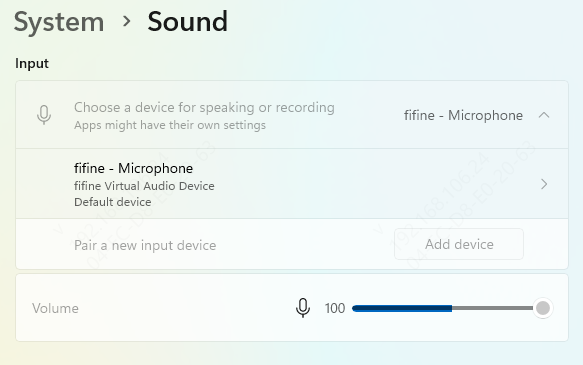
Right-click the speaker icon in the taskbar and select Open Sound settings
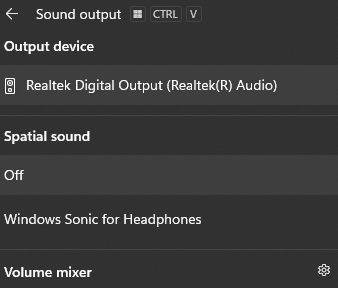
Under Output, confirm the correct playback device is selected. If you're using headphones, the headphones should be listed and selected. If the wrong device is showing, change it using the dropdown
For a more permanent fix, right-click the speaker icon and select Sounds. Go to the Playback tab. Right-click the device you want to use and select Set as Default Device and Set as Default Communication Device. Close the window and relaunch Minecraft
Fix 4: Update or Reinstall the Audio Driver
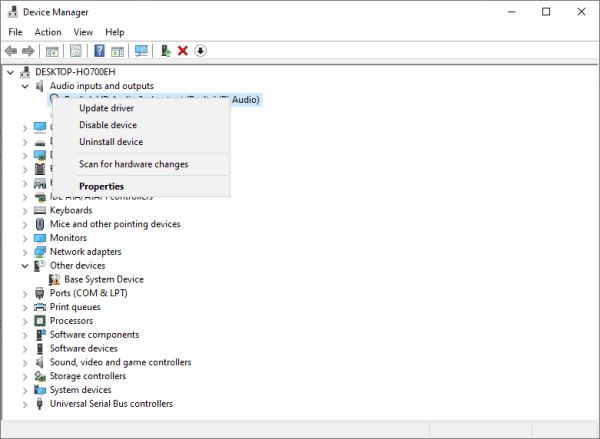
Open Device Manager by pressing Win + X and selecting it. Expand Sound, video and game controllers
Right-click your audio device and select Update driver. Choose Search automatically for drivers. If Windows finds an update, install it and restart
For a full clean reinstall, right-click the audio device and select Uninstall device. Restart the PC. Windows will reinstall a basic driver automatically
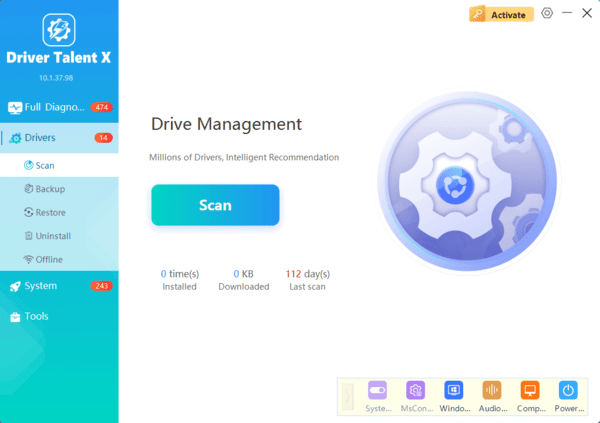
If Minecraft's audio still doesn't work after this, the generic Windows-installed driver is insufficient — use Driver Talent X to install the correct OEM-matched version
Driver Talent X identifies your exact audio hardware and installs the driver version built for it, including OEM-specific variants that Windows Update doesn't provide
Fix 5: Reinstall Minecraft
For Java Edition: open File Explorer, navigate to %appdata%\.minecraft, and copy the saves folder to a safe location as a backup. Uninstall Minecraft through Settings and Apps. Download and reinstall from minecraft.net. After reinstalling, copy the saves folder back into the new .minecraft directory
For Bedrock Edition on Windows: go to Settings, then Apps. Find Minecraft in the list and click Advanced options. Click Reset to clear the application data while preserving Microsoft account-linked worlds. If Reset doesn't restore audio, uninstall Minecraft from the Apps list and reinstall from the Microsoft Store
Fix 6: Update Windows
If Minecraft's audio stopped working immediately after a Windows update, a subsequent patch may already be available that addresses the compatibility issue
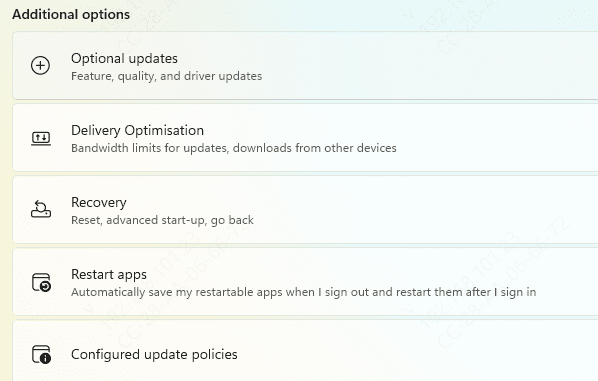
Go to Settings, then Windows Update, and click Check for Updates. Install all available updates and restart. After the restart, test Minecraft audio. This fix is most relevant when the timing of the audio failure coincides directly with a Windows feature update
The in-game Master Volume setting and the Windows Volume Mixer account for the majority of Minecraft audio failures. Fix 1 and Fix 2 resolve the problem for most players in under two minutes. When audio works in other applications but not in Minecraft, the audio driver is the most likely cause — Driver Talent X installs the correct matched driver automatically and restores full audio function without requiring manual driver research.
