

The Witcher 3: Wild Hunt — Remastered brings Geralt's adventures to life with improved graphics, enhanced lighting, detailed environments, and advanced rendering technologies. However, these visual improvements can also place greater demands on PC hardware, causing FPS drops, stuttering, and inconsistent performance. If Witcher 3 Remastered is running slowly on your computer, you don't necessarily need to upgrade your hardware immediately. Adjusting a few settings, updating drivers, and checking system performance may significantly improve gameplay smoothness. This guide explains how to fix Witcher 3 Remastered FPS drops and reduce stuttering on PC.
Turn Down Ray Tracing and Path Tracing
Launch Witcher 3 Remastered.
Open Options > Video > Graphics.
Locate the ray tracing or path tracing settings.
Disable path tracing first if enabled.
Reduce or disable ray tracing if FPS remains low.
Apply the changes and test gameplay.
Use Upscaling to Improve Performance
Open the game's graphics settings.
Find the available upscaling options.
Select a technology supported by your GPU.
Start with Quality mode.
Switch to Balanced if additional performance is needed.
Apply the changes and compare FPS.
Make Sure Windows Is Using the Right GPU
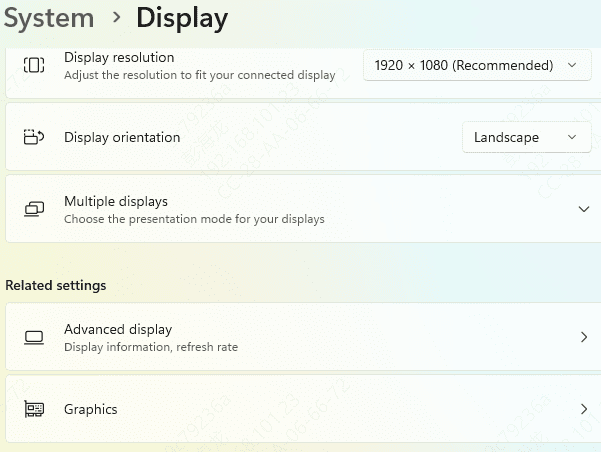
Press Windows + I to open Settings.
Navigate to System > Display > Graphics.
Find Witcher 3 Remastered in the application list.
Add the game's executable if necessary.
Open its graphics options.
Select High performance if the dedicated GPU is the appropriate choice.
Save the setting and restart the game.
Remove Background Performance Bottlenecks
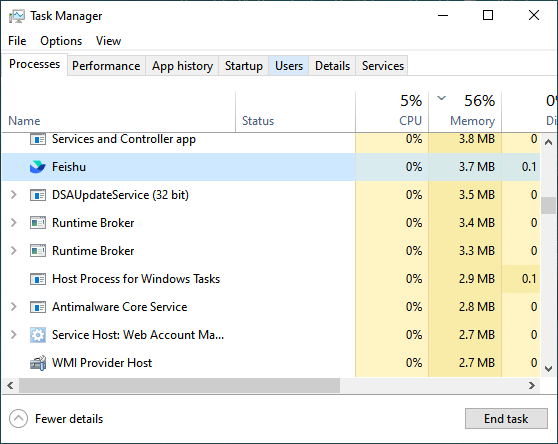
Open Task Manager.
Review running applications.
Identify unnecessary programs consuming significant resources.
Close applications you do not need.
Pause large downloads or updates.
Temporarily disable nonessential game overlays.
Restart Witcher 3 Remastered.
Give Your Graphics Driver a Fresh Start
Graphics drivers play an important role in gaming performance. They control communication between Windows, your GPU, and the game's rendering system.
An outdated or incompatible graphics driver may contribute to low FPS, stuttering, or unexpected performance problems.
Updating the driver is therefore a useful early troubleshooting step.
Update Graphics Drivers Manually
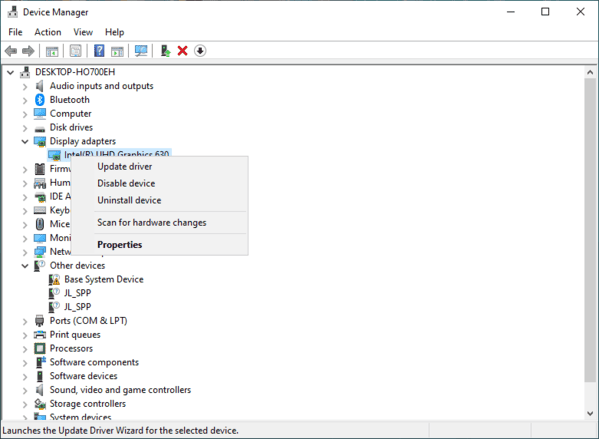
Right-click the Start button and select Device Manager.
Expand Display adapters.
Identify your graphics card model.
Visit the official website of your GPU manufacturer.
Download a compatible graphics driver.
Install the driver following the manufacturer's instructions.
Restart your computer if required.

Check Drivers with Driver Talent X
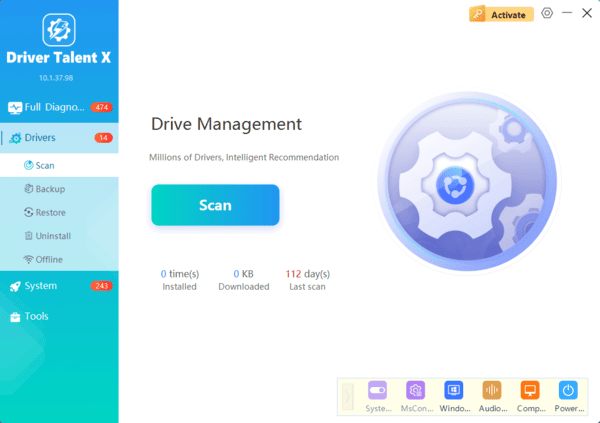
If you prefer an alternative way to check supported Windows driver issues, Driver Talent X can help review your system.
Driver Talent X scans for certain outdated, missing, or problematic drivers and provides available update or repair recommendations.
Repair Game Files and Check for Updates
Steam
Open Steam.
Go to Library.
Right-click Witcher 3 Remastered.
Select Properties.
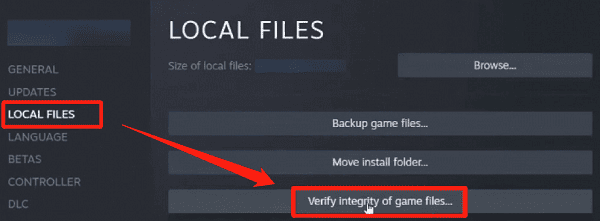
Open Installed Files.
Click Verify integrity of game files.
GOG Galaxy
Open GOG Galaxy.
Select The Witcher 3 from your library.
Open the game's management options.
Find the installation verification or repair option.
Start the verification process.
Conclusion
Witcher 3 Remastered FPS drops can make exploration and combat less enjoyable, but many performance issues can be improved through the right adjustments.
With a balanced graphics configuration and a stable system, you can reduce Witcher 3 Remastered FPS drops and enjoy smoother gameplay throughout Geralt's adventures.
