

Your Acer monitor may experience issues like flickering, black screens, wrong resolution, or "Generic PnP Monitor" errors if its drivers are outdated or corrupted. Updating your monitor drivers helps ensure stable performance, better compatibility, and optimal display quality. This guide shows you how to quickly and safely update Acer monitor drivers to fix common display problems.
Identify Your Monitor and Current Driver
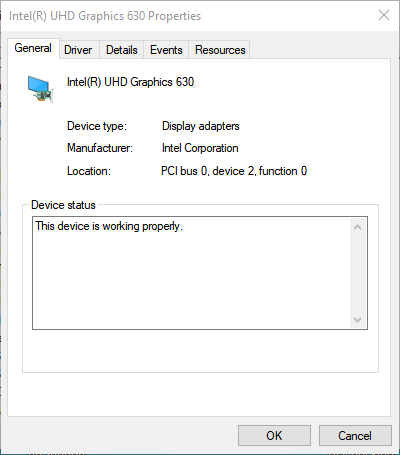
Before updating, it's important to identify your monitor's model and the currently installed driver version:
Check Monitor Model and Driver Version
Press Windows + X → Device Manager → Monitors
Right-click your Acer monitor → Properties → Driver tab → Note the driver version
Keeping this information handy helps you confirm the update worked and allows rollback if needed
Note Windows Version
Go to Settings → System → About to check your OS version
Some drivers are version-specific, so confirming your Windows version prevents compatibility issues
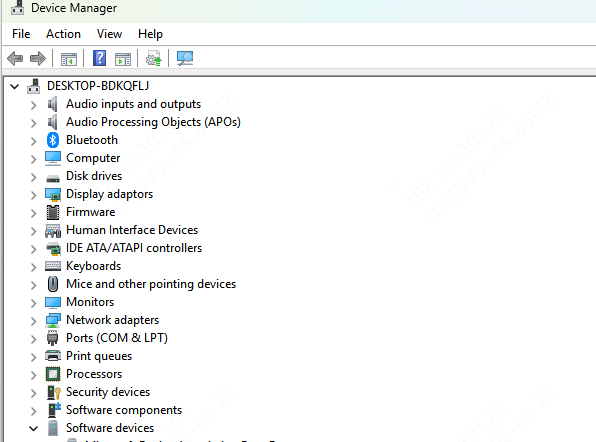
Update via Device Manager
Press Windows + X → Device Manager → Monitors
Right-click your Acer monitor → Update driver → Search automatically for updated driver software
Follow the prompts and restart your PC after installation
Update via Windows Update
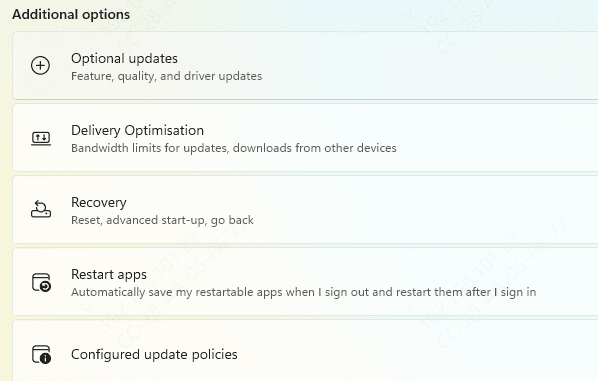
Open Settings → Update & Security → Windows Update
Click Check for updates
Under Optional Updates, look for monitor or display-related updates
Install updates and restart the system
Manual Update from Acer Official Website
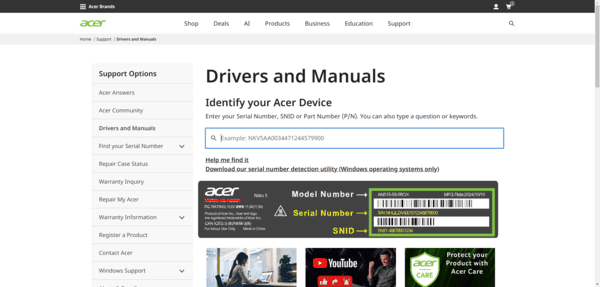
Visit Acer Support
Select your monitor model and operating system
Download the latest driver and follow the installer prompts
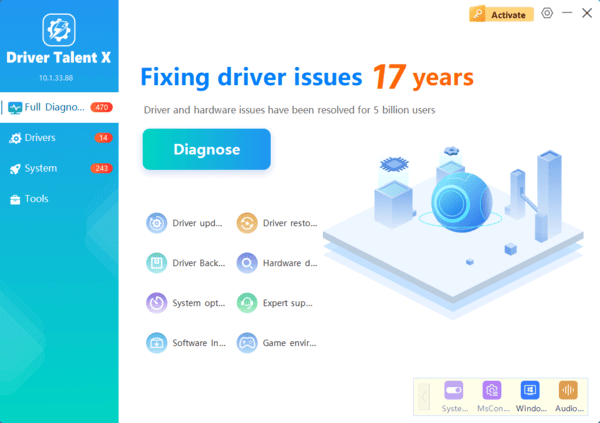
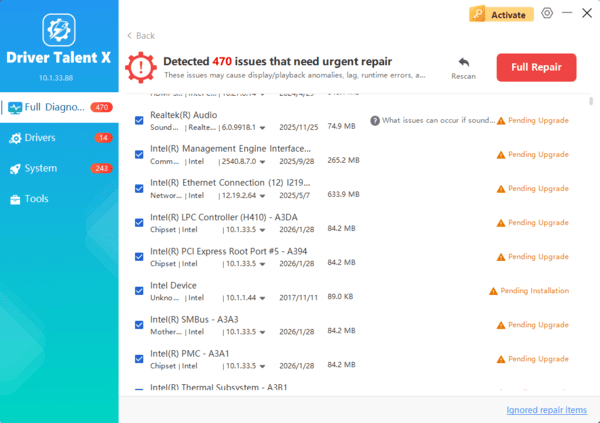
Update with Driver Talent X
For a hassle-free approach, Driver Talent X simplifies monitor driver updates:
Advantages
Saves time for beginners and busy users
Ensures compatibility between monitor and GPU drivers
Reduces risk of installation failures or conflicts
Verify Driver Installation
After updating your drivers, confirm that everything is working properly:
Check Device Manager
Navigate to Device Manager → Monitors → Right-click → Properties → Driver tab
Ensure the driver version matches the one you installed
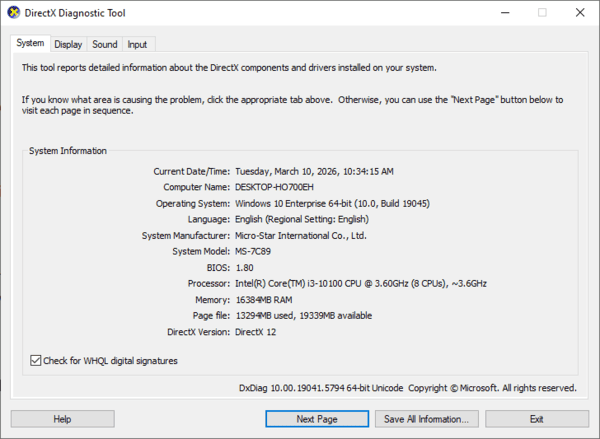
Test Display Functionality
Verify that the monitor is displaying at the correct resolution and refresh rate
Check for any flickering, black screens, or color distortions
Run games, video playback, or graphic applications to ensure stability
Troubleshooting Common Driver Issues
Rollback Driver
Device Manager → Monitors → Properties → Driver → Roll Back Driver (useful if issues started after a recent update)
Repair System Files
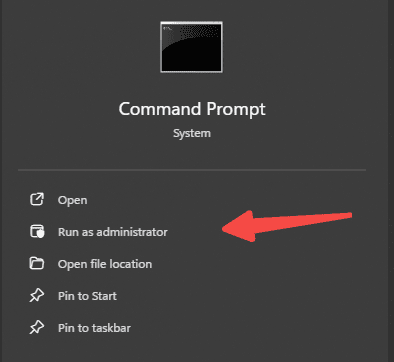
Open Command Prompt as Administrator → sfc /scannow → Fix any corrupted files interfering with drivers
Best Practices for Long-Term Stability
Enable automatic updates where available to reduce the need for manual checks
Check Acer's website periodically for official updates and bug fixes
Keep a backup of stable drivers using Driver Talent X or manual backups
Reboot your system regularly to prevent temporary glitches from affecting display performance
Conclusion
Keeping your Acer monitor drivers up to date is critical for smooth, stable, and accurate display performance. Multiple methods exist: Device Manager, Windows Update, manual downloads from Acer, and Driver Talent X for one-click updates. Following this guide ensures that your monitor operates reliably, supports the correct resolutions and refresh rates, and remains compatible with your PC's GPU and operating system. Regular driver maintenance not only prevents errors but also enhances your overall computing experience.
