

Keeping your HP monitor drivers updated is essential for maintaining stable display performance, resolving compatibility issues, and ensuring the best possible image quality. Outdated or incompatible drivers can cause problems such as incorrect resolution, screen flickering, visual artifacts, or Windows failing to detect the monitor properly. Regular driver updates help improve communication between your monitor and system, allowing your display to operate smoothly and reliably. In this guide, we'll walk you through several effective methods to update HP monitor drivers, fix common display problems, and optimize your viewing experience.
Method 1: Update HP Monitor Display Drivers via Device Manager
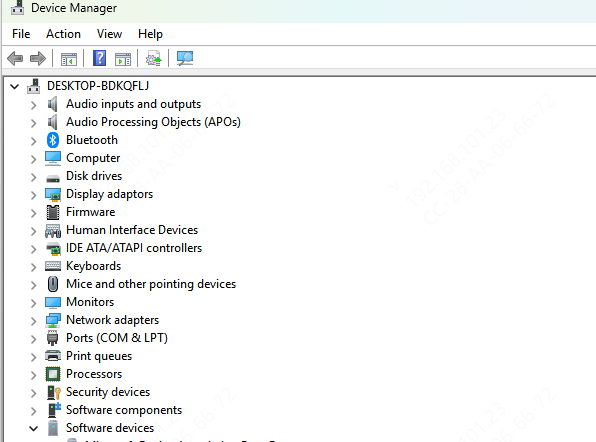
Open Device Manager: Press Windows + X on your keyboard and select Device Manager from the menu
Find the Monitor Section: Expand the Monitors section. Here, you should see your HP monitor listed. If you don't see your monitor, make sure it is properly connected
Right-click and Select Update Driver: Right-click on your HP monitor and select Update Driver from the dropdown
Search for Automatic Updates: A window will pop up asking if you want to search automatically for updated driver software. Select Search automatically for updated driver software
Method 2: Manually Download and Install HP Monitor Drivers from the HP Website
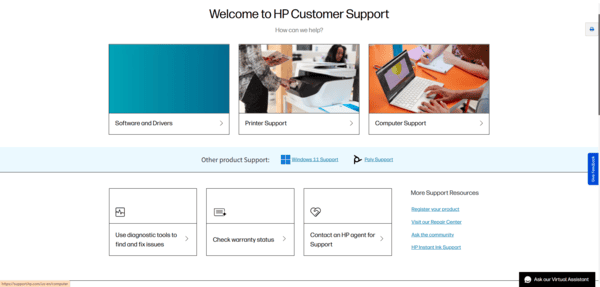
Visit the HP Support Website: Go to the official HP Support website
Search for Your Monitor Model: Use the search bar on the support page to enter your HP monitor model number
Select Your Operating System: Once on the support page for your monitor, go to the Drivers & Downloads section. Select your operating system (Windows 10 or Windows 11)
Download the Latest Driver: Find the display drivers and click Download
Install the Driver: Open the downloaded file and follow the on-screen instructions to install the driver
Restart Your PC: Once the installation is complete, restart your computer to finalize the installation
Method 3: Update Driver With Driver Talent X
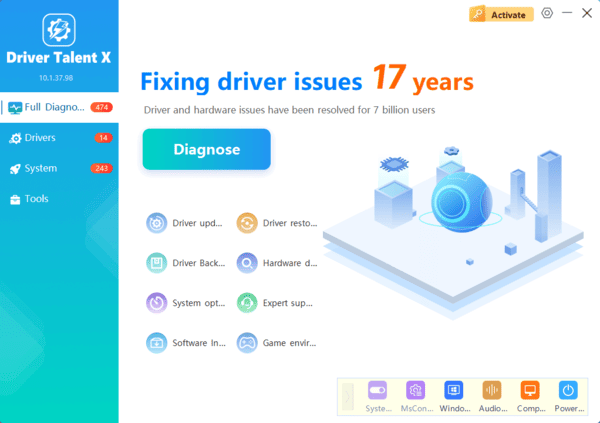
If you're looking for a quick and effortless way to update your HP monitor display drivers, using an automated driver updater like Driver Talent X can save you time and eliminate the risk of manual errors.
Method 4: Use HP Support Assistant to Update Drivers
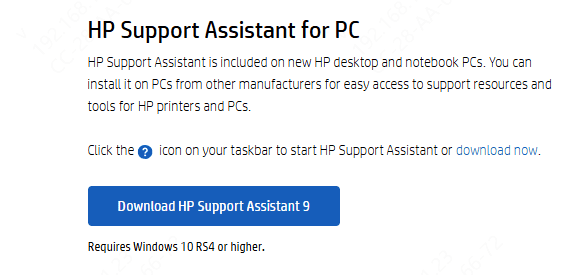
Install HP Support Assistant: Download and install HP Support Assistant from the official HP website
Open HP Support Assistant: After installation, open the application. If this is your first time using it, you may need to sign in or create an account
Check for Updates: Once you're logged in, navigate to the Updates tab. HP Support Assistant will check for the latest updates for all HP devices connected to your system, including the monitor
Install the Updates: If new drivers for your HP monitor are available, the software will notify you. Click Install to update the drivers
Restart Your PC: After the update is completed, restart your system to ensure the new drivers are fully integrated
Troubleshooting Common Issues After Updating Drivers
Black Screen or No Display: If your screen goes blank after the update, check that all cables are securely connected. Also, try using a different port on your laptop or PC
Resolution Issues: If the resolution seems off after updating the driver, right-click on the desktop, select Display Settings, and adjust the screen resolution to match the recommended settings
Monitor Not Detected: If the monitor is still not recognized, try restarting your PC, checking cable connections, and ensuring that the monitor is powered on
Conclusion
Updating your HP monitor drivers ensures that your display functions at its best, offering you improved performance, better resolution, and a more stable connection. Whether you use Device Manager, HP Support Assistant, or manually download the drivers from HP's website, these methods will help you maintain the optimal functionality of your HP monitor. By following the steps in this guide, you can easily update or reinstall your HP monitor display drivers and resolve any issues you encounter. Regular driver updates will help you get the most out of your monitor and keep your system running smoothly.
