

Keeping your AMD graphics drivers updated is essential for ensuring optimal gaming performance, smooth media editing, and overall system stability. Outdated or corrupted drivers can lead to screen flickering, low frame rates, application crashes, and hardware compatibility issues. Whether you are a gamer, content creator, or casual user, regular driver updates help your system perform at its best by fully utilizing your GPU's capabilities. This guide will walk you through multiple ways to safely and effectively update AMD graphics drivers.
Understanding AMD Graphics Driver Issues
AMD drivers are the bridge between your GPU and the operating system, ensuring that software can take full advantage of your graphics card. When drivers are outdated or corrupted, your system may exhibit:
Screen flickering or artifacts during gaming or video playback
Low frame rates or stuttering in graphics-intensive applications
Software crashes or failure to launch certain programs
Hardware recognition issues where the GPU is not detected
Recognizing these symptoms early can save you from frustration and ensure your system continues to run smoothly.
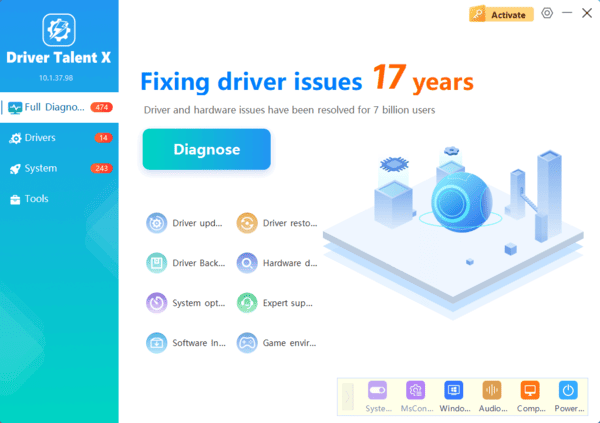
Automatic Update Using Driver Talent X
For a quick and safe automated solution, Driver Talent X detects, repairs, and updates AMD drivers efficiently.
Update AMD Drivers via Windows Update
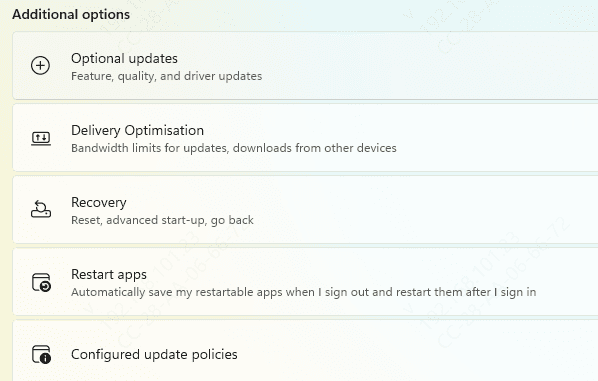
Windows Update can automatically detect and install compatible AMD drivers.
Press Windows + I → go to Settings → Windows Update
Click Check for updates
If a driver update for your AMD GPU appears, click Download and Install
Restart your system to apply changes
Advantages
Official Microsoft channel
Ensures OS and driver compatibility
Ideal for users unfamiliar with manual installations
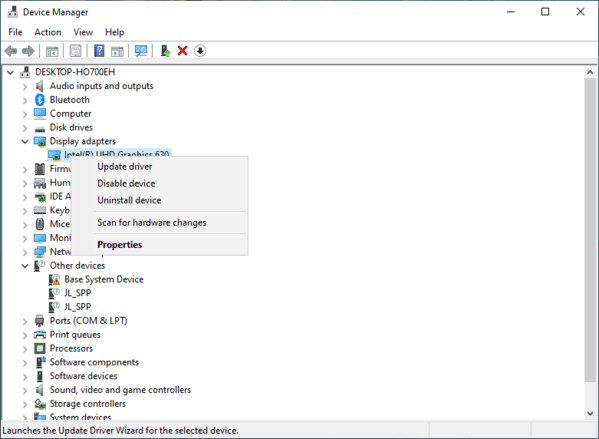
Update Drivers Using Device Manager
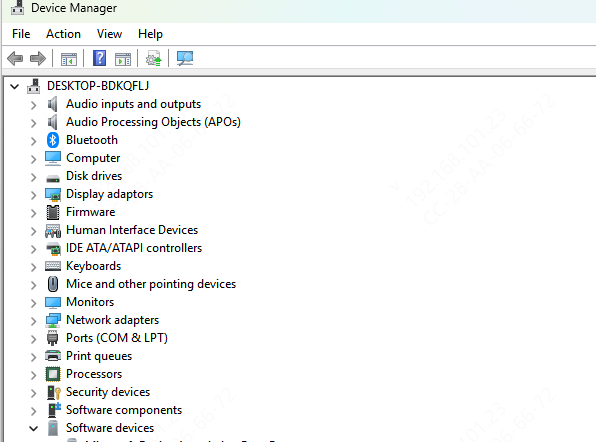
Device Manager offers a manual yet straightforward way to update AMD drivers if Windows Update fails.
Press Windows + X → Device Manager
Expand Display adapters → AMD Radeon GPU
Right-click → Update driver → Search automatically for drivers
Follow on-screen instructions and restart your PC
Pro Tip: This method is effective for diagnosing and resolving driver recognition issues. Combine it with AMD's official installer for the latest version.
Update via AMD Radeon Software
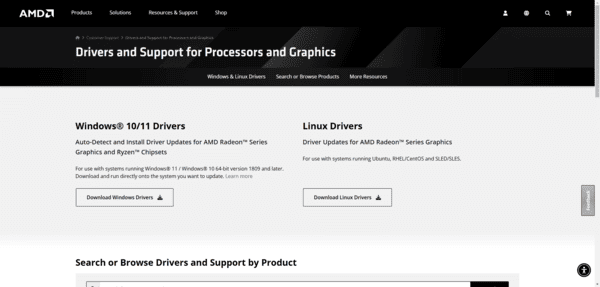
AMD Radeon Software provides an easy and safe way to keep drivers updated.
Open AMD Radeon Software
Navigate to Settings → System → Check for Updates
If a new driver version is available, click Download and Install
Restart your computer to apply the update
Advantages
Certified by AMD for compatibility and stability
Reduces the risk of installing an incorrect driver
Includes optional performance tuning and optimization
Tip: Make it a habit to check for updates weekly if you frequently play new games
Verifying Driver Installation and Performance
After updating your AMD drivers, it's important to confirm everything is functioning correctly:
Open Device Manager → AMD Radeon GPU → Properties → Driver tab to verify the driver version
Run gaming or benchmark tests to confirm improved performance
Check for previous issues like screen flickering, crashes, or low FPS
Maintaining AMD Drivers for Long-Term Performance
Regularly check for updates in AMD Radeon Software or Driver Talent X
Keep your Windows OS updated to maintain compatibility
Back up drivers before installing updates for easy rollback
Monitor GPU performance using benchmarks or game statistics
Enable automatic notifications in Driver Talent X for convenience
Conclusion
Updating AMD graphics drivers is essential for ensuring smooth gameplay, stable system performance, and hardware compatibility. This guide has covered multiple methods: Windows Update, Device Manager, AMD official software, and automated updates using Driver Talent X. By following these steps, users can quickly and easily resolve driver errors, prevent screen flickering, low FPS, and hardware detection problems, and enjoy a high-performance, stable PC experience.
