

The AMD Radeon RX 7900 XTX is a high-performance graphics card designed for gamers, content creators, and enthusiasts. To fully utilize its power, keeping your GPU drivers up-to-date is essential. Outdated drivers can cause crashes, screen flickering, low FPS, and compatibility issues with new software. This guide provides a comprehensive approach to maintaining, updating, and troubleshooting your RX 7900 XTX drivers efficiently and without hassle.
Signs That Your RX 7900 XTX Drivers Need Updating
Frequent game crashes or dips in performance
Flickering or distorted screens during gaming or video playback
Unexpected system freezes or Blue Screen of Death (BSOD)
New software or applications failing to launch or displaying errors
If you notice any of these issues, it's time to update your drivers
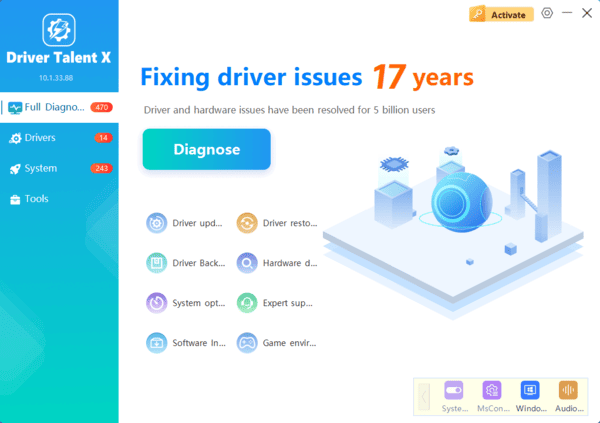
Using Driver Talent X for One-Click Updates
Driver Talent X is an automated tool that scans, repairs, and updates drivers with one click.
Install Driver Talent X
Launch the software → click Scan
Identify outdated, missing, or corrupted RX 7900 XTX drivers
Click Update to install the correct driver version
Restart your PC after installation
Updates via AMD Radeon Software
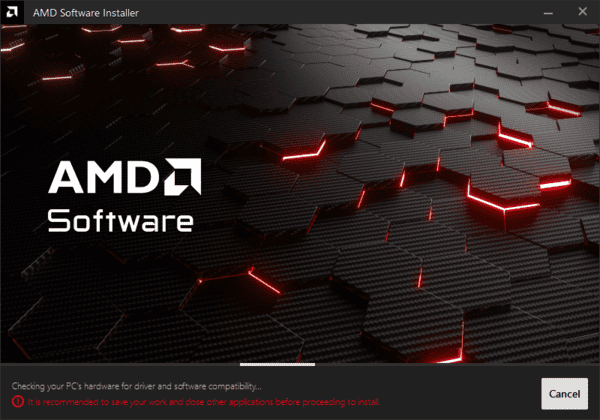
AMD Radeon Software (Adrenalin Edition) can check for new drivers and install them
Open AMD Radeon Software
Navigate to Updates → Check for Updates
Follow the prompts to install the latest driver
Restart your PC
This ensures you always install the correct driver without manually searching
Manual Updates from AMD Official Site
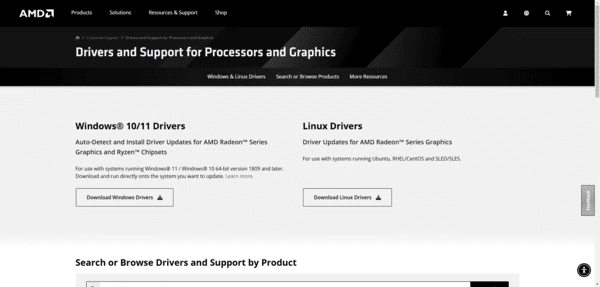
You can manually download and install drivers from AMD's official website for precise control.
Visit the AMD Radeon Drivers page
Select Radeon RX 7900 XTX and your Windows version
Download the latest driver package
Run the installer and follow the on-screen instructions
Restart your PC after installation
Manual updates are ideal if you want to ensure you are using a specific driver version
Updating via Windows Update
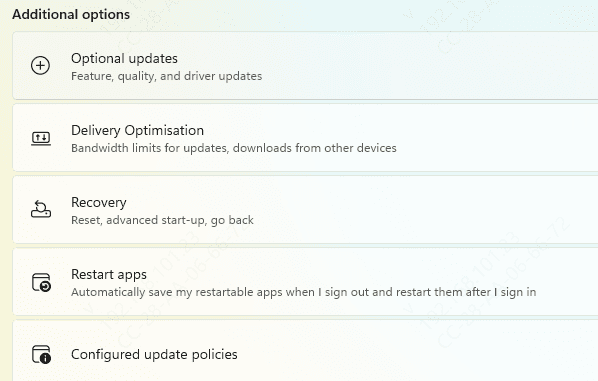
Windows 11 often provides optional driver updates for your GPU.
Press Windows + I → open Settings
Go to Windows Update → Advanced options → Optional updates
Look under Driver updates for AMD Radeon drivers
Select the update → Download & Install
Restart your PC
This method ensures your driver is compatible with Windows updates
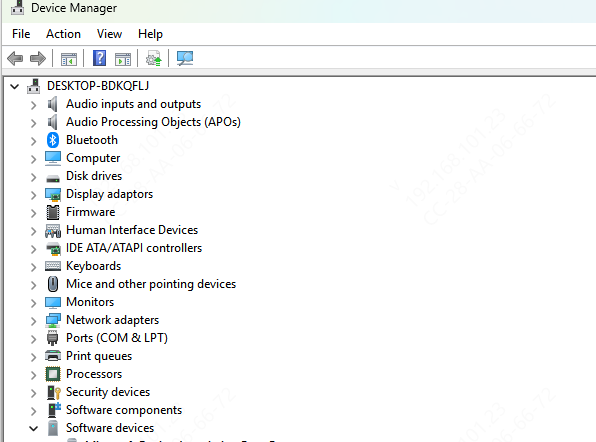
Device Manager Update Method
You can update or reinstall drivers directly from Device Manager.
Press Windows + X → select Device Manager
Expand Display adapters → right-click Radeon RX 7900 XTX → Update driver
Follow prompts and restart your system
This method is straightforward and built into Windows
Best Practices for Driver Maintenance
Check for driver updates monthly or quarterly
Avoid beta or unofficial drivers unless necessary
Always back up current drivers before updating
Monitor GPU performance after updates to confirm stability
Keep related system drivers (chipset, audio, network) current
Troubleshooting RX 7900 XTX Driver Issues
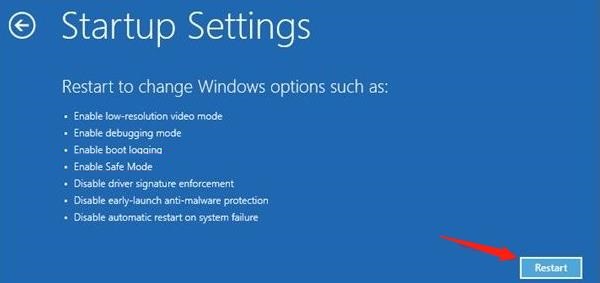
Post-Update Glitches: Rollback to a previous driver version or reinstall in Safe Mode
Compatibility Problems: Ensure BIOS and Windows updates are current to avoid conflicts
Persistent Issues: Contact AMD support or check community forums for guidance
Conclusion
Keeping your AMD Radeon RX 7900 XTX drivers up-to-date is essential for peak gaming performance, system stability, and feature compatibility. You can maintain drivers using AMD Radeon Software, manual downloads, Windows Update, Device Manager, or automated tools like Driver Talent X. Regular updates prevent crashes, improve FPS, unlock new GPU features, and ensure your system remains reliable and secure. Developing a consistent driver maintenance routine will help your RX 7900 XTX deliver top-tier performance for years to come.
