

The AMD Ryzen 7 7800X3D does not rely on a single dedicated "CPU driver." Instead, its performance and hardware communication depend largely on AMD chipset drivers, Windows components, motherboard firmware, and related system drivers. When these components become outdated, corrupted, or incompatible, you may experience unstable gaming performance, USB problems, system freezes, BSOD errors, or unexpected performance drops. This guide explains how to identify driver-related problems on a Ryzen 7 7800X3D system and update or repair the necessary drivers.
Understanding AMD Ryzen 7 7800X3D Driver Issues
Driver issues can manifest in several ways:
System Crashes or Freezes: Improper or outdated drivers can cause sudden shutdowns or Blue Screen of Death (BSOD)
Reduced Performance: CPU performance may drop, game FPS may fluctuate, or heavy workloads may stutter
Peripheral Malfunctions: USB devices, audio, and storage devices may stop functioning correctly
Compatibility Problems: Outdated drivers can conflict with Windows updates or other software
How to Identify Problematic Drivers
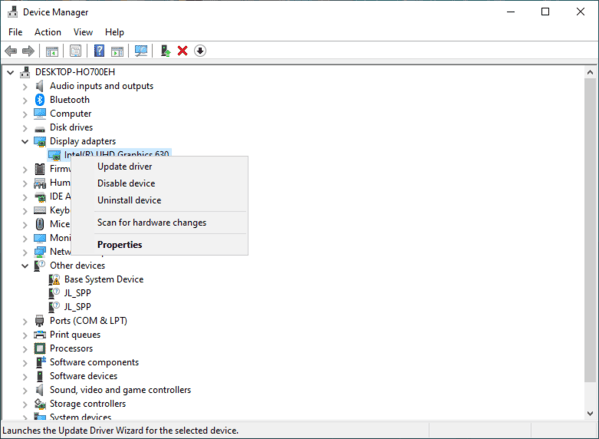
Press Windows + X → Device Manager
Expand System Devices and locate Ryzen 7 7800X3D entries
Look for warning symbols like yellow exclamation marks
Right-click → Properties → Driver to check the version and status
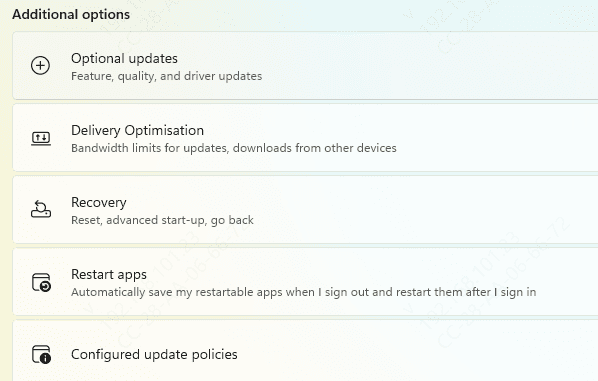
Update via Windows Update
Press Windows + I → Settings → Windows Update → Advanced options → Optional updates
Look for Driver updates that include AMD chipset or CPU drivers
Select and Download & Install
Restart the system after installation
Tip: Optional driver updates often resolve compatibility issues with the latest Windows updates
Use Device Manager for Updates
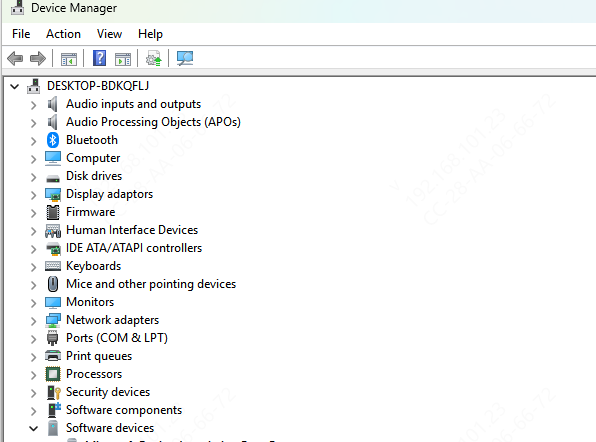
Open Device Manager
Expand System Devices → Ryzen 7 7800X3D chipset → right-click → Update driver
Choose Search automatically for drivers or Browse my computer for drivers
If a recent update causes crashes, select Rollback driver
Restart your PC
Advantage: Gives direct control over driver installation and troubleshooting
One-Click Driver Repair with Driver Talent X
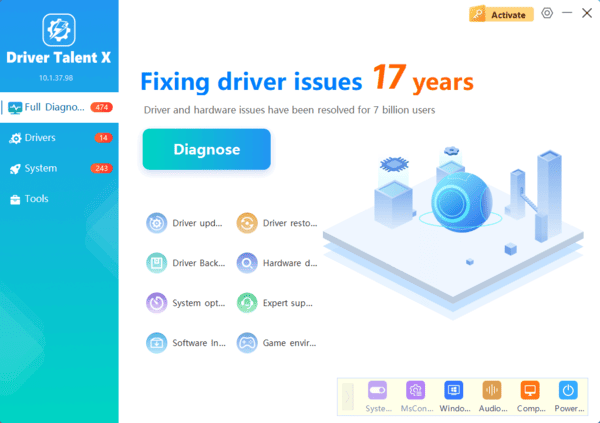
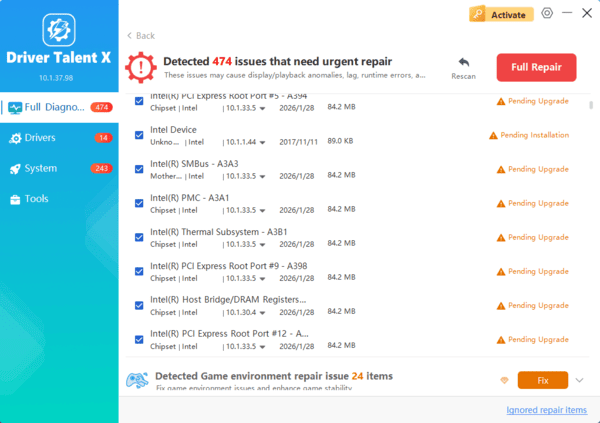
Driver Talent X is a professional tool that can automatically detect, repair, and update all Ryzen 7 7800X3D drivers. It's ideal for users who want a fast and safe solution without manually searching for drivers.
Download and Install
Get the official Driver Talent X installer
Run it and follow the instructions to complete setup
Scan Your System
Open Driver Talent X → go to Drivers → Scan → Scan
The program will detect outdated, missing, or corrupted AMD drivers
Click Repair
Select drivers flagged as problematic
Click Upgrade or Repair Now. The tool performs a clean installation automatically
Restart Your System
Follow the prompts and reboot to apply changes
Benefits
Automatic backup of existing drivers
Repairs corrupted drivers without manual intervention
Saves time and reduces errors compared to manual updates
Maintains CPU stability and prevents future driver issues
Update via AMD Official Chipset Software
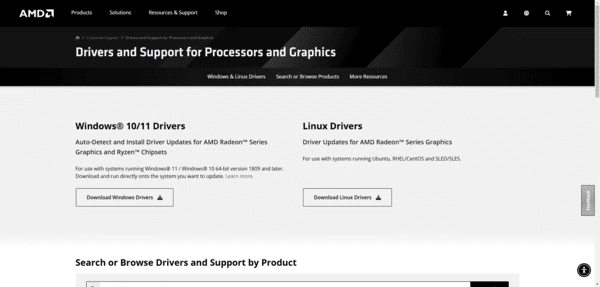
Visit the AMD Support Website
Select Ryzen 7 7800X3D and your Windows version
Download the AMD Chipset Drivers installer
Run the installer and follow instructions
Restart your PC to apply changes
Benefits
Automatically installs the correct drivers
Reduces the risk of compatibility issues
Ensures stable CPU performance
Manual Driver Installation
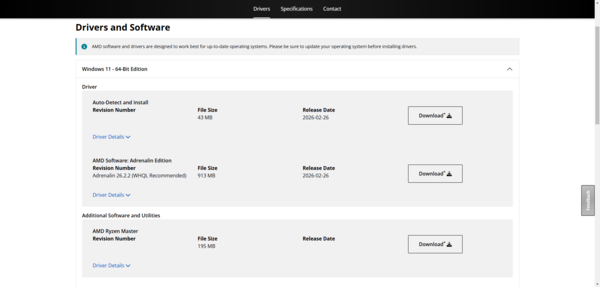
Download the driver package from the AMD official website
Uninstall old or corrupted drivers using Device Manager or AMD Cleanup Utility
Run the installer and restart your system
Use case
Useful when a specific driver version is required
Helps troubleshoot if automatic installation fails
Additional Troubleshooting Tips
Safe Mode Installation: Install drivers in Safe Mode to prevent conflicts
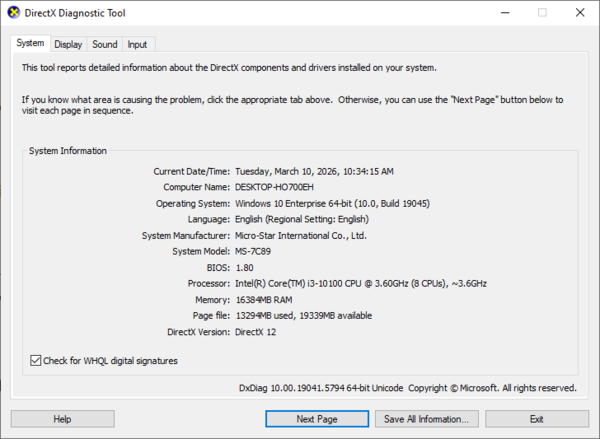
Check BIOS: Ensure your motherboard BIOS is up-to-date
Disable Conflicting Software: Temporarily disable antivirus or third-party utilities
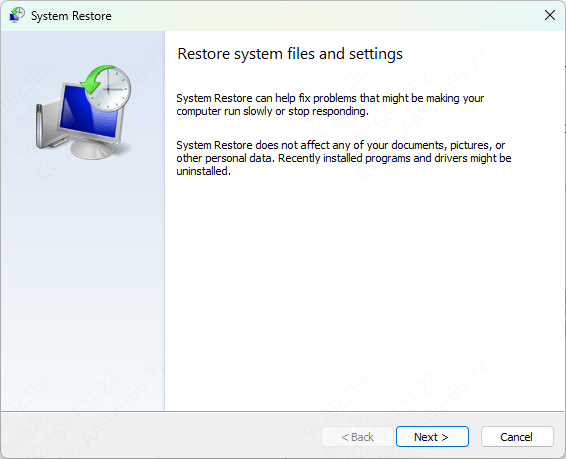
System Restore: Create restore points before major updates
Preventive Measures
Regularly check for driver updates (monthly or quarterly)
Avoid beta drivers unless testing new features
Monitor CPU performance using AMD Ryzen Master
Backup drivers and restore points to recover quickly from any issues
Conclusion
Driver issues with AMD Ryzen 7 7800X3D can cause crashes, instability, and reduced performance, but they can be resolved efficiently using the methods outlined above. Whether you use AMD's official drivers, Windows Update, Device Manager, or automated tools like Driver Talent X, following these steps ensures stable, high-performance operation. Routine updates and proactive driver management prevent future problems and keep your CPU running at its full potential.
