

Driver issues on the AMD Ryzen 5 3600 can lead to system instability, performance drops, and problems with connected hardware devices. These issues may occur due to outdated chipset drivers, incorrect motherboard software, corrupted driver files, or conflicts caused by Windows updates. Fortunately, most Ryzen 5 3600 driver problems can be resolved with a few practical troubleshooting steps without requiring complicated repairs. In this guide, we'll provide effective solutions to fix and update Ryzen 5 3600 drivers, improve system stability, and keep your PC running smoothly with proper driver management.
What Causes Driver Errors
Outdated or corrupted AMD drivers: Old drivers may become incompatible with new software or Windows updates
OS conflicts: Windows updates sometimes override drivers, causing instability
Hardware conflicts: Other device drivers may interfere with Ryzen chipset components
How Driver Errors Affect Your System
When driver issues occur, your system may experience:
Random crashes or BSODs
Peripheral devices (USB ports, storage, audio) not recognized
CPU underperformance, overheating, or abnormal behavior in monitoring tools
Recognizing these symptoms early helps prevent further system problems
How to Identify Driver Errors on Ryzen 5 3600
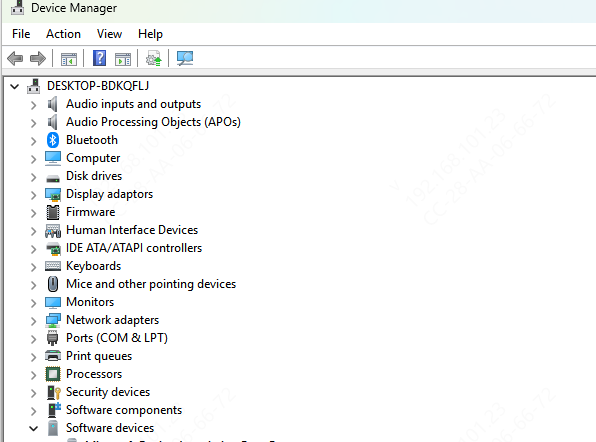
Using Device Manager
Press Windows + X → select Device Manager
Look for yellow exclamation marks or missing devices under System Devices
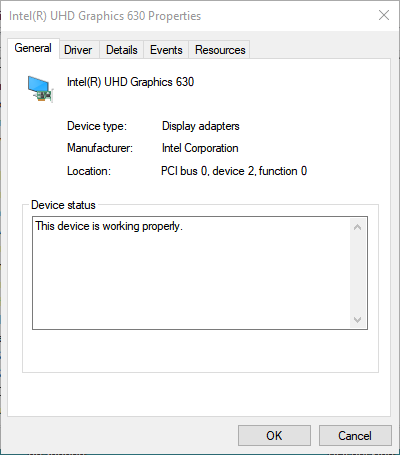
Right-click a problematic device → Properties → Driver to see its status
Look for warnings or errors related to AMD drivers or chipset devices
Identifying these signs will confirm whether a driver update or repair is needed
Manual Driver Installation
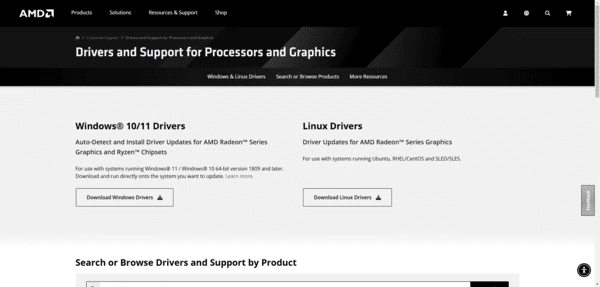
Visit the AMD Ryzen Chipset Drivers page
Select your Ryzen 5 3600 chipset model and Windows version
Download the driver package manually
Install the drivers step by step
Restart your PC
Manual installation gives you full control over driver versions
Using Driver Talent X
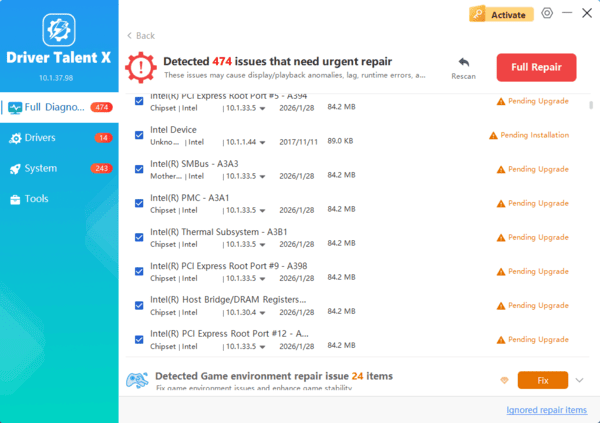
Driver Talent X simplifies driver maintenance by scanning, repairing, and updating drivers automatically.
Update via Windows Update
Windows 11 can detect missing or outdated drivers
Press Windows + I → Settings
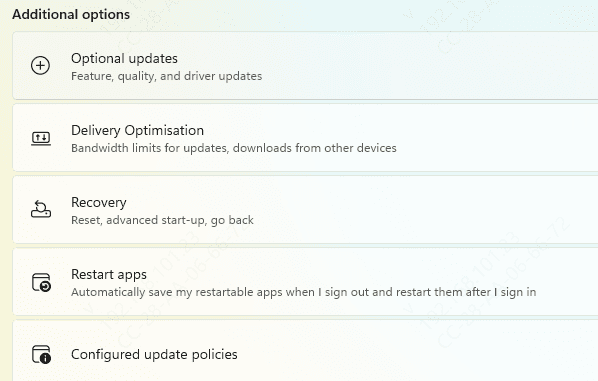
Go to Windows Update → Advanced options → Optional updates
Check under Driver updates for AMD Ryzen chipset driver
Click Download & Install and restart when complete.
This method ensures compatibility with Windows updates
Update via Device Manager
Device Manager allows direct driver updates:
Press Windows + X → Device Manager
Expand System Devices → right-click AMD Ryzen 5 3600 chipset devices → Update driver
Choose:
Search automatically for drivers (Windows finds the latest version)
Browse my computer for drivers (use if you downloaded drivers manually)
Follow prompts and restart your PC
Driver Update via AMD Chipset Softwar
Download the latest AMD Ryzen Chipset Drivers from AMD Support
Run the installer and follow the on-screen instructions
Restart your PC to apply changes
This ensures your chipset components communicate correctly with Windows
Additional Tips to Prevent Driver Errors
Keep Windows OS updated to maintain driver compatibility
Avoid installing beta drivers unless necessary
Regularly back up drivers and create system restore points
Use automated tools for ongoing driver maintenance
Troubleshooting Persistent Driver Errors
If problems persist:
Uninstall and Reinstall Drivers: Remove old drivers completely before reinstalling
Rollback to a Previous Version: Use Device Manager → Properties → Roll Back Driver
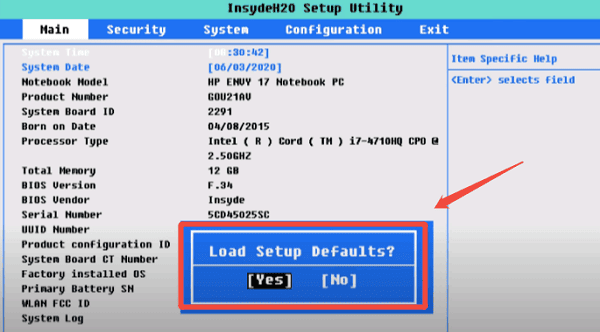
Check BIOS Settings: Ensure the motherboard BIOS is updated to avoid compatibility issues
Conclusion
Resolving AMD Ryzen 5 3600 driver errors doesn't have to be complicated. Whether using automatic updates, manual installation, Windows Update, Device Manager, or Driver Talent X, you can quickly restore system stability and performance. Regular driver maintenance prevents future errors, keeps your system running smoothly, and ensures your Ryzen 5 3600 operates at peak efficiency.
