Assassin's Creed Shadows is an open-world action RPG developed by Ubisoft, featuring detailed environments, intense combat, and exploration across feudal Japan. However, some PC players may experience unexpected crashes that interrupt gameplay or prevent the game from launching. These problems can occur because of outdated graphics drivers, corrupted game files, insufficient system resources, or software conflicts.
Fortunately, several troubleshooting methods can help identify the cause. This guide explains eight practical ways to fix Assassin's Creed Shadows crashing on Windows 10 and Windows 11.
Fix 1: Verify and Repair Game Files
Verify Files Through Ubisoft Connect
Open Ubisoft Connect.
Navigate to your game library.
Select Assassin's Creed Shadows.
Open the game's properties or management options.
Locate the Verify files option.
Follow the instructions to check and repair the installation.
Verify Files Through Steam
Open Steam.
Navigate to your Library.
Right-click Assassin's Creed Shadows.
Select Properties.
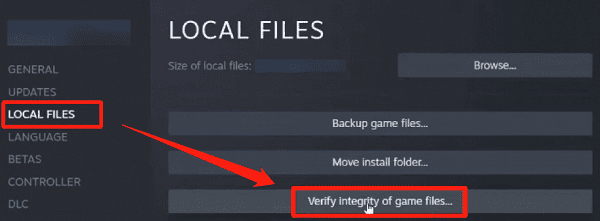
Open Installed Files.
Click Verify integrity of game files.
Wait for the verification process to finish.
Fix 2: Lower Graphics Settings
Launch Assassin's Creed Shadows.
Open the graphics settings menu.
Reduce the overall graphics preset.
Lower texture quality if VRAM usage is high.
Reduce demanding ray tracing settings.
Enable a supported upscaling option if appropriate.
Set a reasonable frame rate limit.
Fix 3: Disable Overlays and Background Applications
Open Steam.
Navigate to your Library.
Right-click Assassin's Creed Shadows.
Select Properties.
Open the General section.
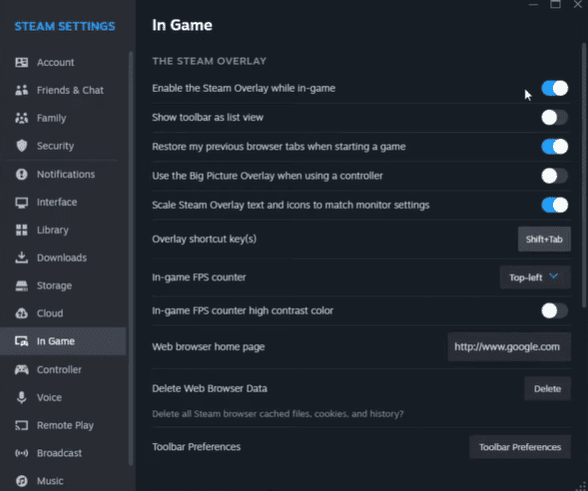
Disable Enable the Steam Overlay while in-game.
Next, press Ctrl + Shift + Esc to open Task Manager.
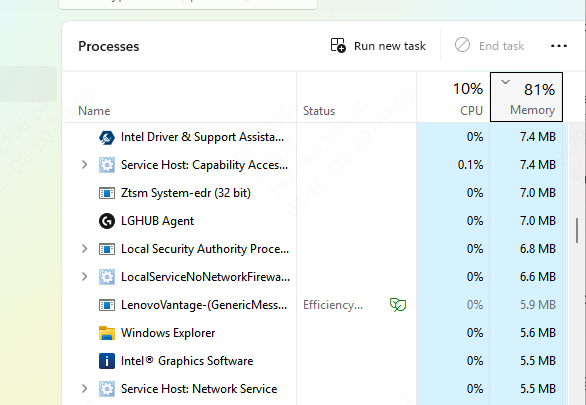
Close unnecessary applications that consume significant CPU, GPU, or memory resources.
Avoid ending essential Windows services or security processes.
Restart the game and test whether the problem persists.
If stability improves, re-enable applications individually to identify the conflicting program.
Fix 4: Update Graphics Drivers
Graphics drivers are responsible for communication between Windows, the GPU, and the game.
Outdated or corrupted drivers can cause Assassin's Creed Shadows to crash during startup, display DirectX errors, or freeze during demanding scenes.
Driver Talent X provides an automated way to check for certain outdated, missing, or problematic Windows drivers. Driver Talent X can provide an additional way to investigate supported driver problems, although it cannot resolve crashes caused by game bugs or faulty hardware.

Fix 5: Update Windows and Repair System Files
Outdated Windows components or damaged system files can sometimes cause compatibility problems with modern games.
Assassin's Creed Shadows relies on DirectX 12 and other Windows components to operate correctly.
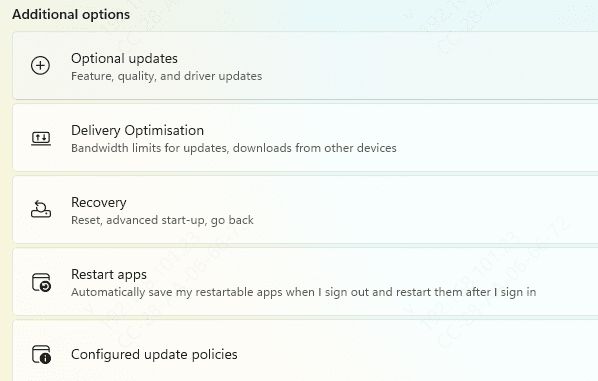
Start by checking for Windows updates.
Open Settings.
Select Windows Update.
Click Check for updates.
Install applicable updates.
Restart your computer.
If the problem continues and you suspect Windows file corruption, use the built-in repair tools.
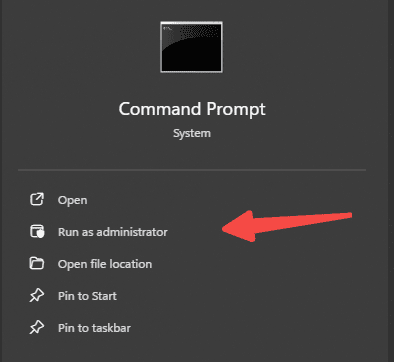
Open Command Prompt as Administrator.
First, enter:
DISM /Online /Cleanup-Image /RestoreHealth
Wait for the process to finish.
Then run:
sfc /scannow
System File Checker will scan protected Windows system files and attempt to repair detected corruption.
Restart your computer after completing the process.
Fix 6: Clear Ubisoft Connect Cache or Reinstall the Game
Completely exit Ubisoft Connect, including its system tray process.
Open the Ubisoft Connect installation directory.
Locate the folder named cache.
Rename it to cache_backup.
Restart Ubisoft Connect.
Following these steps can help identify the likely cause and improve your chances of enjoying Assassin's Creed Shadows without unexpected interruptions.