

If an ASUS Bluetooth driver refuses to install on Windows 11, the problem may be caused by an incompatible driver package, outdated Windows components, conflicts with older Bluetooth drivers, or damaged system files. As a result, Bluetooth may disappear from Device Manager or fail to connect with headphones, mice, keyboards, and other wireless devices. This guide explains several practical ways to fix ASUS Bluetooth driver installation problems.
Windows Update
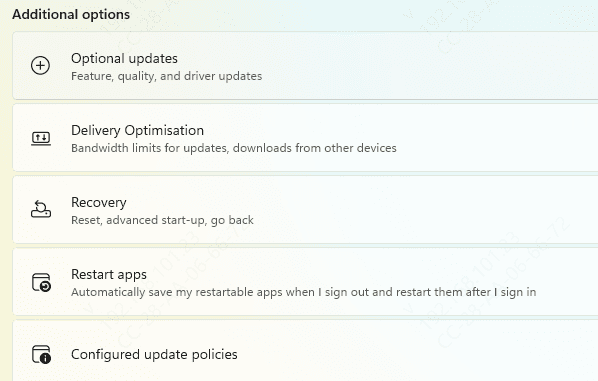
One of the first things to check is whether your Windows 11 operating system is up-to-date. Running an outdated version may prevent Bluetooth drivers from being installed.
Go to Settings > Windows Update > Check for updates
Install any available updates, including optional updates that may contain new drivers
Once the updates are installed, restart your system and try installing the Bluetooth driver again
Drivers via Device Manager
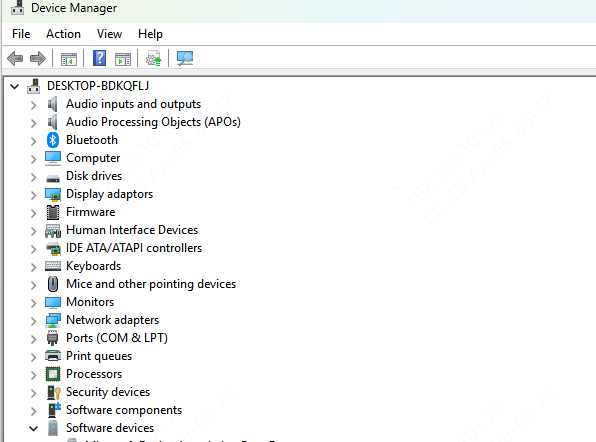
If Windows 11 won't automatically detect or install the Bluetooth driver, you can manually install it using Device Manager:
Press Windows + X and select Device Manager
Expand the Bluetooth section, right-click on your Bluetooth device, and select Uninstall device
After the uninstallation, restart your computer. Windows should attempt to reinstall the default Bluetooth driver automatically upon reboot
If it doesn't, right-click on the Bluetooth section in Device Manager, and select Update driver > Search automatically for updated driver software
ASUS Support
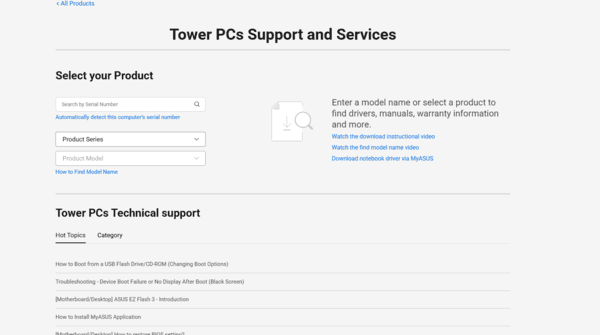
Sometimes, Windows 11 may not have the latest driver for your ASUS Bluetooth device. Manually downloading and installing the driver from the ASUS support website can help.
Go to the official ASUS support website
Search for your ASUS laptop or desktop model
Navigate to the Drivers & Downloads section and select Bluetooth under available drivers
Download the most recent Bluetooth driver for Windows 11
Run the installer and follow the on-screen instructions to complete the installation
Use Driver Talent X
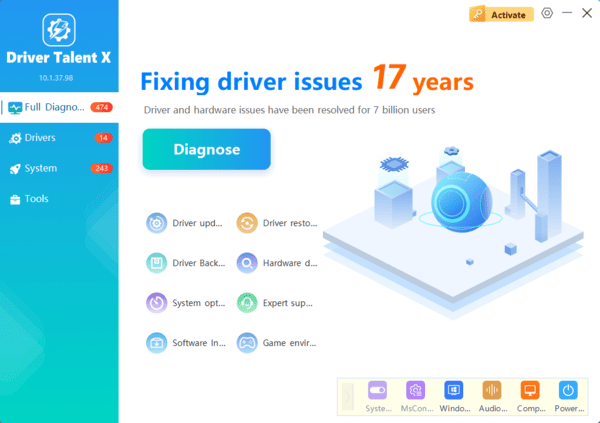
If manual methods don't work, you can use an automated driver update tool like Driver Talent X to easily fix the issue.
Download and install Driver Talent X from the official website
Open the software and go to the Drivers tab, then click Scan
Driver Talent X will scan your system for outdated or missing drivers, including the Bluetooth drivers
Once the scan completes, select the Bluetooth drivers and click Repair Now to update or reinstall the drivers
Post-Installation Troubleshooting
Once you've updated or reinstalled the Bluetooth drivers, restart your ASUS laptop or desktop and check if the Bluetooth functionality is working.
Check Bluetooth Functionality
Try pairing a Bluetooth device such as wireless headphones, a mouse, or a keyboard to see if it connects successfully
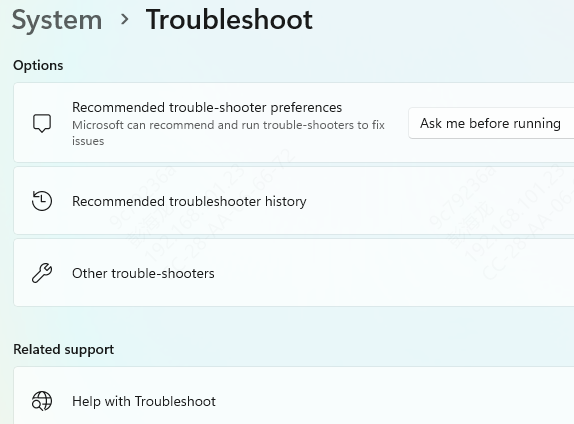
Run Windows Troubleshooter
If Bluetooth still isn't working after the driver update, run the Windows 11 Bluetooth troubleshooter:
Go to Settings > Update & Security > Troubleshoot > Additional troubleshooters
Select Bluetooth and click Run the troubleshooter
Follow the on-screen instructions to automatically detect and fix any Bluetooth-related issues
Frequently Asked Questions
Why is Bluetooth missing from Device Manager on my ASUS computer?
The Bluetooth adapter may be disabled in BIOS, hidden in Device Manager, affected by a missing chipset driver, or not receiving power. Select View > Show hidden devices, scan for hardware changes, and perform a full shutdown.
How do I identify the correct ASUS Bluetooth driver?
Use the exact ASUS model and hardware ID shown in Device Manager. Some models ship with different Intel, MediaTek, or Realtek adapters, so installing a driver based only on the product series may fail.
What should I do if the Bluetooth installer says the hardware is unsupported?
Remove incompatible Bluetooth packages, restart Windows, and install the chipset driver followed by the correct Bluetooth driver from ASUS Support. Confirm that the package matches Windows 11 and your adapter manufacturer.
Conclusion
If your ASUS Bluetooth driver isn't installing on Windows 11, it's likely due to outdated or incompatible drivers, conflicts with existing software, or system issues. By following the steps outlined above, you should be able to resolve the installation problem and restore Bluetooth functionality to your system. Remember to keep your drivers up-to-date and perform regular maintenance to avoid similar issues in the future. Using automated tools like Driver Talent X can also simplify the process and ensure that your drivers remain current.
