

Keeping your Asus WiFi adapter drivers up-to-date is essential for a smooth and reliable internet experience. Whether you're using a laptop or desktop, outdated or missing drivers can cause slow connections, frequent disconnections, or even prevent your device from detecting WiFi networks. This guide will walk you through everything you need to know about downloading, installing, and updating your Asus WiFi adapter drivers, including a quick method using Driver Talent X for easy updates.
What is an Asus WiFi Adapter Driver?
A WiFi adapter driver is a software component that allows your operating system to communicate with your Asus WiFi adapter. Without a proper driver, your device may fail to connect to the internet, or the connection may be unstable
Drivers act as a bridge, translating system commands into actions your hardware can understand
How to Check Your Current Asus WiFi Driver Version
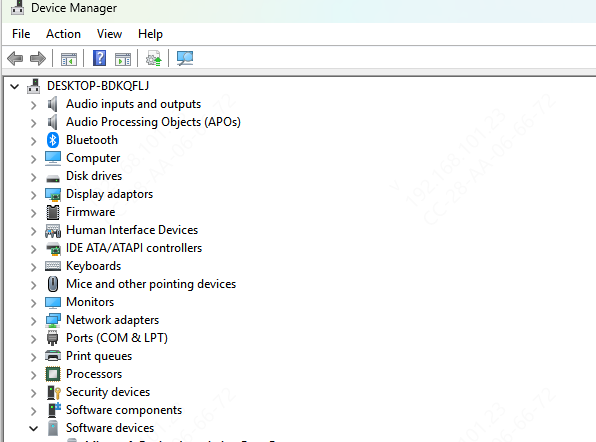
Using Device Manager
Press Windows + X and select Device Manager
Expand the Network Adapters section
Right-click your Asus WiFi adapter and select Properties
Go to the Driver tab to view the version and date
Official Download Channels
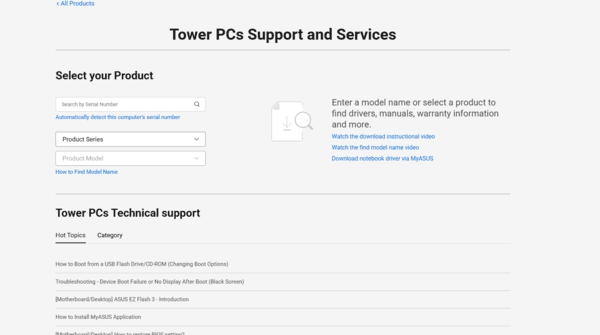
Steps to download from Asus support
Go to the Asus Support page
Enter your device model or use the auto-detect feature
Download the WiFi driver listed under Network or Wireless
Open the installer and follow the on-screen instructions
After installation, restart your computer to apply the changes
Common issues
Installation fails: Ensure you have administrator privileges
WiFi still not working: Try uninstalling the previous driver first via Device Manager, then reinstall the new driver
Manual updates work well but can be time-consuming, especially if you need to update multiple drivers on your system
Update Asus WiFi Drivers Using Driver Talent X
For users who prefer an automated and hassle-free solution, Driver Talent X is a reliable software to manage driver updates. Here's how to update your Asus WiFi adapter using Driver Talent X:
Step 1: Download & Install Driver Talent X
Get the installer from the official website
Run the installer and follow the on-screen instructions to install it on your laptop or desktop
Step 2: Diagnose for Outdated or Missing Drivers
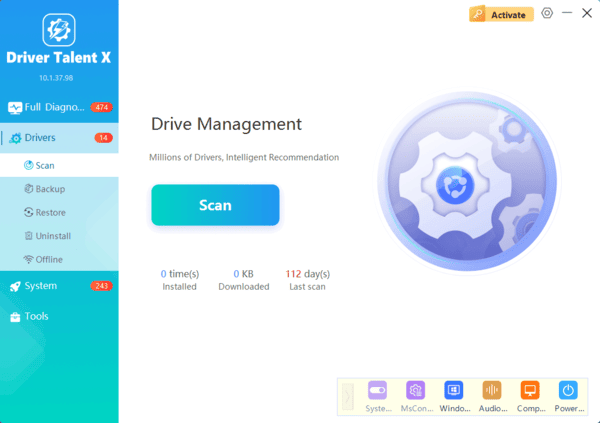
Open Driver Talent X and navigate to the Drivers tab
Click Diagnose to scan your system for all outdated or missing drivers, including your Asus WiFi adapter
Step 3: Update Asus WiFi Adapter Driver
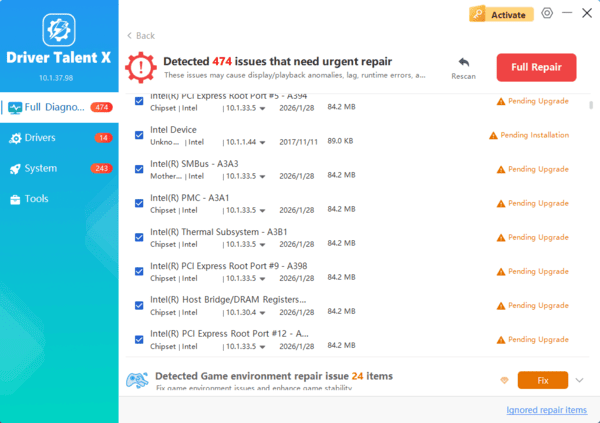
In the scan results, locate the Network Adapters section. Your Asus WiFi adapter will appear here
Click Full Repair to update the driver to the latest version automatically
Step 4: Restart Your Computer
After the update completes, restart your system to ensure the new driver is applied
Test your WiFi connection to verify improved stability and performance
Using Driver Talent X simplifies the update process and ensures that your drivers are always current, reducing the risk of connection issues
How to Keep Asus WiFi Drivers Updated
Regular updates are crucial for optimal performance, security, and reliability. You can maintain your drivers using:
Automatic updates
Use Driver Talent X to scan and update all drivers with a single click
Manual updates
Periodically check the Asus support website for new releases
Keeping your drivers updated helps prevent network issues, improves speed, and ensures compatibility with the latest Windows updates.
Conclusion
Updating your Asus WiFi adapter driver is essential for reliable internet performance. Whether you prefer manual updates from the Asus support website or an automated approach with Driver Talent X, keeping your drivers current ensures stable connections, faster speeds, and fewer network issues. Remember to check your drivers regularly, use official sources, and take advantage of tools like Driver Talent X to simplify the process. With the right driver in place, your Asus WiFi adapter can deliver the performance your device deserves.
